Overview
Now that you have successfully created your demo instance you will now want to view all the different features available within the Thrust Calculator. This guide is broken down into the different features of the Thrust Calculator and links to other user guide articles.
1. Viewing the demo instance
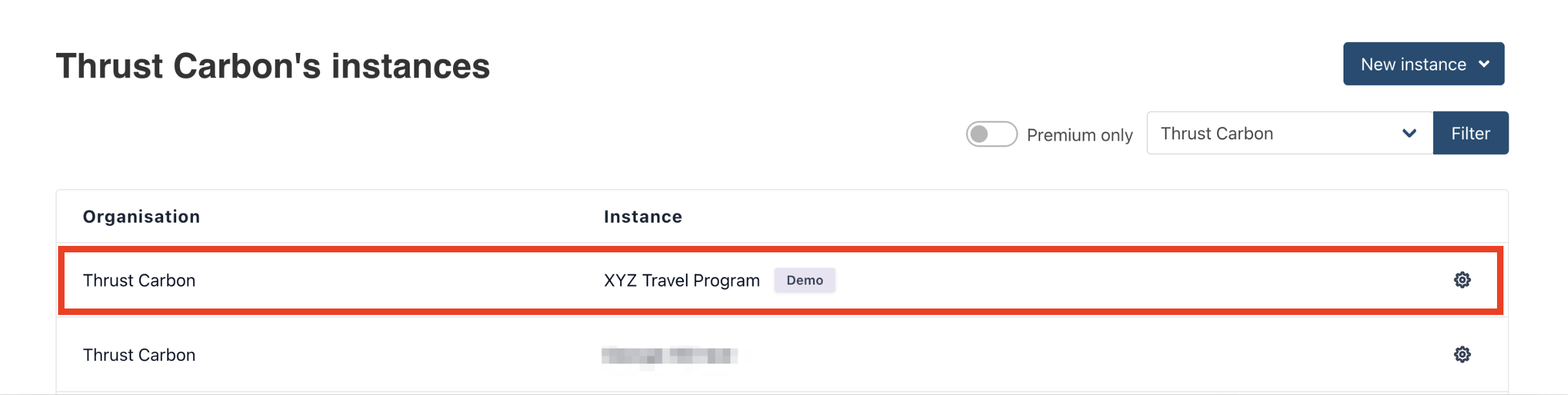
To view your demo instance click anywhere on the row that states the instance you want to view.
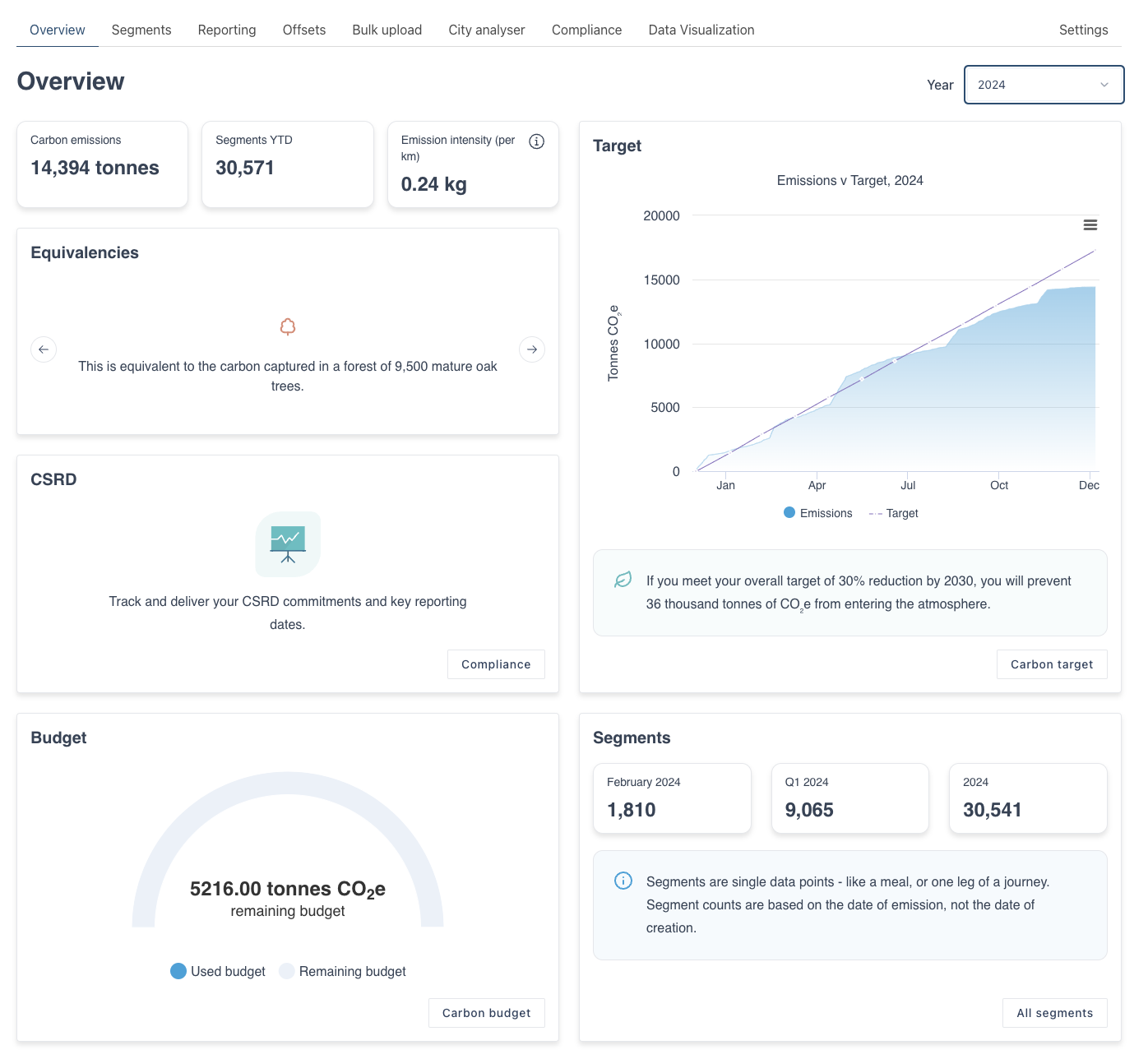
This will bring you to the overview page of your instance where you can view your current annual carbon emissions, the equivalencies, carbon targets, carbon budgets and the city analyzer to name a few.
2. Uploaded data
Travel data has been pre-uploaded into the demo instance via bulk upload and includes the following travel segments; air, hotel, car, rail and ferry.
There are 3 methods of getting data into the Thrust Calculator
Single Segment uploads. For more information see “Create a single segment”
Bulk Uploads. For more information see “Bulk upload segments”
Data feed
For more information talk to your account manager and they can help determine if this is the best approach for your prospect.
3. Carbon Targets
One of the great features of a premium Thrust Calculator account is the ability to set target reductions for your travel data. This is a useful way to support your organisation in bringing visibility and control to carbon emissions resulting from your business travel program.
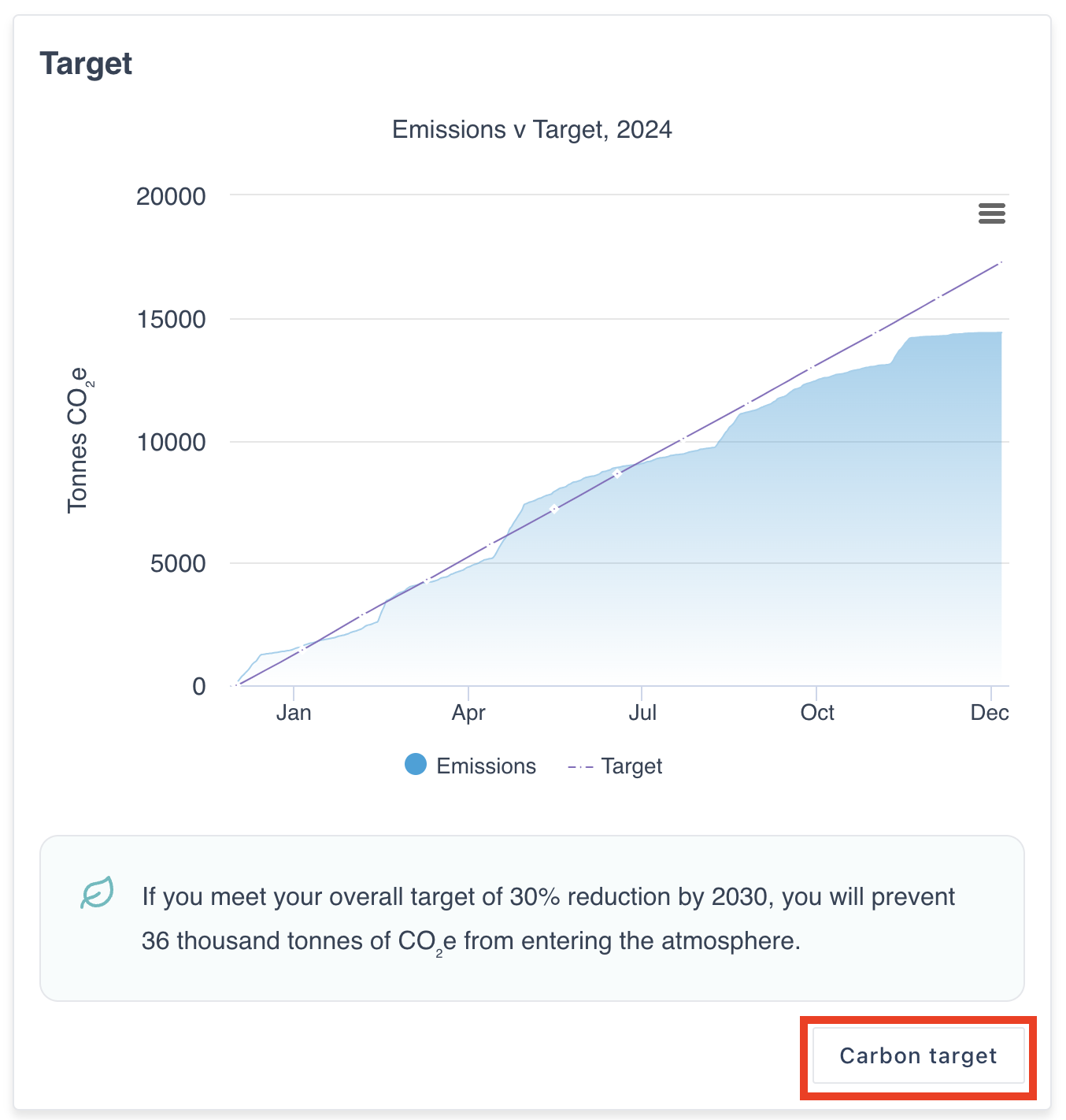
The demo instance has been set up with a target to achieve a 30% reduction in emissions by 2030 (baseline 2019).
The target widget on the overview page shows the target in action, displaying a graph with the current emissions to date and the target line for the year. To view the details of the carbon target click on the “Carbon target” button.
For more information on how to set-up and edit a target see the user guide: Set a “baseline”
4. Carbon Budgets
Carbon Budgets are a useful tool to support your organisation with bringing visibility to carbon emissions and reduction targets from your business travel. Similar to a financial budget, carbon budgets provide a limit to the amount of carbon that a department can “spend” on business travel each year.
For more information on editing and creating carbon budgets for your departments see the user guide: Set departmental carbon budgets
5. Reporting
Impact Reports
The Thrust Calculator allows white-label impact reports to be downloaded to explore your business’s carbon footprint from travel in detail.
The following types of reports can be generated:
Overview: summary of your total impact between set dates, overview graphs, emissions over time and carbon target.
Full: includes overview summaries, analysis, impact of flight, car and train journeys and hotel stays, Thrust Calculator methodology and appendices.
Full without appendix: includes all of the full report without the appendix.
Analysis: overview report with analysis and methodology included.
Grouping Impact: includes grouping summary analysis of the groupings of the instance.
To learn how to generate these reports see: How to export PDF reports
CSV exports
The Thrust Calculator also allows you to download the raw data as a CSV. To learn how to export the data see: Exporting emissions data
6. City Analyser
For more information see the user guide: Using the City Analyser
7. Trial vs Premium
The demo instance enables all the features of a premium instance. To better understand the differences between a trial and premium instances see the FAQ: Trial vs Premium instances.
Was this article helpful?
That’s Great!
Thank you for your feedback
Sorry! We couldn't be helpful
Thank you for your feedback
Feedback sent
We appreciate your effort and will try to fix the article