Overview
Thrust Events allows you to add 4 different types of users to your organisations, instances and meetings/events. This allows access restriction of different parts of Thrust Events.
If you want to know the basics of adding a new user, go to the guide here.
Summary of user privileges by user type
The abilities of the different types of users for Thrust Events are listed below.
User Type | Can create and edit sub-organisations* | Can create and edit Instances | Can create and edit Meetings / Events** | Can create and edit Segments |
Org Admin |
|
|
|
|
Instance Admin |
|
|
| |
Grouping Admin |
|
| ||
Project** Analyst |
|










*You need to be a user in a Partner Organisation to be able to do this
** “Meeting / Event” in this context refers to a specific Event or Meeting (for example, if you have a North America Leadership Summit and a Europe Leadership Summit, then you would have different meetings / events for each Summit).
Setting up Project Analysts
Users are all created in an “Organisation”. If we are creating a user that we want to access the “Demo Events UK” instance for example this user will have permissions for its parent organisation and any other instances underneath that. So anyone with user permissions higher than Project Analyst will be able to access anything in “Demo Events UK” or below.
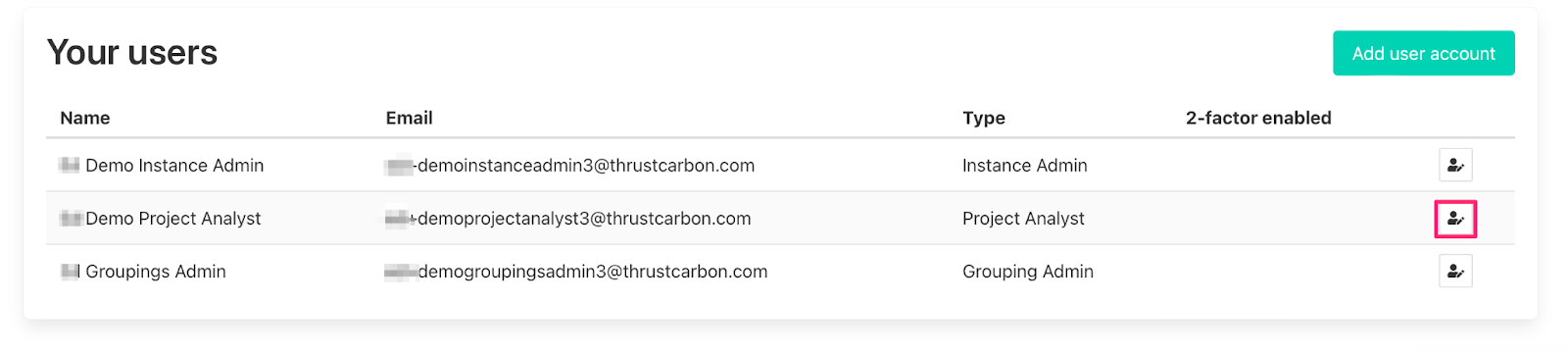
To limit the permissions of a project analyst to only create/edit segments in specific projects, you need to click on the button “Edit User Permissions”.
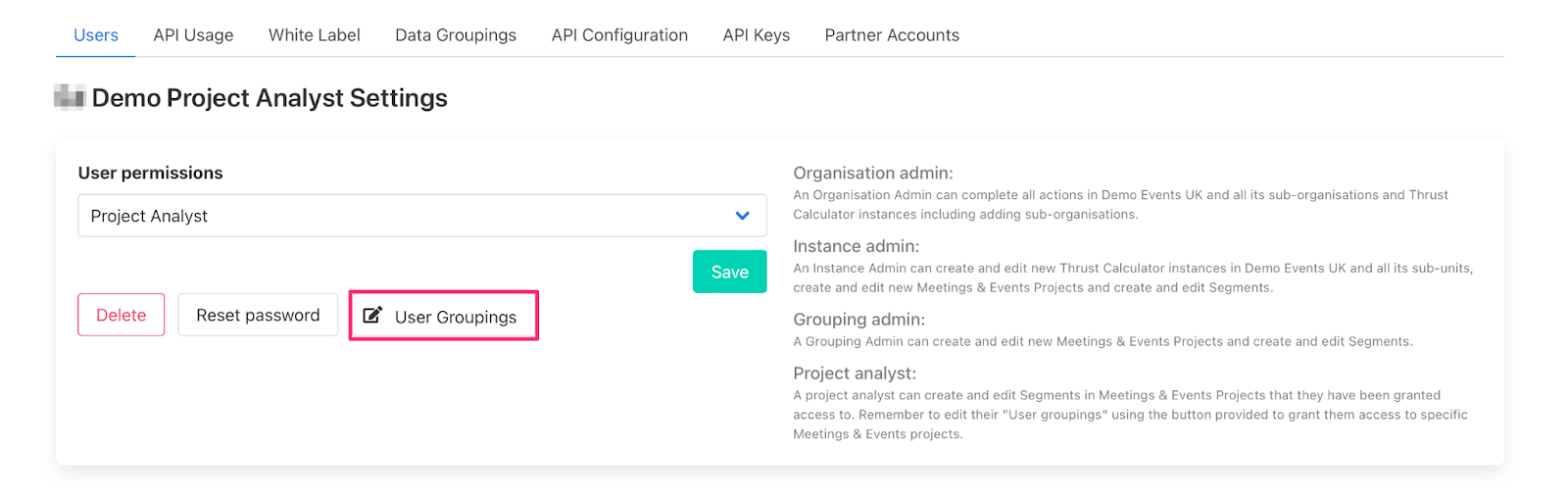
Looking at the screenshot below you can see that you can choose the permission of the user. In this case we are happy to keep the user permission as “Project Analyst” but we want to change which projects the user has access to - press the button “User Groupings”.
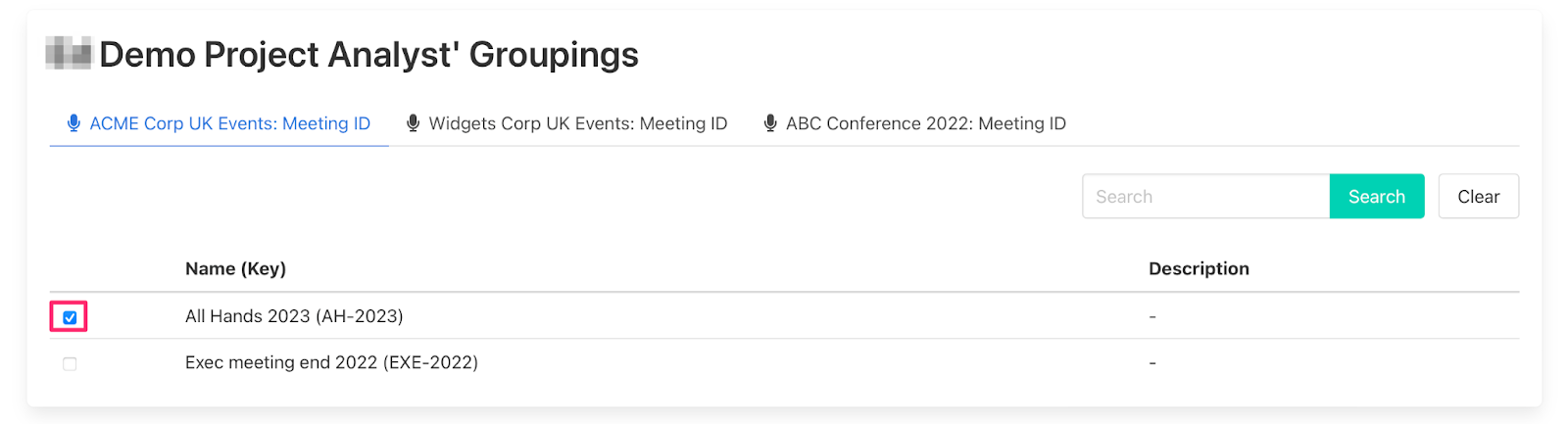
On clicking “User groupings” the below page will appear. Here you can tick which projects you want the user to have access to. The screenshot below shows that this Project Analyst has access to “All Hands 2023” in the ACME Corp UK Events instance under “Demo Events UK” but does not have access to the project “Exec meeting end 2022”.
Was this article helpful?
That’s Great!
Thank you for your feedback
Sorry! We couldn't be helpful
Thank you for your feedback
Feedback sent
We appreciate your effort and will try to fix the article