Overview
Once you have set up a meeting/event you are now ready to start adding data. Thrust Events facilitates the process of both bulk uploads and single segment uploads to your meeting/event.
Adding segments to your meeting/event
Every type of user has the ability to add segments to the meetings/events they have access to. To start adding segments to your meeting/event click on the “+” button to view the segments page.
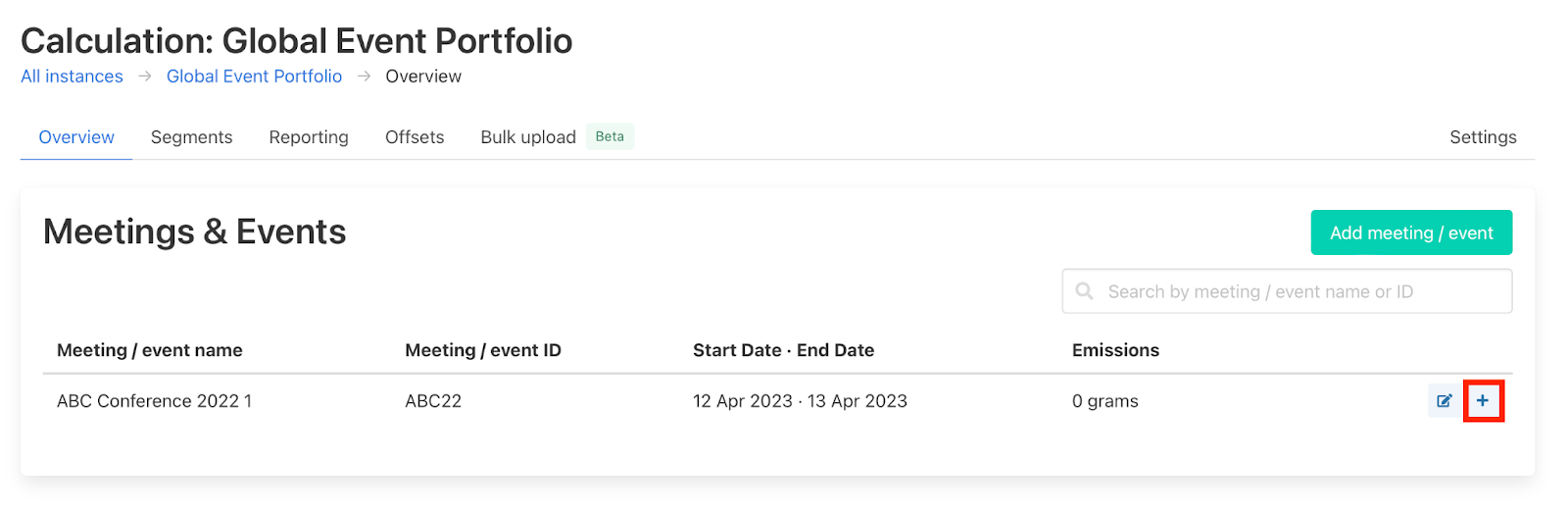
There are two ways to add segments to a project: Single Segments and Segment files (also known as bulk uploads). The process of adding each type of segment will be explained below.
Single Segments
The Thrust Events specific segments (meeting room, catering, digital meeting) can be uploaded via the “Single Segment” button.
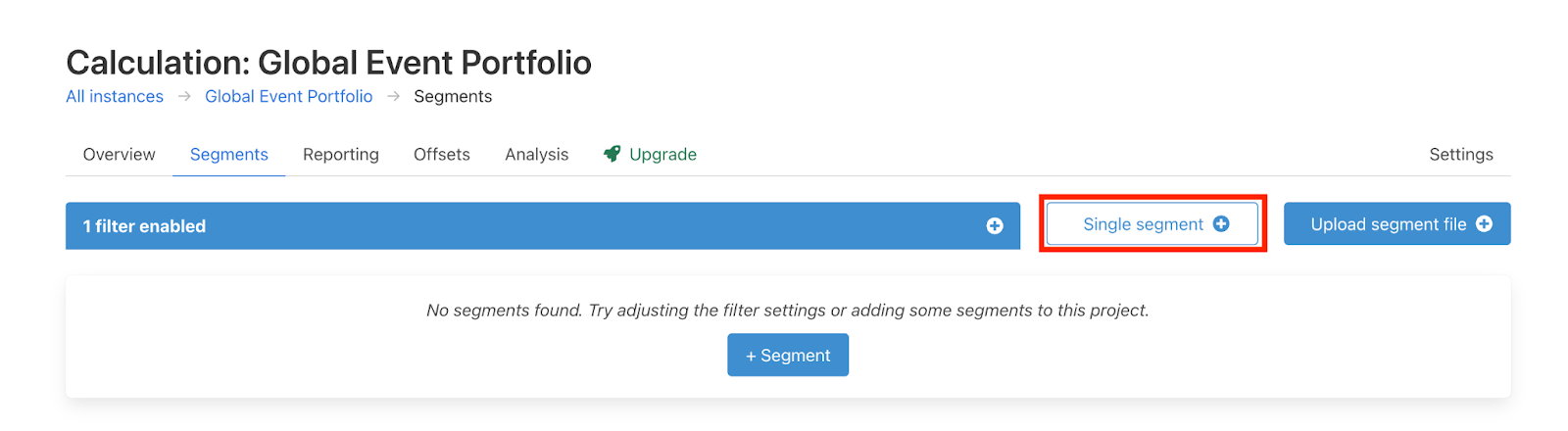
To add a single segment click on “single segment” and the below pop-out will appear. We will add a “Meeting Room” segment, which can be chosen from the dropdown “Segment type”.
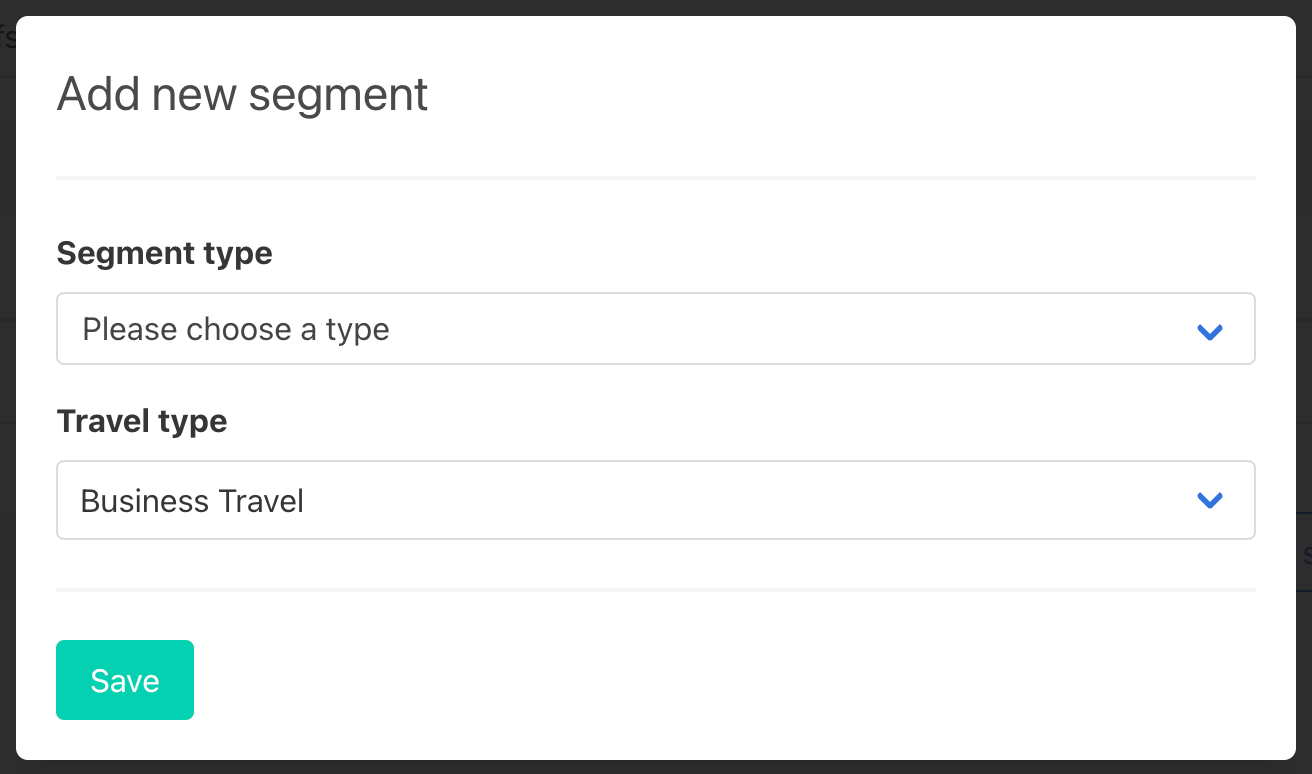
A note on "Travel type"
The "Travel type" is most useful when identifying event staff / attendee travel of those not employed by your organisation on the one hand, vs "Business travel" on the other. This is important both for identifying how to save emissions in future, and for distinguishing between scope 3 category 6 emissions vs scope 3 category 9 emissions in GHG protocol reporting.
In this case, we will select “Business Travel”, which applies to the whole event.
Adding a "Meeting Room" segment
The “Meeting Room” segment can be treated as a basic meeting/event segment as this segment includes both the venue space and food and beverage.
In all cases the meeting room segment should be used to include the details of the venue space, area of the room and the hours of operation.
If you have limited data on the catering of the event (e.g. only have the number of attendees and are thus assuming the number of food portions), you can just fill in the number of meal portions consumed in addition to if beverages were served. The calculator uses the emission factors for a standard meal in this segment.
However if you have more in-depth data on the catering of the event, such as type of meal consumed (breakfast, beef, fish, poultry, vegetarian), alcoholic beverages and snacks, we advise you to not fill in the catering questions in the “Meeting Room” but to add an addition segment type “Catering - food and beverage”.
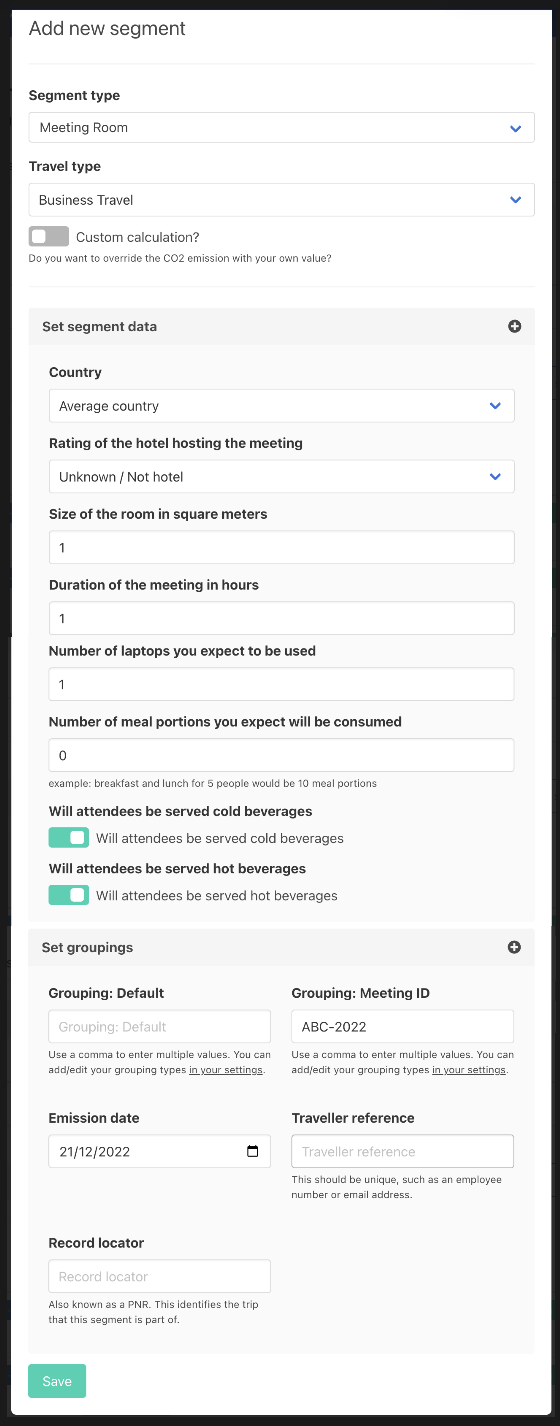
The meeting ID will automatically be pre-populated with the ID of the project you are working within. Be sure to also change the "Emission date" field to the date of the event. Once you have filled in all the data you know, click save and the segment will be added to the segment page within your project. To edit or delete the segment click the edit or delete button - see below.

Bulk Uploads
Bulk uploads, also known as “Segment Files”, are multiple segments contained in a CSV or XLSX file. The type of segments which can be “bulk uploaded” are travel segments: air, rail, car, taxi, ferry, hotel, bus and generic travel.
For the full guide on bulk uploading data see the guide: Bulk Upload Segments.
To make bulk uploads of attendee travel more seamless, please see our recommendations for what data points to collect and our view of their data quality standard below:
- Gold standard: their mode of transport and the IATA code of the airport they flew from or distance travelled by other mode of transport.
- Good standard: their mode of transport and the Airport name of the airport they flew from which will need to be converted to an IATA code.
- Acceptable standard: their mode of transport and the name of the location they travelled from, please specify this location to be country or city level so that it is in a consistent format, as this will need to be matched to a IATA code.
- Minimum standard: if the above data is not available then Thrust Events can apply a generic traveller factor, you just need just need to the number of attendees and their origin country of travel if available.
Please see a spreadsheet template for the formatting of staff and attendee travel and meeting room data for bulk uploads here.
When uploading to your meeting/event instance please ensure you include an additional column with the “Meeting ID” value within the spreadsheet you are uploading. This will tell the calculator that these segments are associated with the meeting/event you are working in. If you don't populate a "Meeting ID" column, your segments will effectively be "orphaned", meaning that they won't be allocated to any meeting or event.
E.g. For this meeting/event, “ABC Conference 2022”, when uploading a bulk upload for air segments each row within the spreadsheet will be populated with “ABC-2022” in the new column for “Meeting ID”.
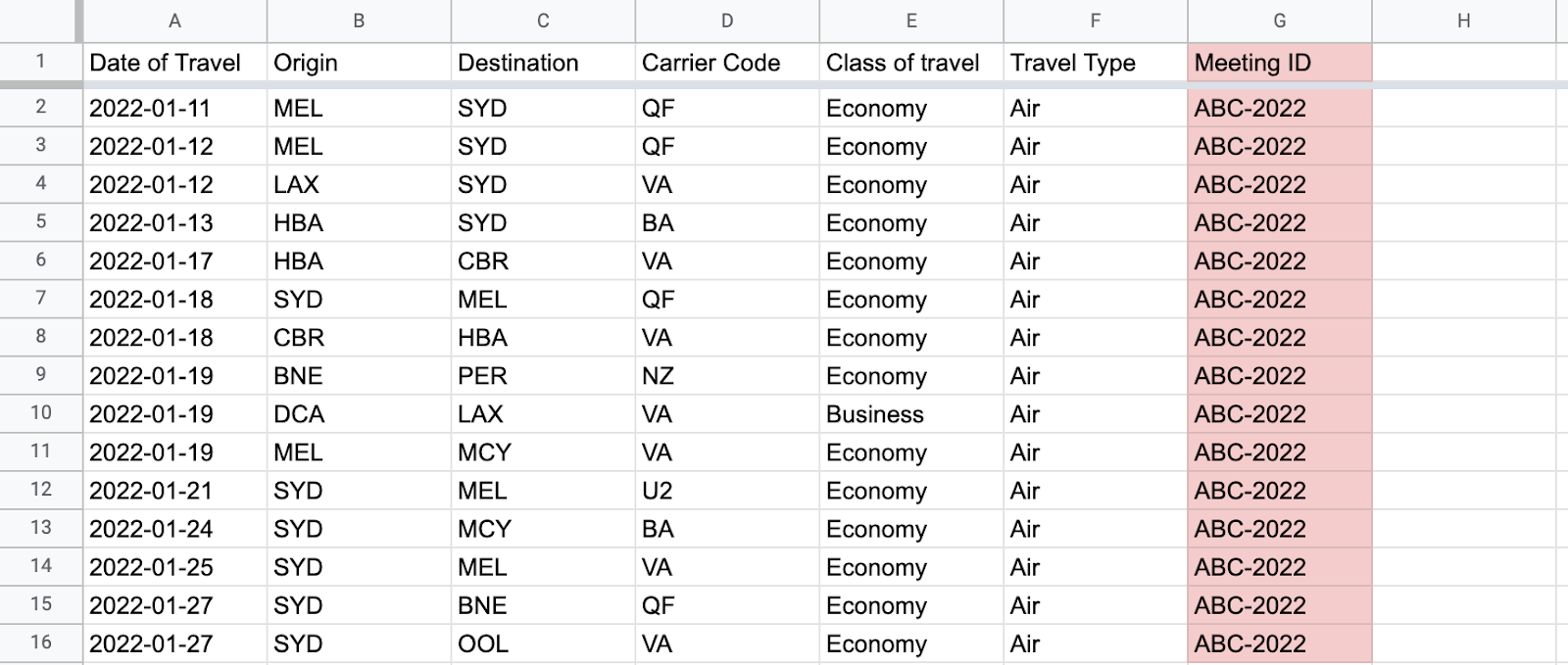
If you have travel data for multiple events, this Meeting ID can be populated with the meeting IDs from different events.
Was this article helpful?
That’s Great!
Thank you for your feedback
Sorry! We couldn't be helpful
Thank you for your feedback
Feedback sent
We appreciate your effort and will try to fix the article