Overview
Once you have set up an Instance, you can create a “meeting / event”. For example, if you have a North America Leadership Summit and a Europe Leadership Summit, then you would have a different “meeting / event” for each Summit.
1. Setting up a “Meeting & Event”
Click into your newly created Instance, and the below page will be visible. Users who can create a “meeting / event” are: Org Admins, Instance Admins and Grouping Admins.
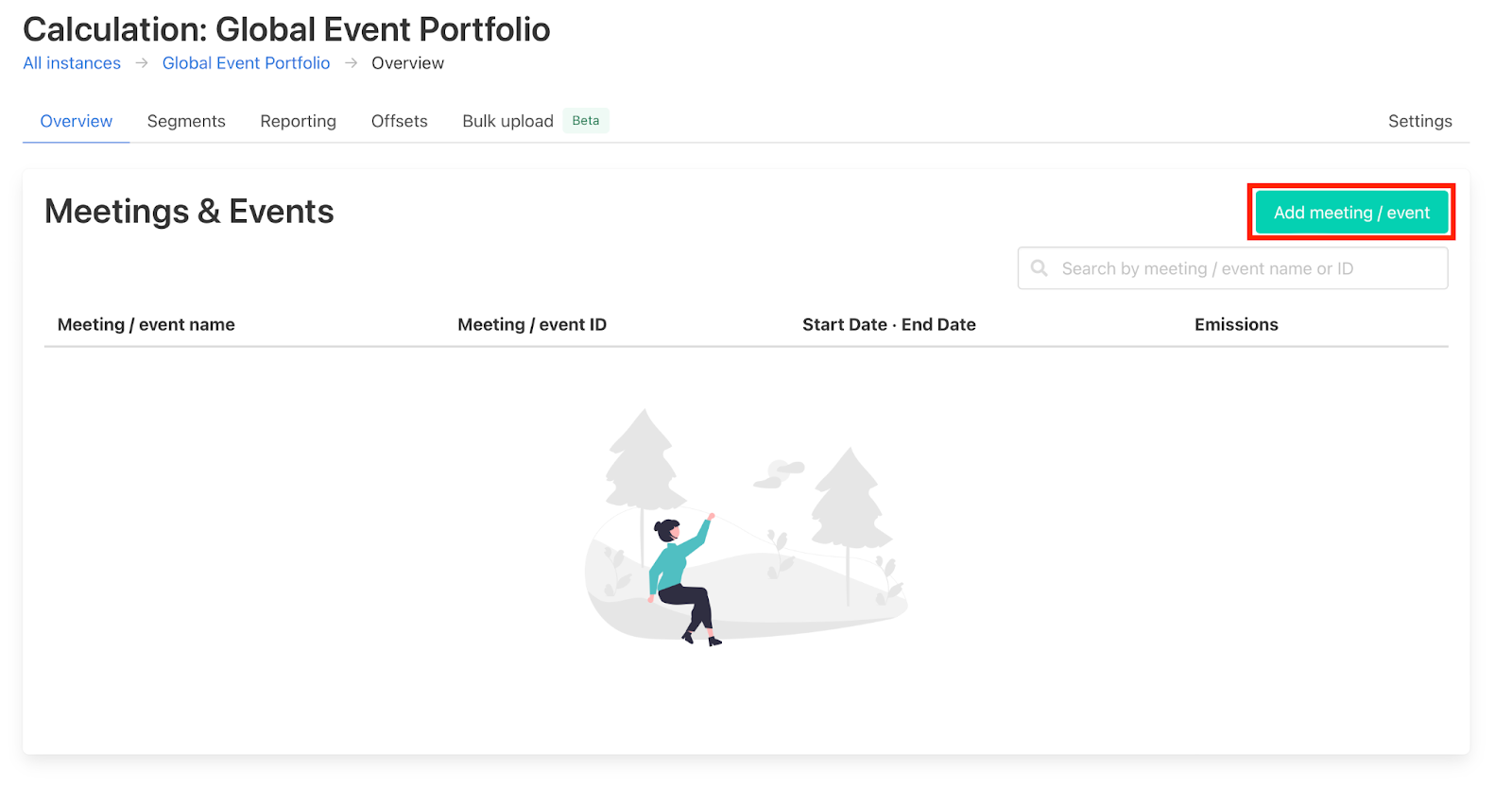
To create a new meeting/event within the instance click on the “Add meeting / event” button and the below pop-out will appear. The Project ID is an important grouping which will be pre-populated in every “single segment” added to the meeting/event. We advise choosing a simple ID to prevent user error from typos. If, at the stage of adding the meeting/event, you are not sure about the total number of attendees, staff or virtual attendees of the meeting/event, this is ok. These values can be added or edited at a later stage. If the meeting/event you are creating sits under a parent project, be sure to include this in the input.
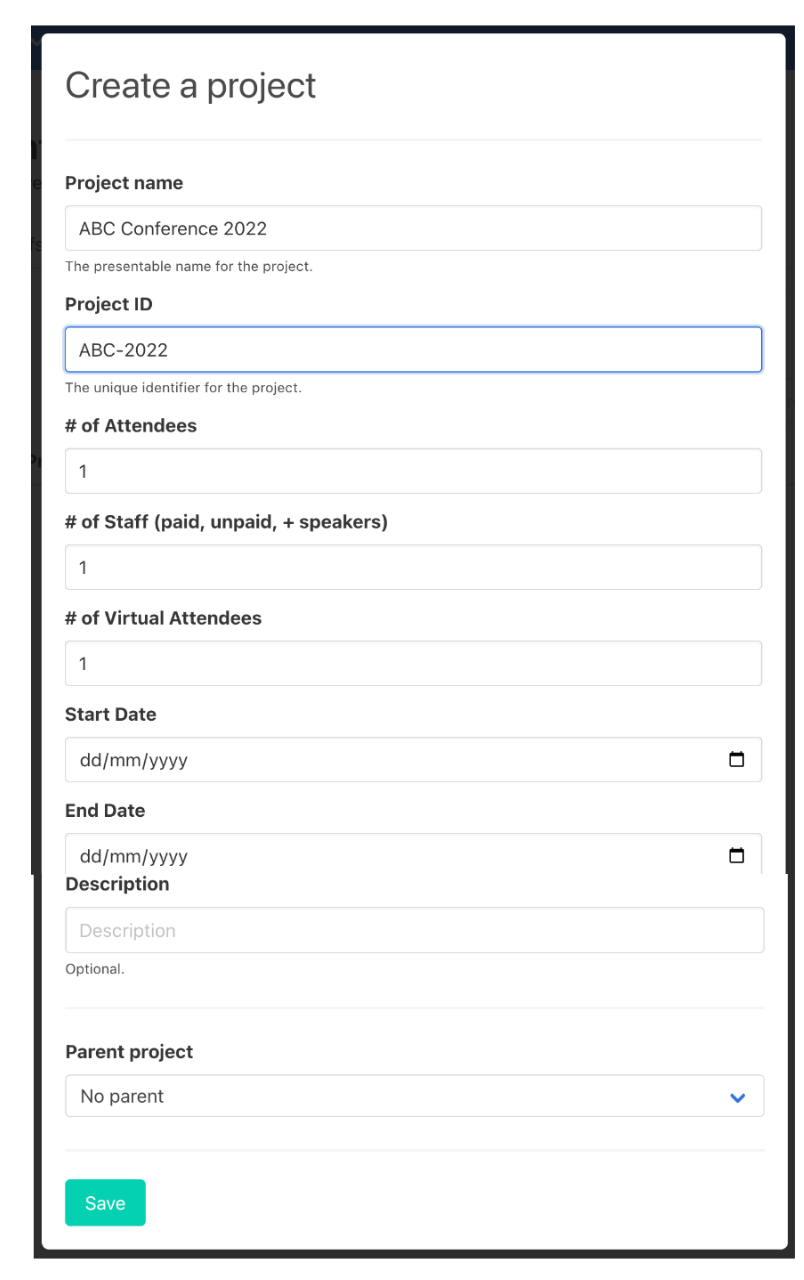
Once you are happy with all the details you have added to your meeting/event click “Save” and your project will appear in the Projects page.
2. Editing a “Meeting & Event”
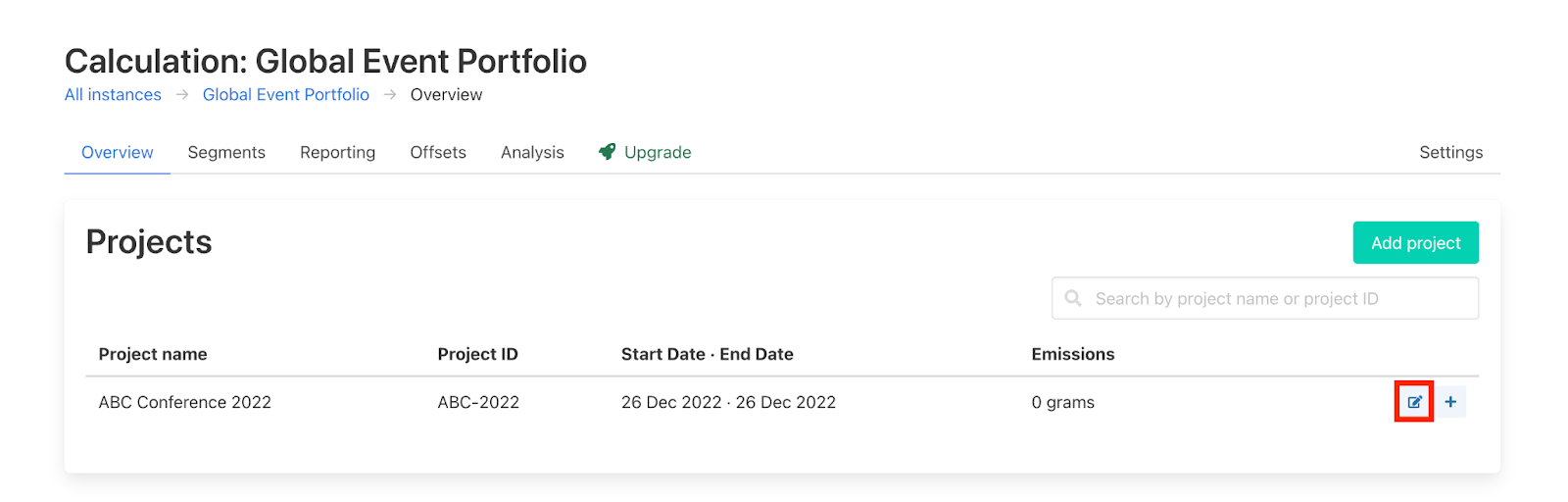
To edit the project details once you have created it, click on the “Edit details button”. See below. This will re-open the meeting/event details.
3. Deleting a “Meeting & Event”
Note that deleting a meeting/event is irreversible. If you do however need to delete an instance click on the “delete” button as shown below. You need to type the word “confirm” into the box before pressing the delete button. Now your meeting/event has been deleted and you will be redirected to the calculator page.
Was this article helpful?
That’s Great!
Thank you for your feedback
Sorry! We couldn't be helpful
Thank you for your feedback
Feedback sent
We appreciate your effort and will try to fix the article