Thrust Carbon Guide: SAP Concur Activation
Last revised: April 2023
Applies to: Thrust Calculator (Enterprise clients that use SAP Concur Travel and/or Expense and TMC Partners with clients that use SAP Concur Travel and/or Expense)
Introduction
We are thrilled you have decided to connect SAP Concur to Thrust Carbon, the world’s leading carbon intelligence platform for Travel & Expense.
Activation of Thrust Carbon takes seconds, however to enjoy the best Thrust Carbon has to offer (including support for ‘custom fields’ and importing of historical data), we recommend following the full onboarding guide.
Benefits
By integrating Thrust Carbon and SAP Concur you can:
- Show complete defensibility with market-leading carbon methodologies
- Improve efficiency by using direct data feeds
- Analyse every travel emission, not just those booked via a TMC
What types of connections are there with SAP Concur?
Thrust Carbon leverages two of SAP Concur’s APIs:-
- Expenses V4
- Itinerary
Expenses V4
Via this API we are able to consume expense submissions including but not limited to taxi, ride share, car mileage, coach, rail, air, hotel, car hire etc. Data via this feed is spend data but gives us enough information to form a basic calculation of carbon emissions from that travel element. We are continually looking at ways of improving this way of capturing data including how to configure the Concur Expense type to capture additional data fields.
Itinerary
Via this API we are able to consume itinerary data from Concur Travel bookings, offline bookings reported into Concur Travel via PNR acquisition and Triplink / Tripit itineraries.
Note: fare data found in itinerary records will only be extracted if there is only one travel segment/leg involved in the booking. This is due to the complications around consolidating the fare amount and currency of multiple segments/legs.
Prerequisites for connecting SAP Concur to Thrust Carbon
- There must be a relationship between the customer and SAP Concur (indirect or direct), and the customer and Thrust Carbon
- The App Centre must be enabled for the SAP Concur entity (if the App Centre is hidden, it is still possible to connect but will require SAP Concur support to temporarily activate the App Centre.
- The individual initiating the connection must have the Web Services Administrator permission in SAP Concur
Activation Tasks - High Level
| Thrust Carbon or TMC |
| Customer |
| Customer |
| Customer |
| Thrust Carbon |
| Thrust Carbon |
| Thrust Carbon |
| Customer / TMC / Thrust Carbon |
Activation Deep-dive
1. Setup a new instance in Thrust Calculator to capture/store data
See this article on setting up a new instance
2. Provide Expense Type (codes and/or names)
Every Expensed item in Concur Expense is linked to an Expense Type name/code. Here are some example names:: Airfare, Rail, Taxi, Hotel, Bus, Car, Personal Car Mileage. Some example codes: AIRFR, RAILX, TAXIX, LODNG, CARRT, MILEG
These must be provided to Thrust Carbon as we do not take every Expense type by default.
3. Provide/Gather Travel Profile & Trip fields and/or Expense user custom fields
The ability to report by Grouping type is key to all Thrust Calculator users. Please provide all required fields to Thrust Carbon in the below format:-

4. Connect Concur App Center integrations
Due to the structure of SAP Concur, integrations for Concur Travel and Concur Expense must be connected individually, even though your data will connect to the same project in the Thrust Carbon system.
Connect Concur Travel
- Visit: https://www.concur.com/app-center/listings/61c100567af52e0015492c0f
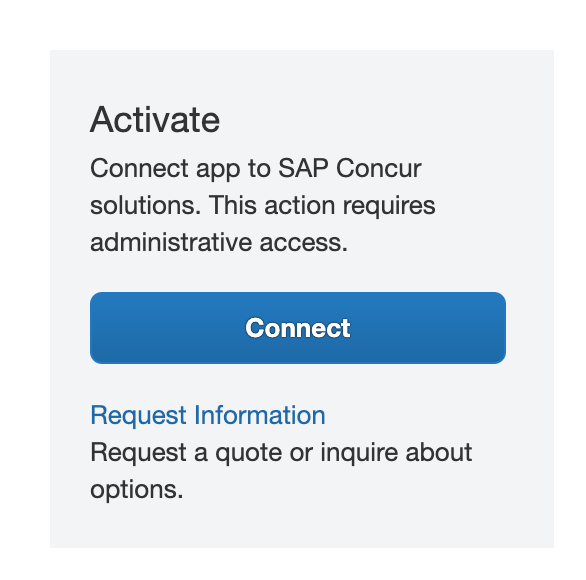
- Press the blue ‘Connect’ button on the right hand side:
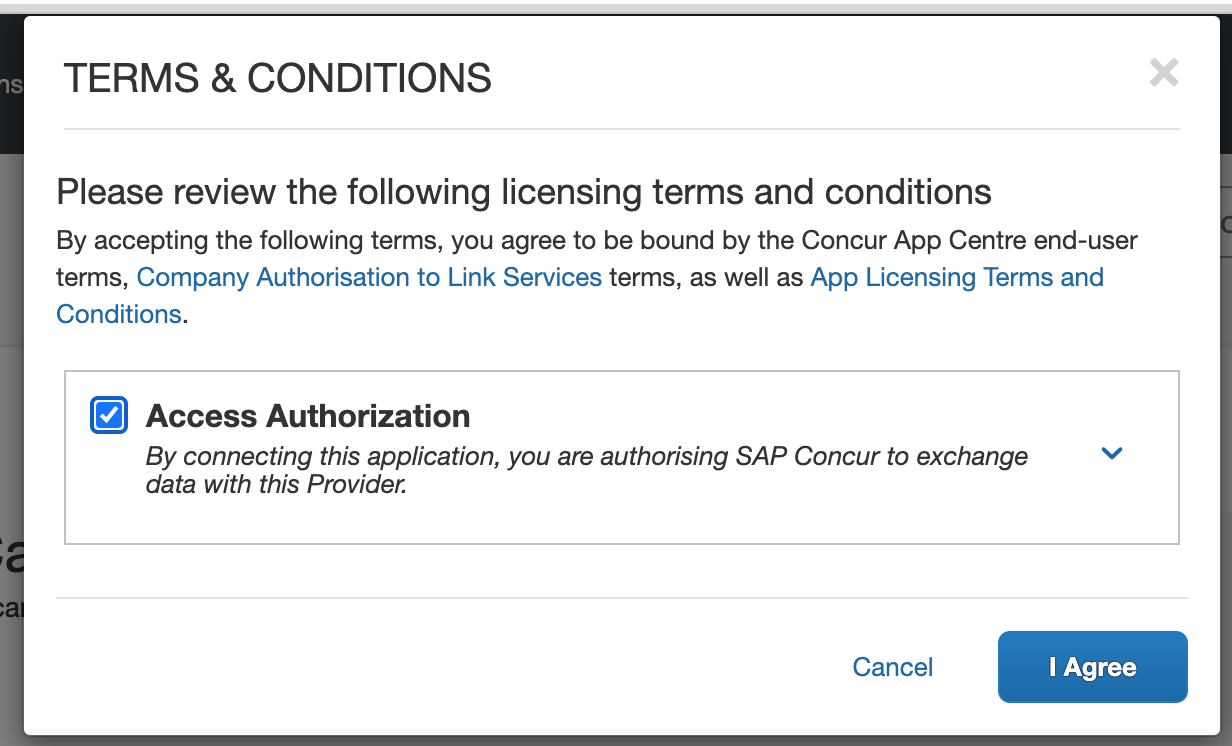
- Please read and accept the terms and conditions:
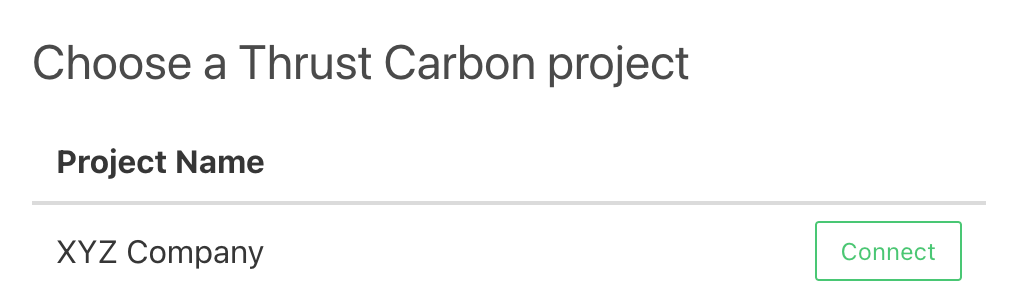
- Press the ‘Connect’ button beside the Thrust Calculator project you created in the last phase:
- You have now connected Concur Travel to Thrust Carbon. Your business’s travel bookings will immediately begin appearing in the Thrust Calculator the moment you make a new booking.
Connect Concur Expense
Note: if you are a Concur Expense & Concur Travel user, you must complete the Concur Travel & Concur Expense activation steps. The order you activate does not matter.
- Visit: https://www.concur.com/app-center/listings/61c0fee47864e00015cfeb8e
- Please follow the same steps for Concur Travel (above), to connect your account to Concur Expense.
- You have now connected Concur Expense to Thrust Carbon. Your business’s expenses will immediately begin appearing in the Thrust Calculator the moment they reach an ‘approved’ state.
5. Configure Expense Type mapping
Not all Expenses need to be shared with Thrust Calculator. Examples of this are:-
Non travel expenses such Professional Membership fees, Office Supplies, Conference fees.
There is also another scenario where we would not take the Expense data for travel segment types that are reliably booked via the programme.
For these reasons, we configure the Calculator to bring in only certain Expense types. This step can only be completed by a Thrust Carbon employee. Please contact charlotte@thrustcarbon.com for support with this step.
6. Configure ‘travel custom fields’ & ‘ Expense user fields’
This step can only be completed by a Thrust Carbon employee. Please contact charlotte@thrustcarbon.com for support with this step.
7. Set project as ‘live’
- Once your desired configuration is functioning, Thrust Carbon can set your project as ‘live’.
- Thrust Carbon will then remove all data before the ‘live’ date, since this will not contain your grouping or custom field setups.
This step can only be completed by a Thrust Carbon employee. Please contact charlotte@thrustcarbon.com for support with this step.
6. Load historical data before ‘live’ date
Note: a limitation of SAP Concur is that it’s not possible to load historical data that occurred before you pressed the ‘Connect’ button in the SAP Concur App Center. Therefore to calculate your prior emissions you should import all historical data.
- You should contact your SAP Concur account manager who will be able to provide a spreadsheet export of your Concur Travel and Concur Expense data.
- Please then place this in a secured folder and share it with your Thrust Carbon Success Manager.
- Thrust Carbon will then place this data into your desired Thrust Calculator instance.
SAP Concur customers with Triplink / TripIt Pro
Triplink and TripIt Pro are essentially itinerary capture methods enabling a traveller to share their itinerary data with SAP Concur.
Customers using Triplink / TripIt Pro will be familiar with the scenario of personal bookings appearing in SAP Concur. This happens due to travellers not understanding the steps available to them to control which bookings are shared with SAP Concur.
Triplink
Triplink is an integration between a small number of suppliers and SAP Concur. Travellers link their SAP Concur account to their supplier account via their frequent flyer/traveller membership. When they are booking direct on the supplier website, they are asked if their booking is Personal or Corporate. If the booking is Corporate, they will be offered their company’s negotiated rates and their itinerary information will flow into SAP Concur.
How do you prevent personal bookings being shared with SAP Concur?
Simple - select Personal booking when submitting a search enquiry.
TripIt Pro
TripIt (an SAP Concur product) is highly rated trip planner which provides a traveller with deep insights into their trip (flight delays, gate changes, location information etc). There are two versions of TripIt - TripIt and TripIt Pro. TripIt Pro has an annual subscription cost and unlocks a deeper level of features. SAP Concur customers that have purchased Triplink receive TripIt Pro for all their users for free.
Once a traveller has connected their SAP Concur and TripIt accounts;
- If the traveller books on SAP Concur or offline via the TMC (PNR acquired by SAP Concur), their itinerary information is shared with TripIt
- If the traveller books direct with a supplier, they can email their booking to plans@tripit.com and SAP Concur will parse that itinerary into a travel record.
How do you prevent personal bookings being shared with SAP Concur?
Many travellers, knowing the benefits of TripIt, use it for their personal trips as well. There are settings within TripIt that give the traveller the choice of whether to share trip data with SAP Concur. Personal trips should not be shared with SAP Concur but it is commonly seen. Customers should speak to their SAP Concur contact about how to advise their travellers on this topic.
Was this article helpful?
That’s Great!
Thank you for your feedback
Sorry! We couldn't be helpful
Thank you for your feedback
Feedback sent
We appreciate your effort and will try to fix the article