Thrust Carbon Guide: How to connect to Thrust Carbon via SAP Concur App Centre
Last reviewed: May 2023
Applies to: Thrust Calculator (Enterprise clients with SAP Concur Travel and/or Expense)
Benefits of integration Thrust Carbon and SAP Concur
By integrating Thrust Carbon and SAP Concur you can:
Show complete defensibility with market-leading carbon methodologies
Improve efficiency by using direct data feeds
Analyse every travel emission, not just those booked via a TMC
What types of connections are there with SAP Concur?
Thrust Carbon leverages two of SAP Concur’s APIs:-
Expenses V4
Itinerary
Expenses V4
Via this API we are able to consume expense submissions including but not limited to taxi, ride share, car mileage, coach, rail, air, hotel, car hire etc.
Data via this feed is spend data but gives us enough information to form a basic calculation of carbon emissions from that travel element.
Itinerary
Via this API we are able to consume itinerary data from Concur Travel bookings, offline bookings reported into Concur Travel and Triplink itineraries.
Prerequisites for connecting SAP Concur to Thrust Carbon
- There must be a relationship between the customer and SAP Concur, and the customer and Thrust Carbon (direct or indirect)
- The App Centre must be enabled for the SAP Concur entity
- The individual initiating the connection must have the Web Services Administrator permission in SAP Concur.
- Groupings requirements and expense types MUST have been provided to Thrust Carbon. Note: Although the connection can be established without Thrust Carbon support. There are steps to complete the mapping of groupings and expense types that can only be carried out by Thrust Carbon.
How to connect
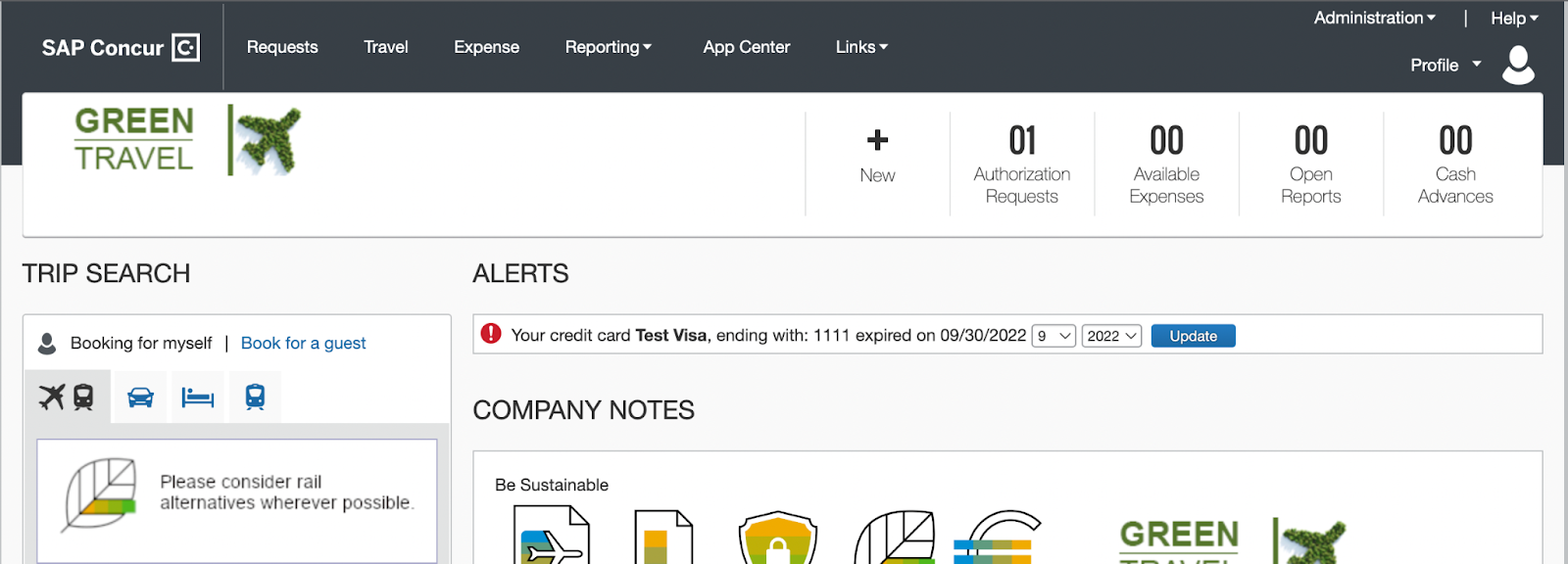
Step 1: Navigate to SAP Concur App Center. If you cannot see “App Center” in the top menu bar, then you do not have the App Center enabled. You should refer back to the SAP Concur relationship owner within your organisation.
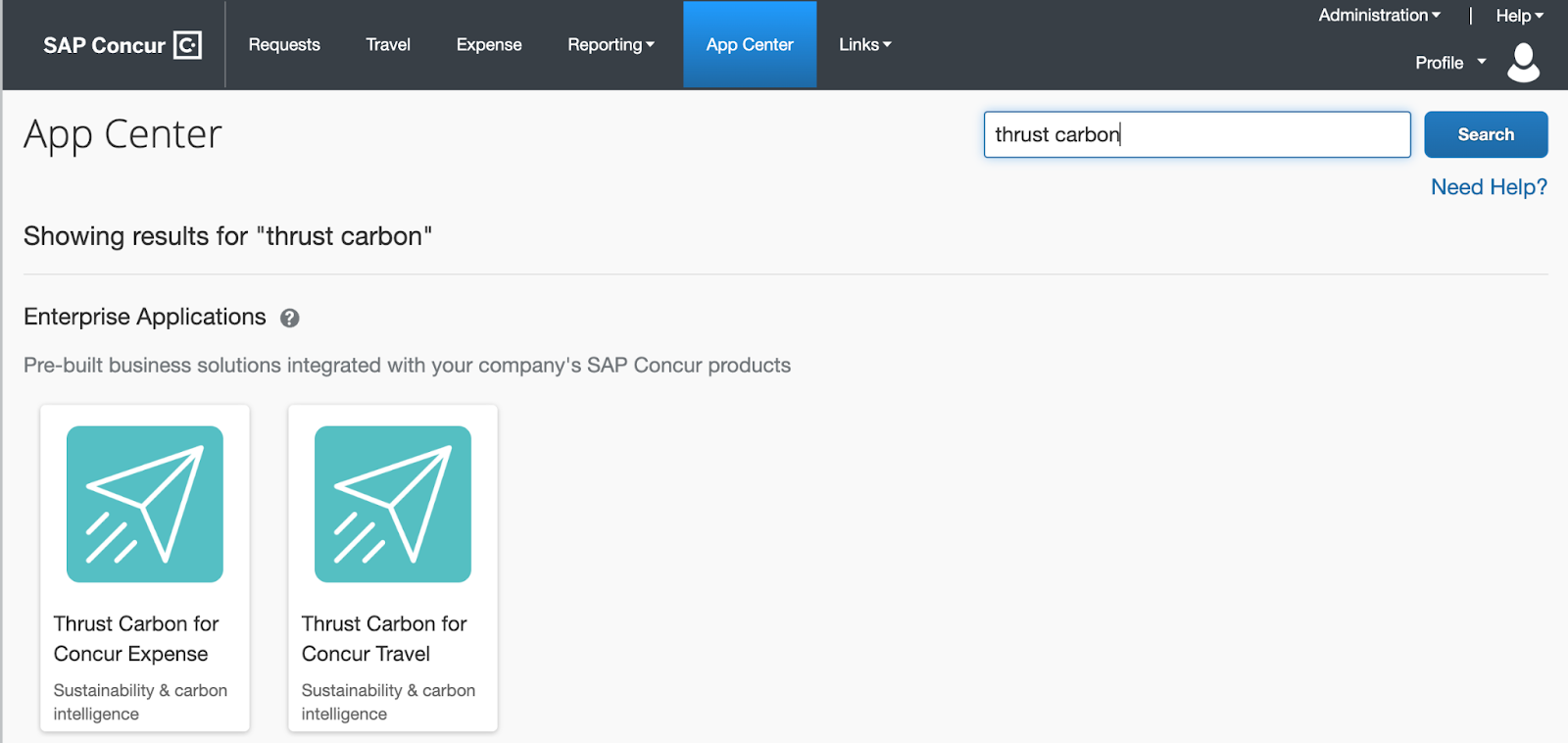
Step 2: Once in the SAP Concur App Center, navigate to the Thrust Carbon apps, and select the app/s you wish to connect to.
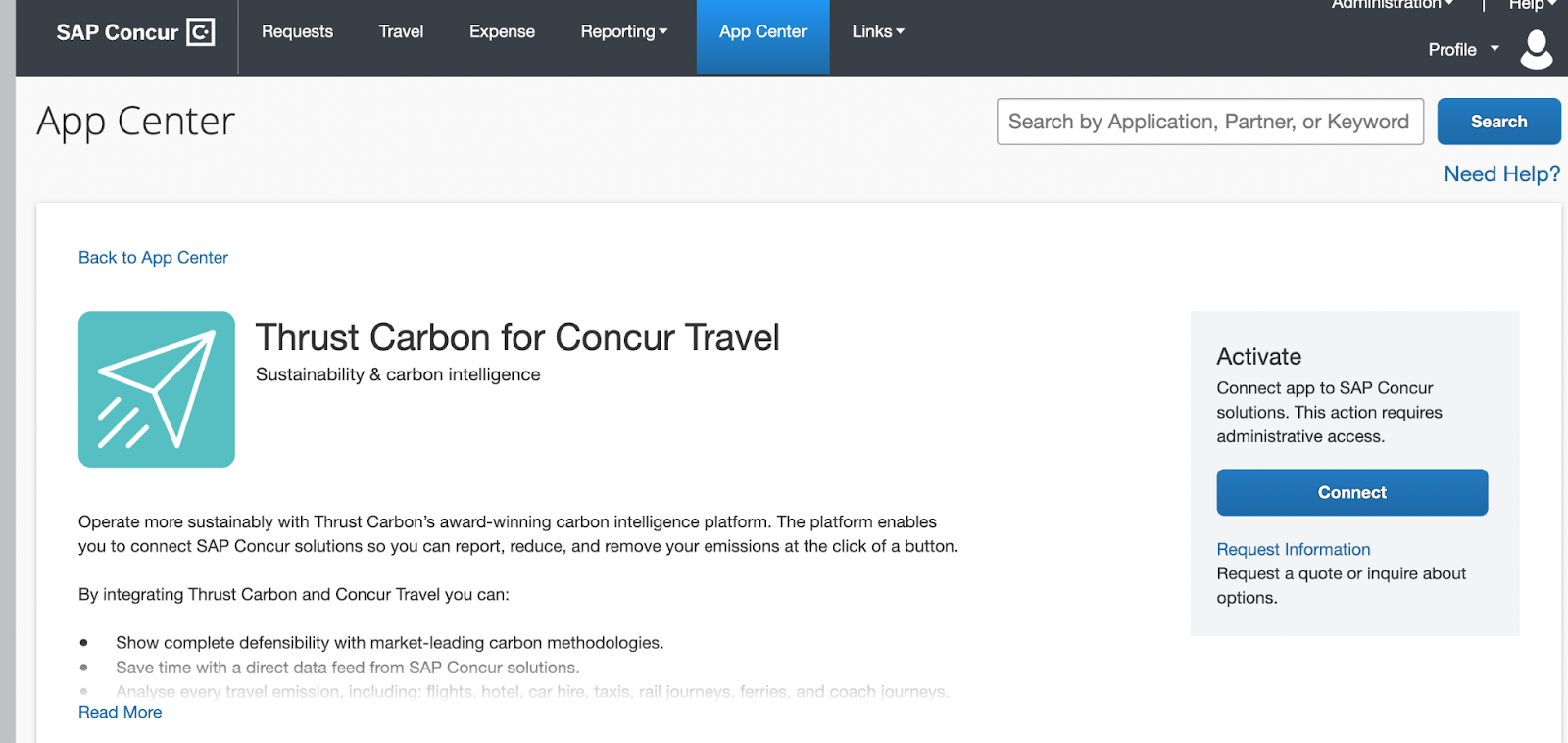
Step 3: Click “Connect”
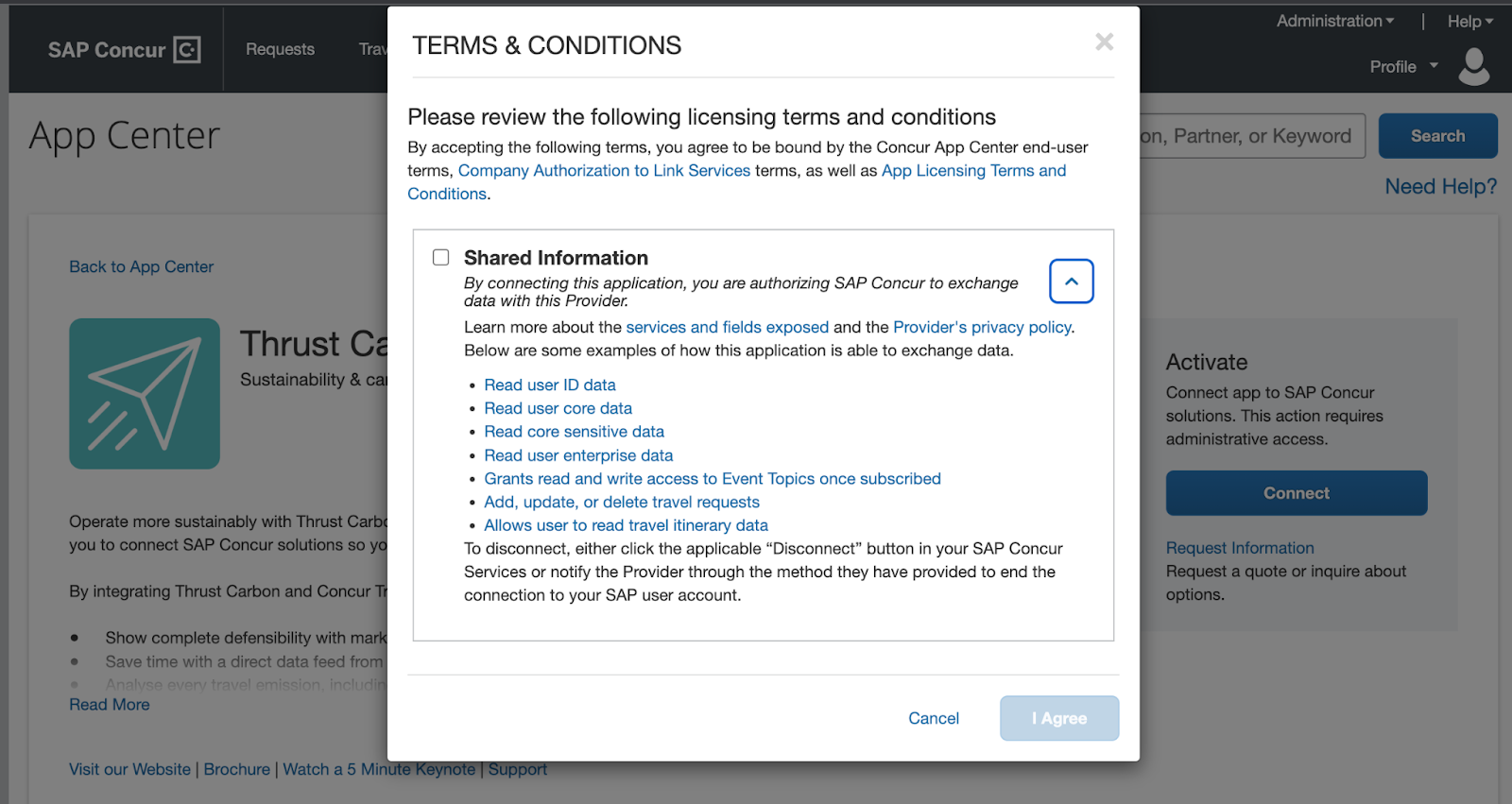
Step 4: Once you have reviewed the relevant documentation, Agree to Shared Information.
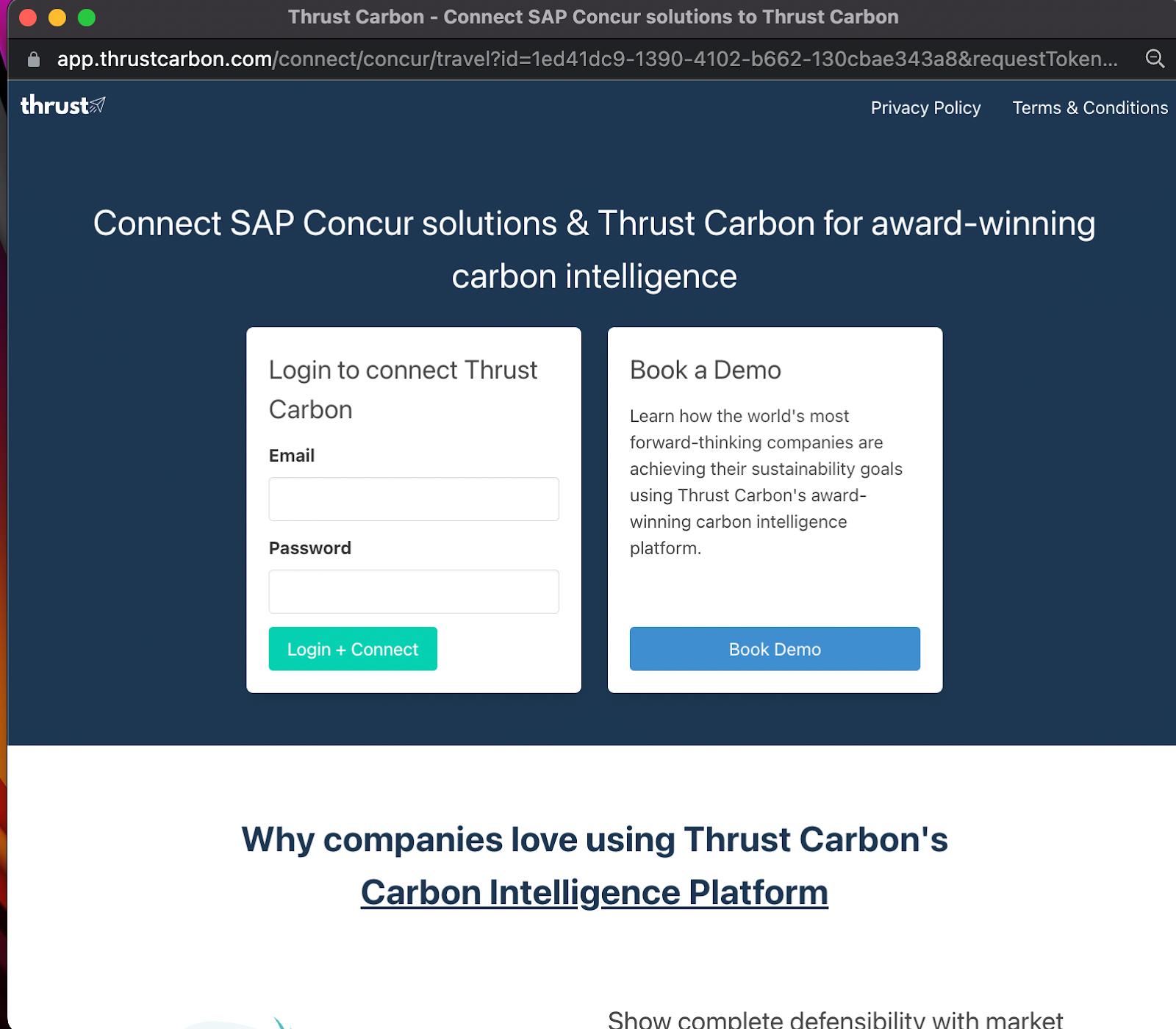
Step 5: Enter your Thrust Carbon email and password
Was this article helpful?
That’s Great!
Thank you for your feedback
Sorry! We couldn't be helpful
Thank you for your feedback
Feedback sent
We appreciate your effort and will try to fix the article