Overview
Once you have set up your organisation within the Thrust Calculator you are ready to create an instance. Instances within the Calculator help users to separate and organise projects within an organisation. For example, if you run an event agency, you might have a separate Instance for each of your customers.
1. Creating an instance
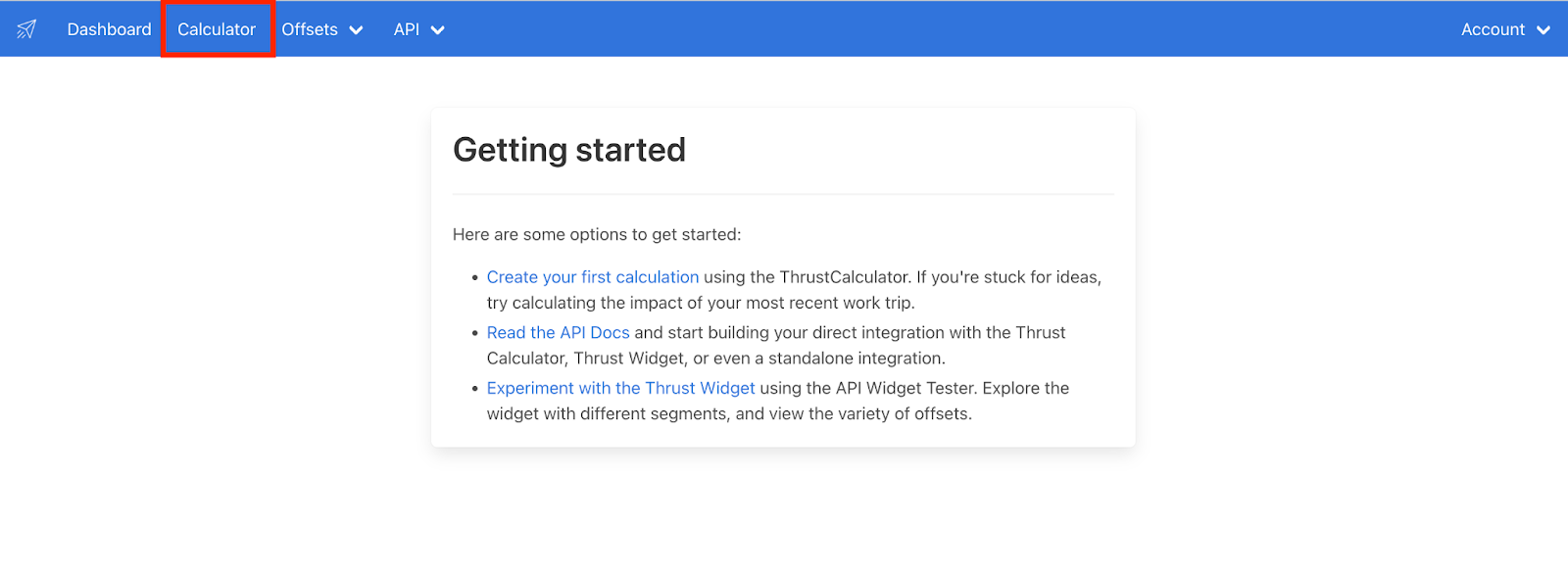
Once you are logged into the Thrust Calculator click on the “Calculator” button at the top of the page.
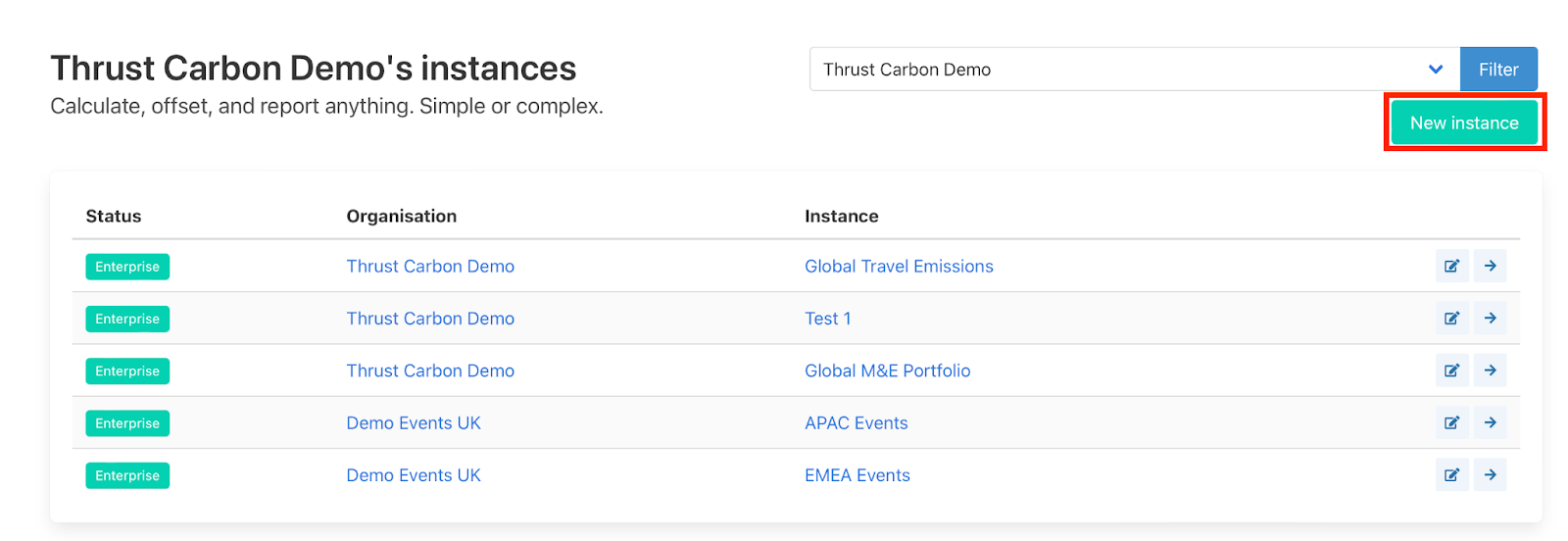
This will bring you to the below page which shows you a list of all the instances present in your calculator. To create a new instance click on the “New Instance” button.
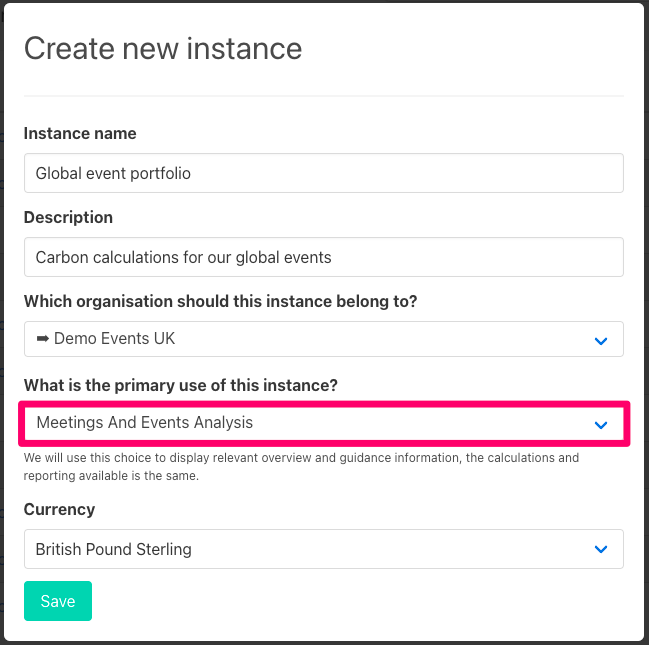
The following pop-out will appear. Fill in the fields in the pop-out. If you have multiple organisations you will need to define which organisation you want the instance to belong to. Ensure you select Meetings and Events Analysis for the primary use of the instance to enable access to all the Thrust Events features. The currency is the default currency that will be applied to all your uploads unless an alternative currency is stated in the segment.
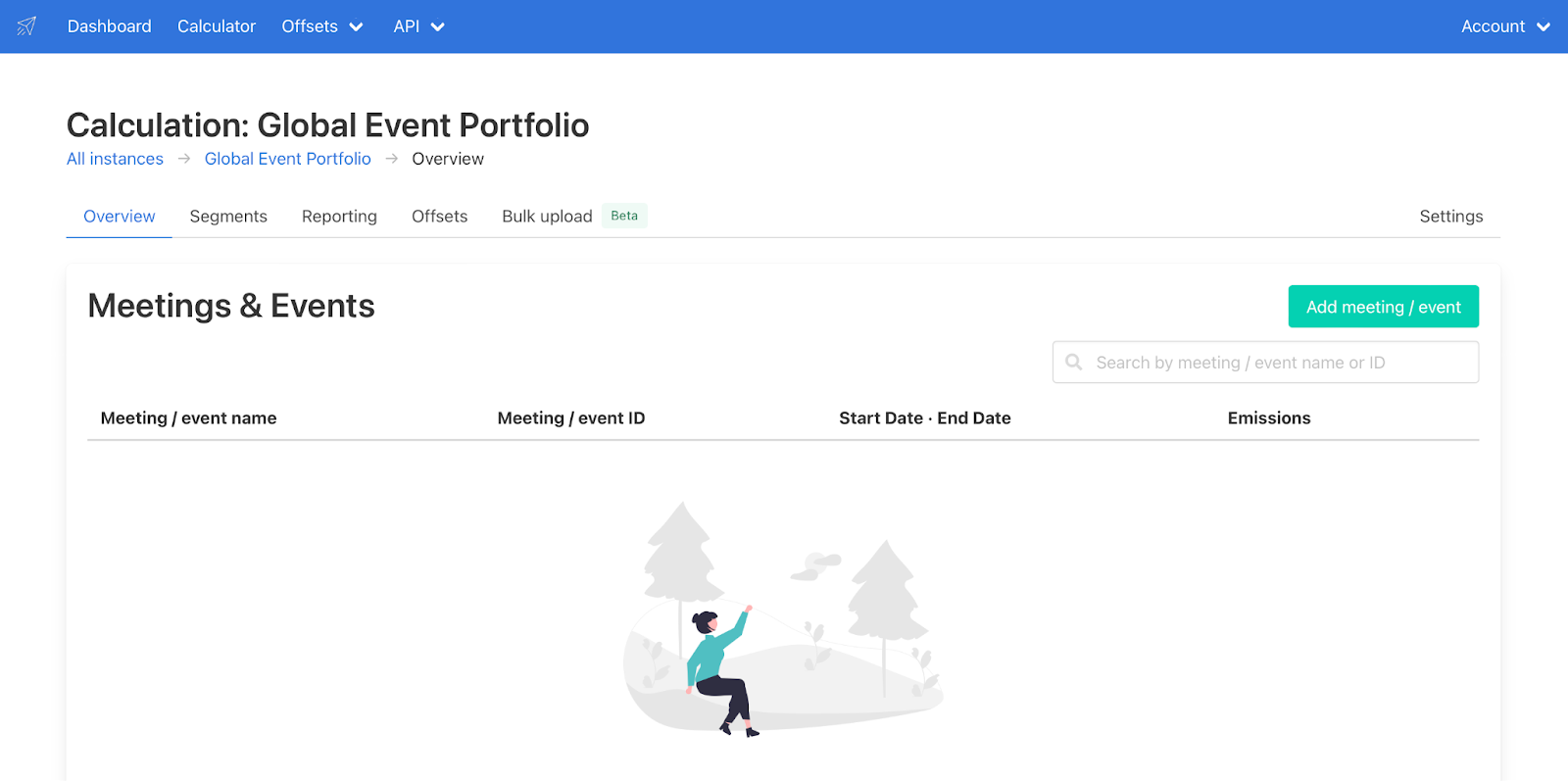
When you have completed populating the fields click on the save button and you will be directed into your new instance as shown below.
2. Editing an instance
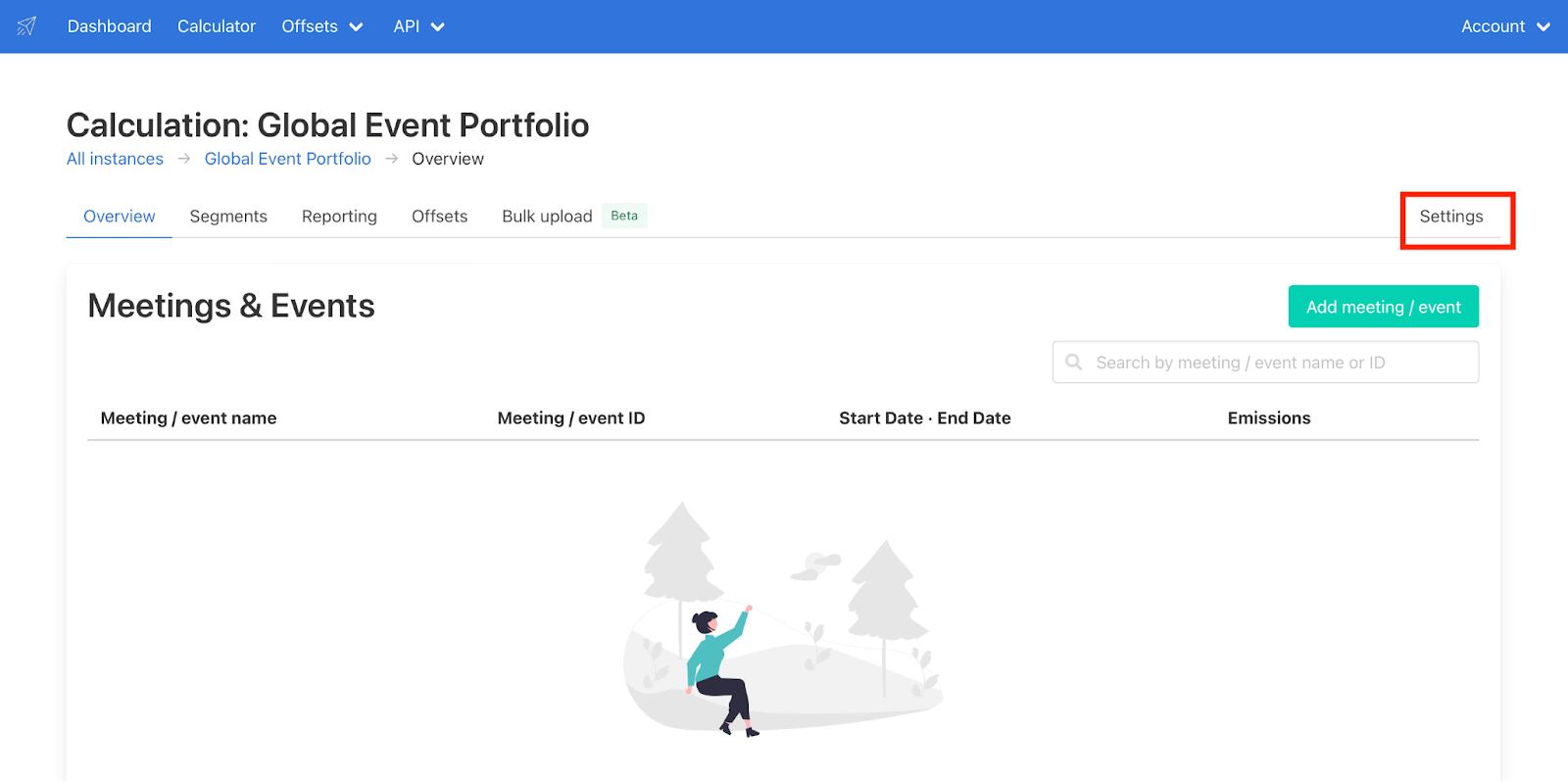
To edit the details of your instance navigate to the settings page by clicking on the “settings” button.
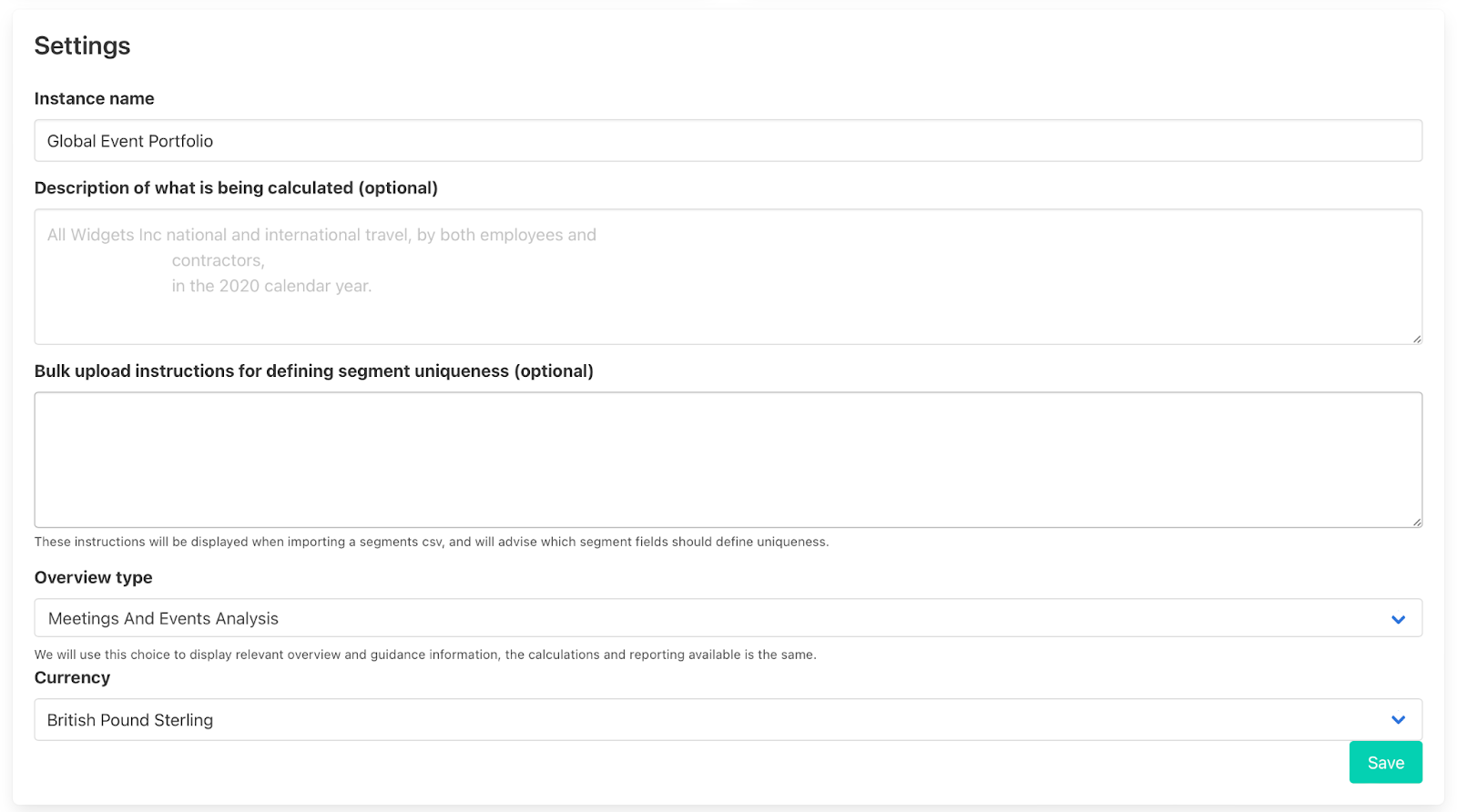
Here you will be able to change the name of the instance, default currency and instance type. In the setting you can also change the whitelabel settings too, allowing you to set up your emissions reports to match your desired branding.
3. Deleting an instance
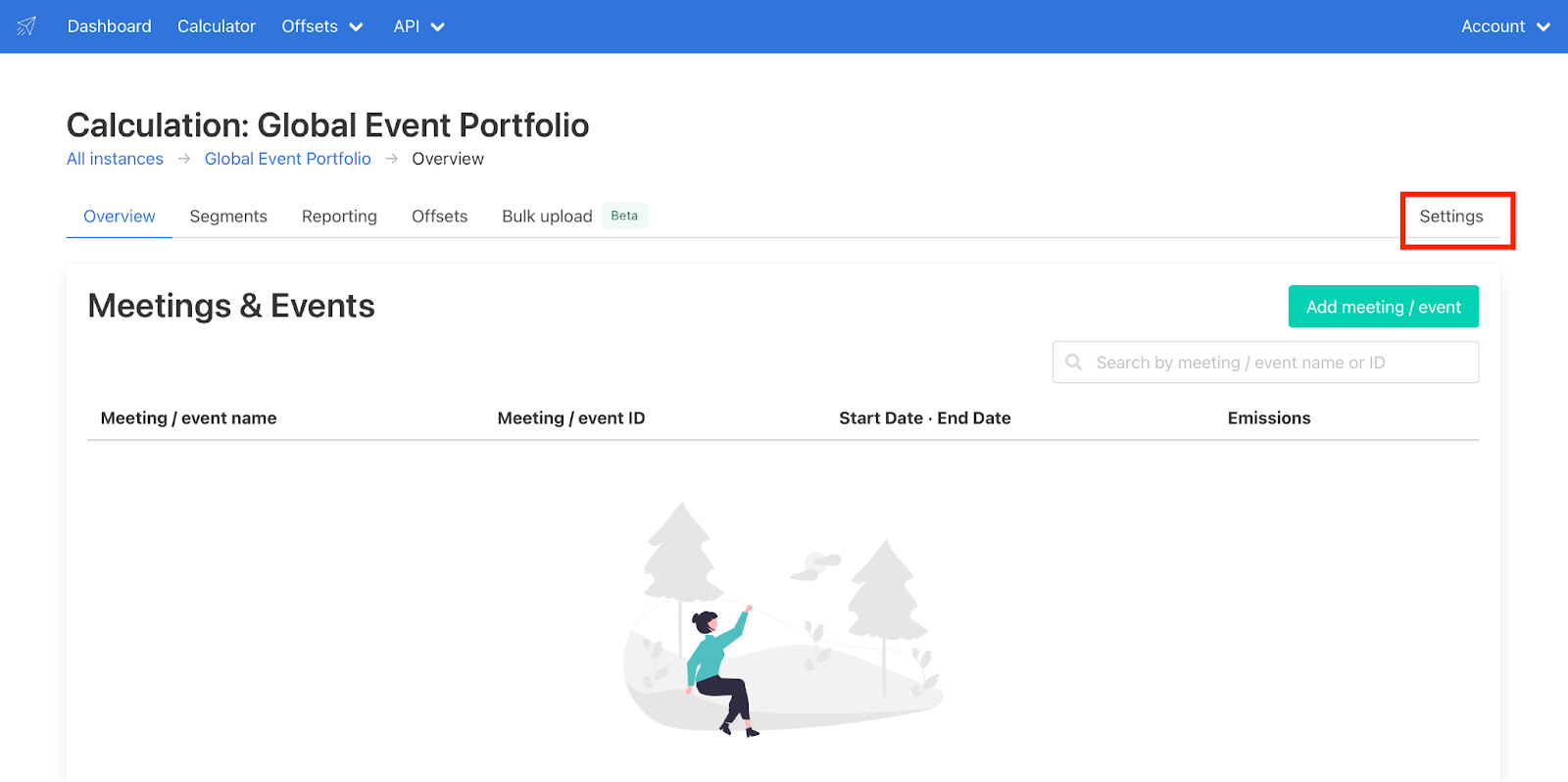
Note that deleting an instance is irreversible. If you do however need to delete an instance navigate to the settings by clicking on the “settings” button on the top right of the overview page.
Once in the settings page scroll down to the bottom of the page. You need to type the word “confirm” into the box before pressing the delete button. Now your instance has been deleted and you will be redirected to the calculator page.

Was this article helpful?
That’s Great!
Thank you for your feedback
Sorry! We couldn't be helpful
Thank you for your feedback
Feedback sent
We appreciate your effort and will try to fix the article