Overview
One of the great features of a premium Thrust Calculator account is the ability to set target reductions for your travel data. This is a useful way to support your organisation in bringing visibility and control to carbon emissions resulting from your business travel program. By setting a target in the Thrust Calculator the reductions needed each year to hit the goal are stated. This tool is a great way to visually track the emissions of your travel program in real time against your target.
1. Choosing a baseline and target
As an organisation you need to have a clear vision / established goal for reducing your CO2 emissions from business travel. This will dictate the target reduction and the year to achieve this goal.
Most organisations use 2019 as their baseline year for setting their target reduction. This is because 2019 is considered the closest representation of a typical travel programme, with 2020-2021 disregarded due to the impact of the pandemic.
Example goal; to achieve a 50% reduction in emissions by 2030 (baseline 2019)
2. Setting a target
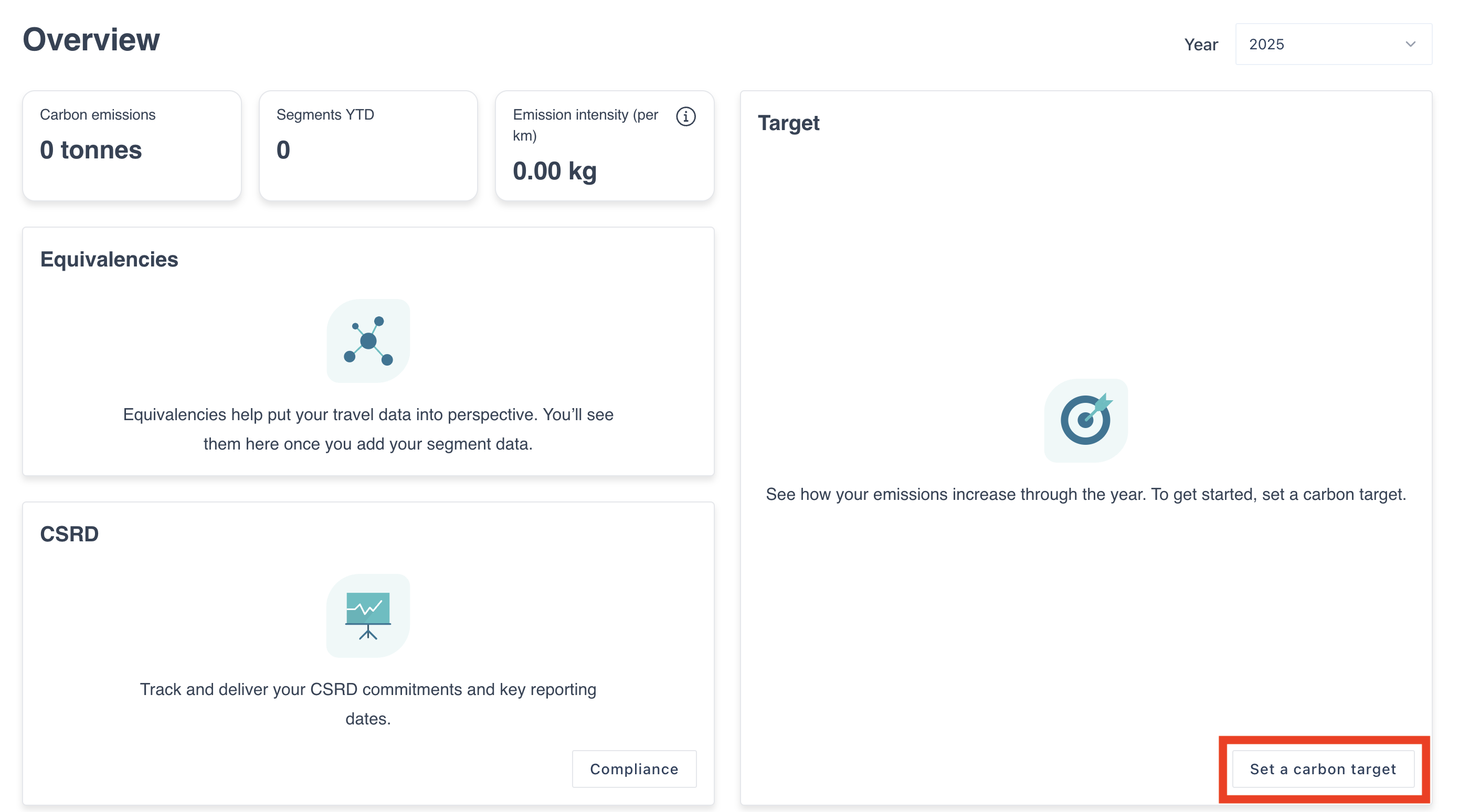
First navigate to the overview page of your instance in the Thrust Calculator, scroll down to the “Target” widget and click on the button “Set a carbon target” to open the baselining page.
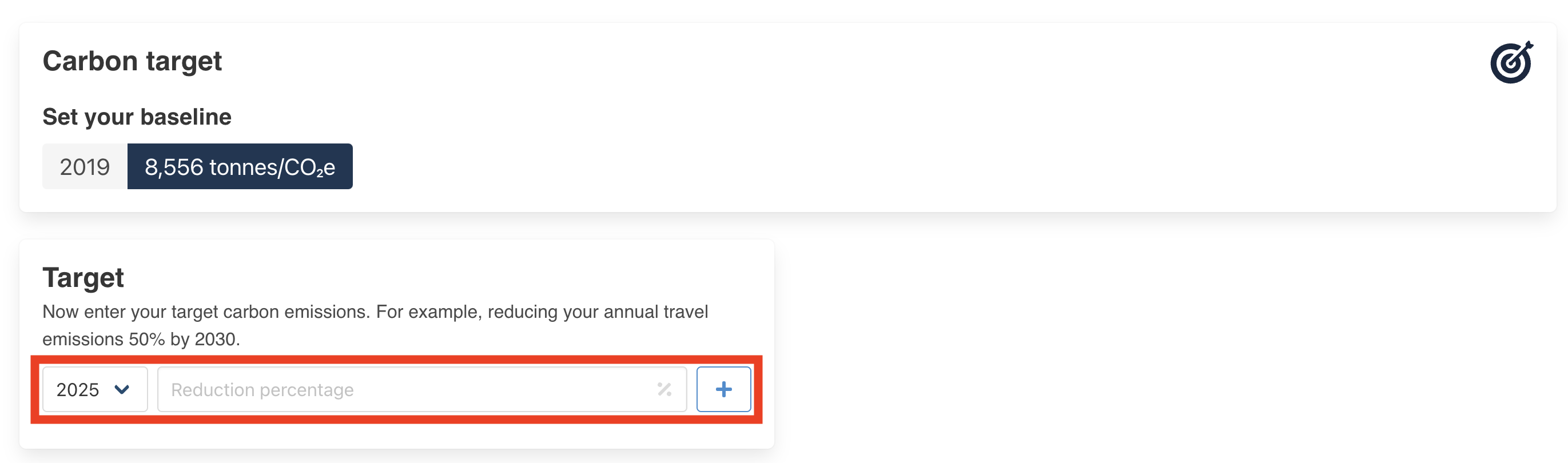
The Carbon target page will open as shown below. Here you need to specify the date of your baseline and also the carbon emissions from this year. For this example we are using the baseline year as 2019. Ideally you are able to retrieve this baseline emission from the Thrust Calculator if historical travel data has been imported. Otherwise it is possible to use a previously calculated emission value.

If you are using the baseline emission value from the Thrust Calculator, return to the overview page as shown below and select the baseline year to view the carbon emissions from that year.
Next type in this baseline emission into the input in the Carbon target page and click the “+” button to confirm your selection, as shown below.
Once you have confirmed your baseline the “Target” tab will appear.
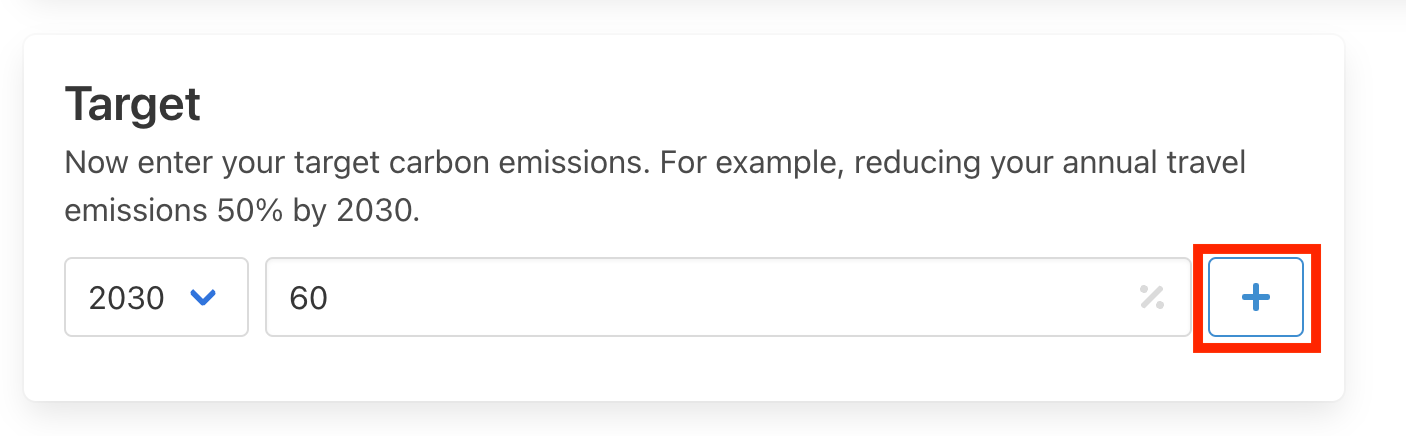
In this “Target” tab you need to specify the year in which you want to achieve the target and the % reduction of carbon emissions for your travel program by this date. As shown below for this example a reduction of 60% by 2030 is the target. Next press the “+” button to confirm your selection.
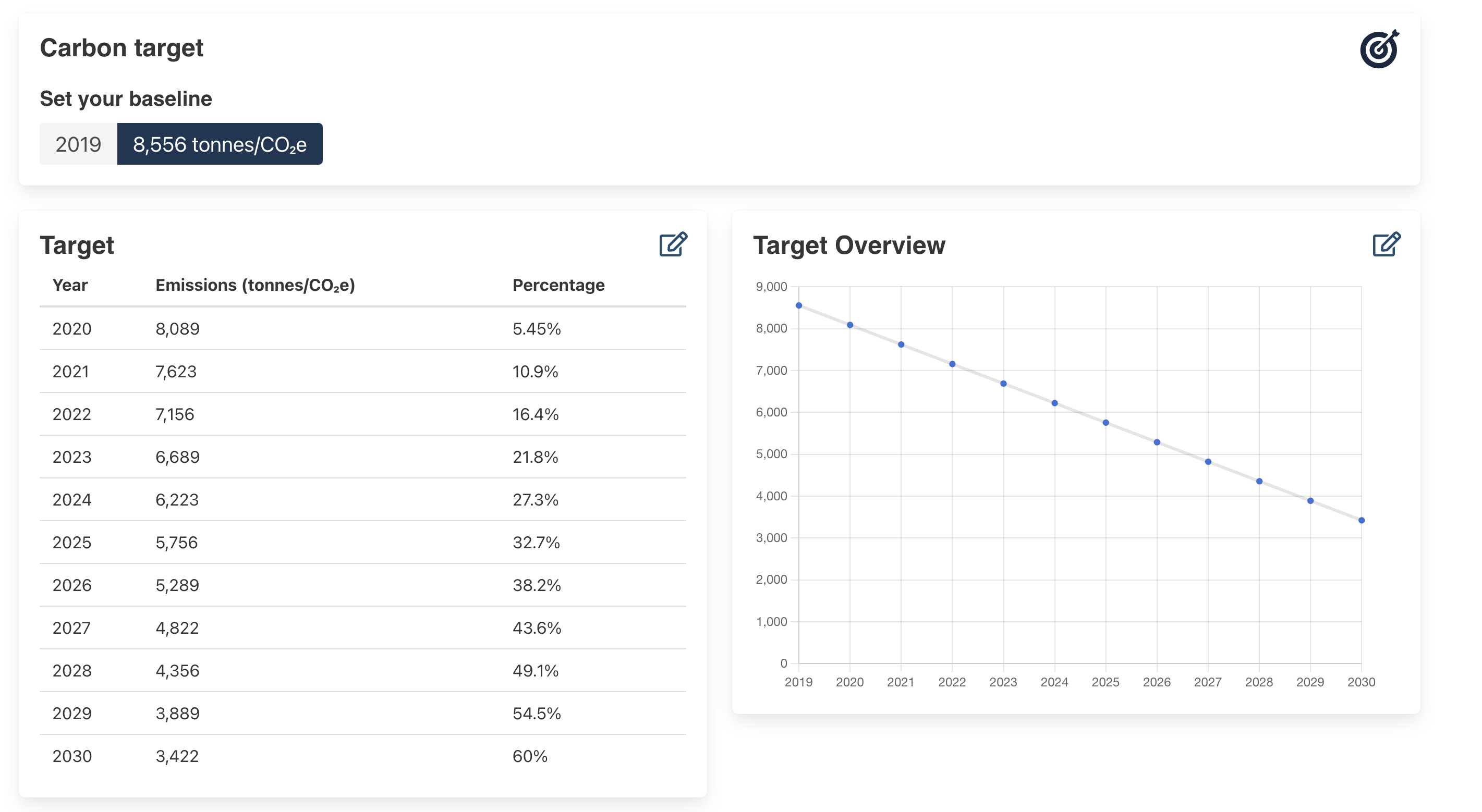
On confirming your baseline and target, the Thrust Calculator will produce the below graph with the breakdown of % reduction of carbon emissions needed each year in order to achieve your target.
3. Viewing progress
To see your target in action, return to the overview page. Here the “Target” widget will now display a graph with the target line for the year.
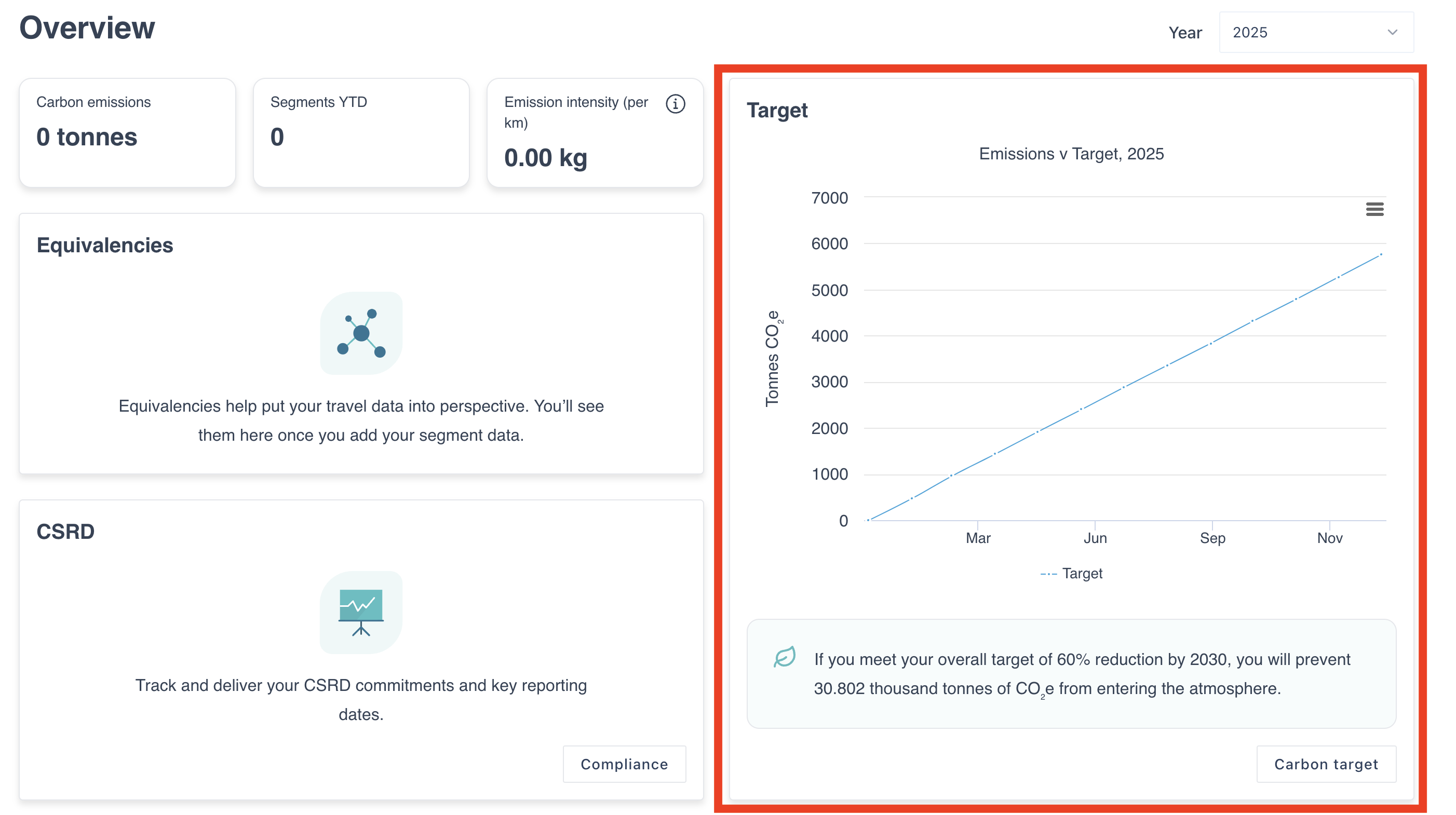
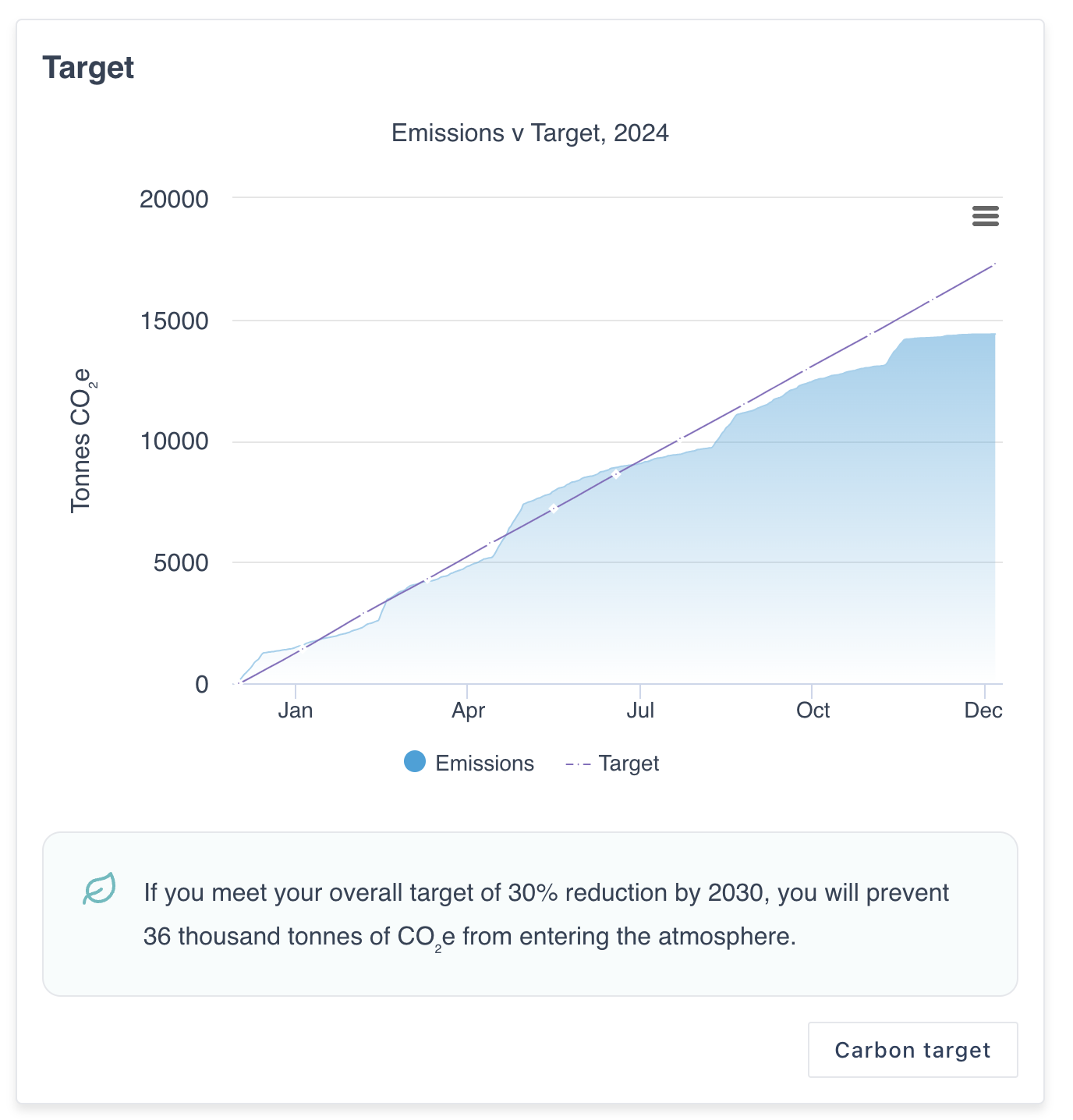
Now when your travel data is uploaded to the Thrust Calculator you will be able to see the actual carbon emissions versus the target. An example is shown below, with the target line in purple and the actual travel data shown in blue.
Was this article helpful?
That’s Great!
Thank you for your feedback
Sorry! We couldn't be helpful
Thank you for your feedback
Feedback sent
We appreciate your effort and will try to fix the article