Overview
Including a hierarchy of groupings within your instance in the Thrust Calculator allow the travel emissions to be analysed at more granular levels. Such that under a grouping type there can be multiple hierarchies of groupings.
For example under the grouping type “Department Name” the groupings at the highest level are “sales”, “marketing”, “finance” and “engineering”. Under the grouping “sales” there is a more granular structure of “UK sales” and “US Sales”.
Note) You want to set up your grouping hierarchy structure before you start uploading data to the instance.
1. Adding a grouping type
Before adding a grouping hierarchy structure to your instance add grouping types first, see User Guide: Groupings.
2. Add a grouping
To add a hierarchy structure to one of the grouping types you have added to the instance. Click on the tab that displays the grouping type. For this example we will be looking at “Department Name”.
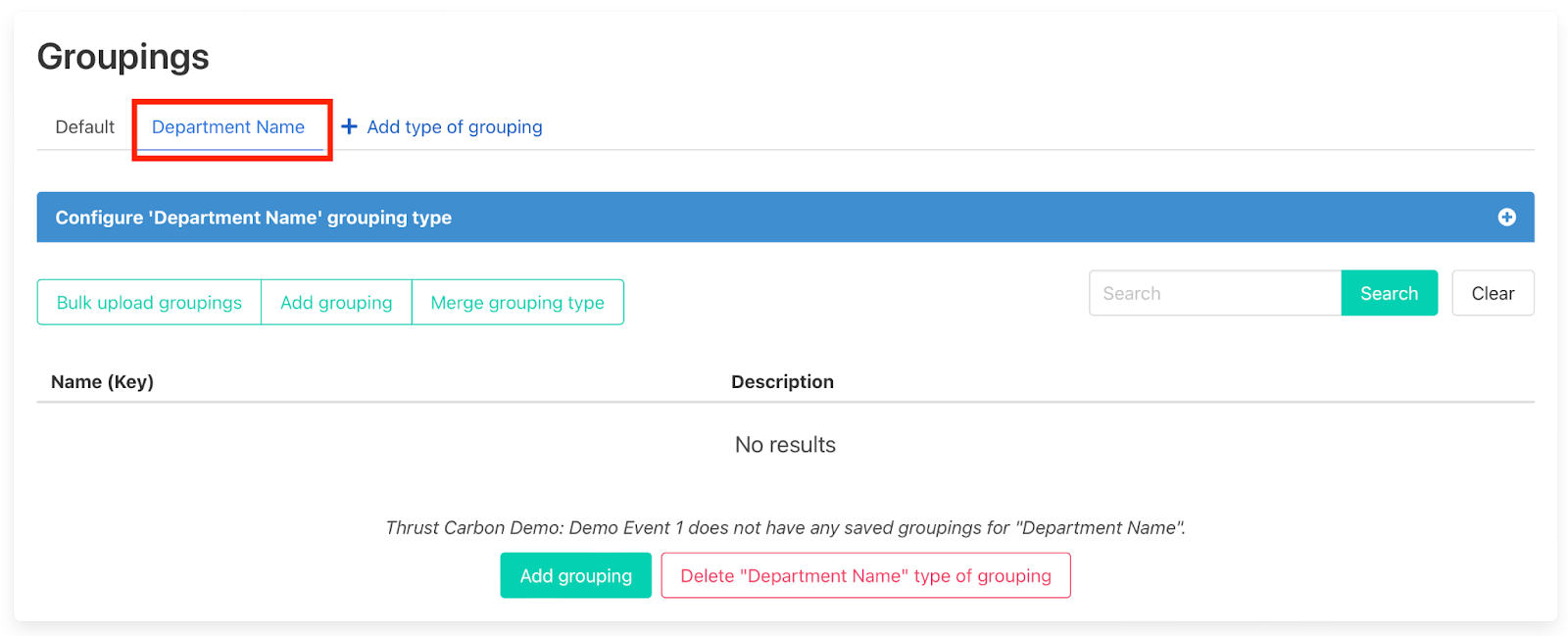
To add groupings to the grouping type “Department Name” click on the “Add Grouping” button as shown below.
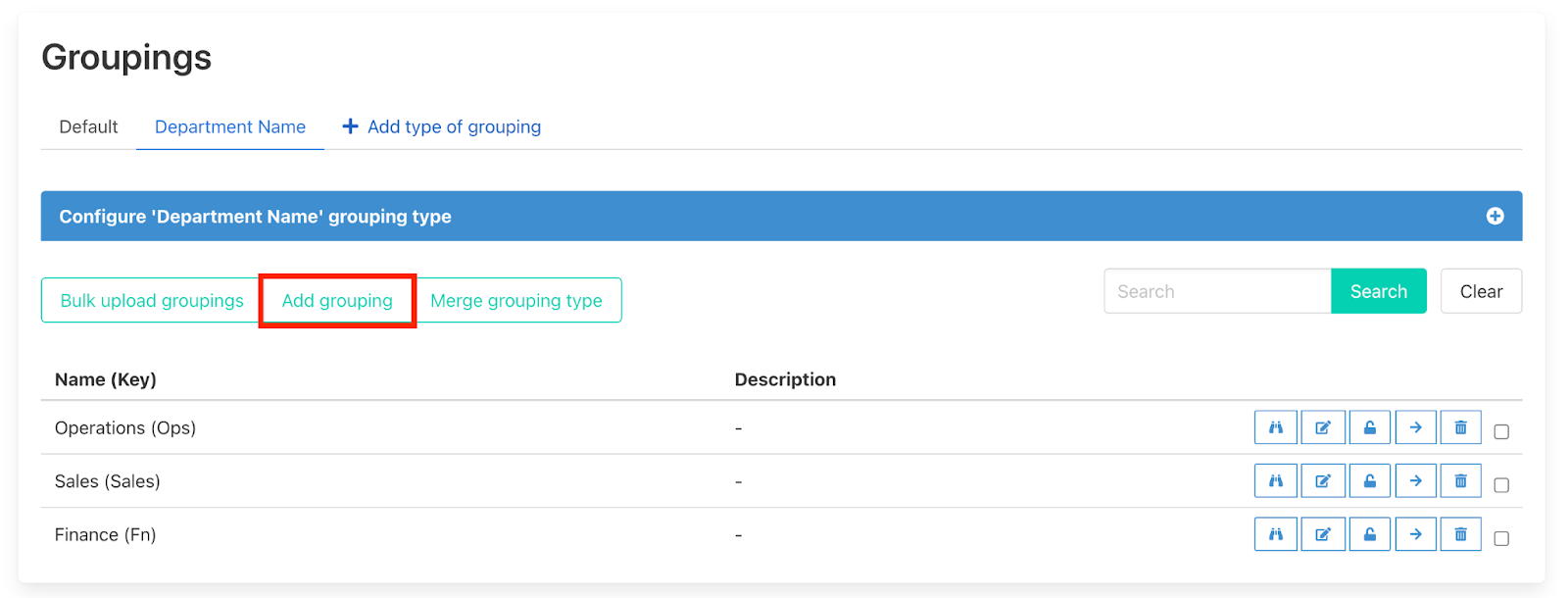
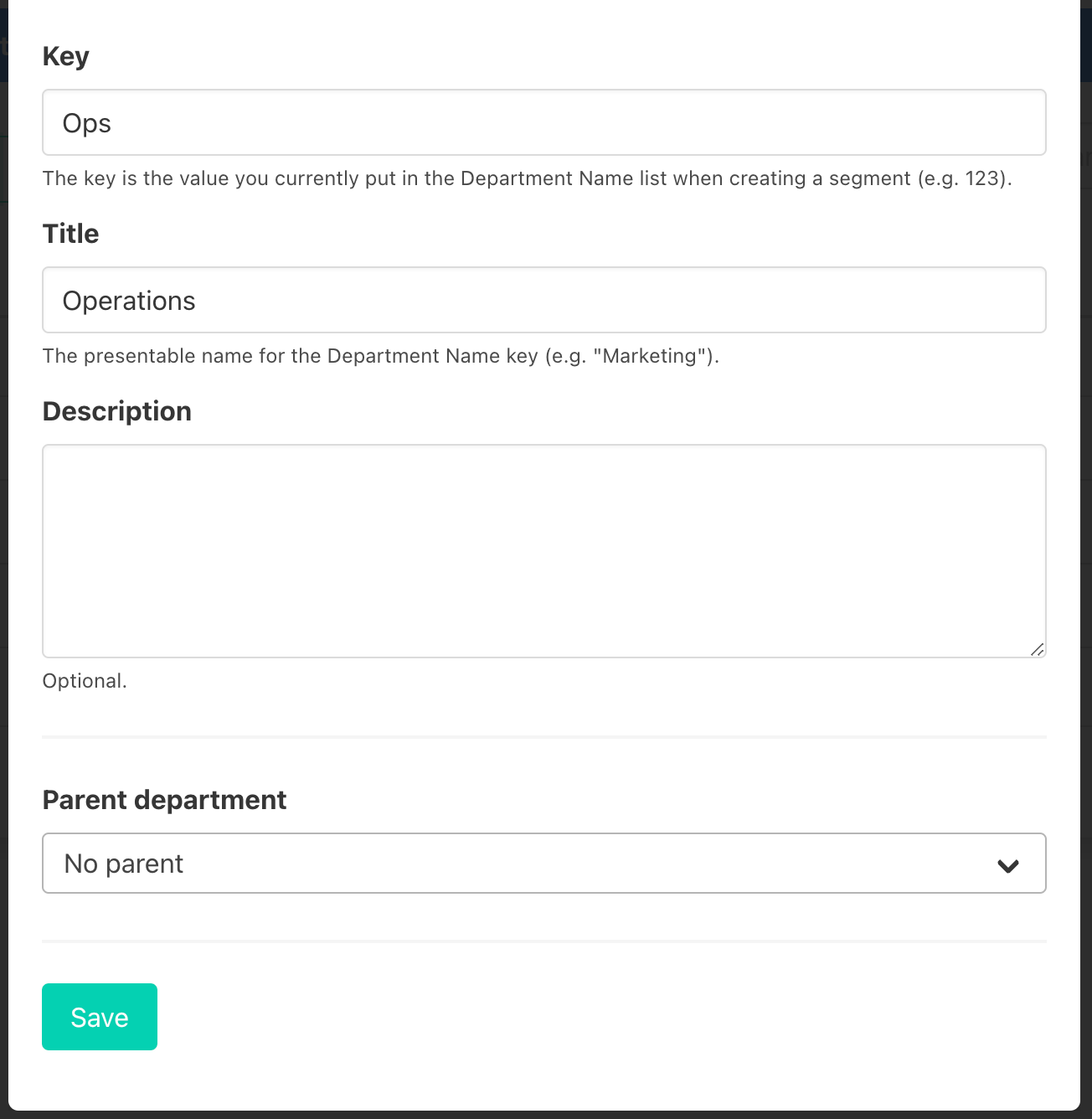
The below pop-out will appear. Type in the key and title to define the grouping to add under the grouping type. Press save when you have filled this in to confirm the grouping.
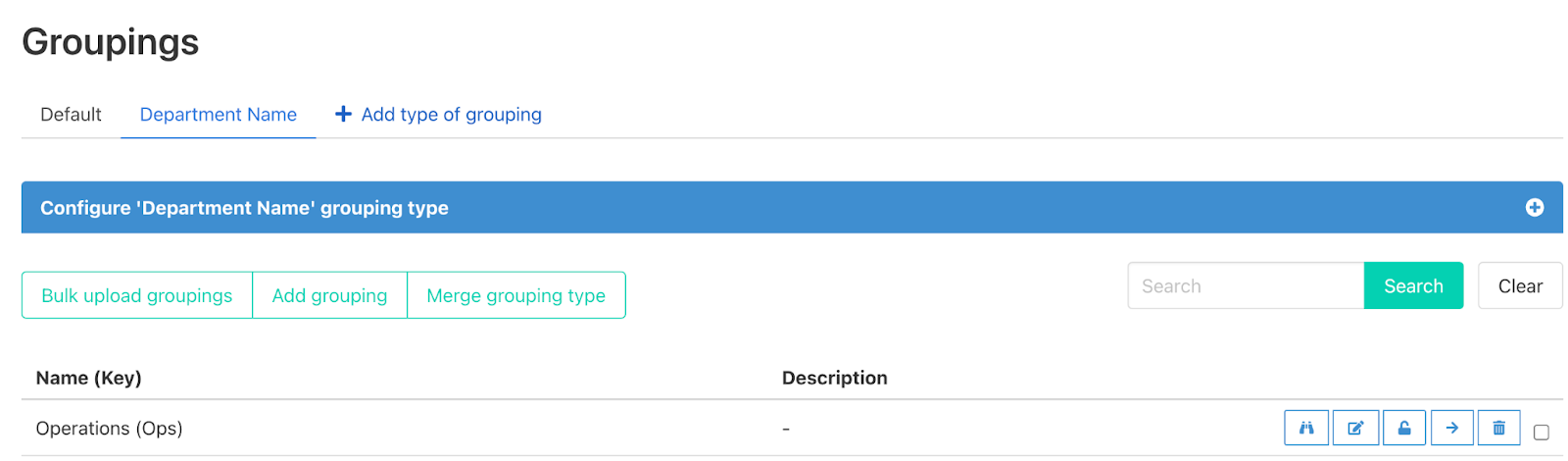
Your new grouping will be visible in the groupings tab under “Department name” as shown below.
3. Add a grouping hierarchy
To add a grouping hierarchy under the grouping “Operations” click on the “Add grouping” button as done in step 2. Fill out the key and title as done previously, for this example we are adding a “US Ops” grouping. To set “US Ops” under the “Operations” grouping make sure to state this in the Parent department in the popout.
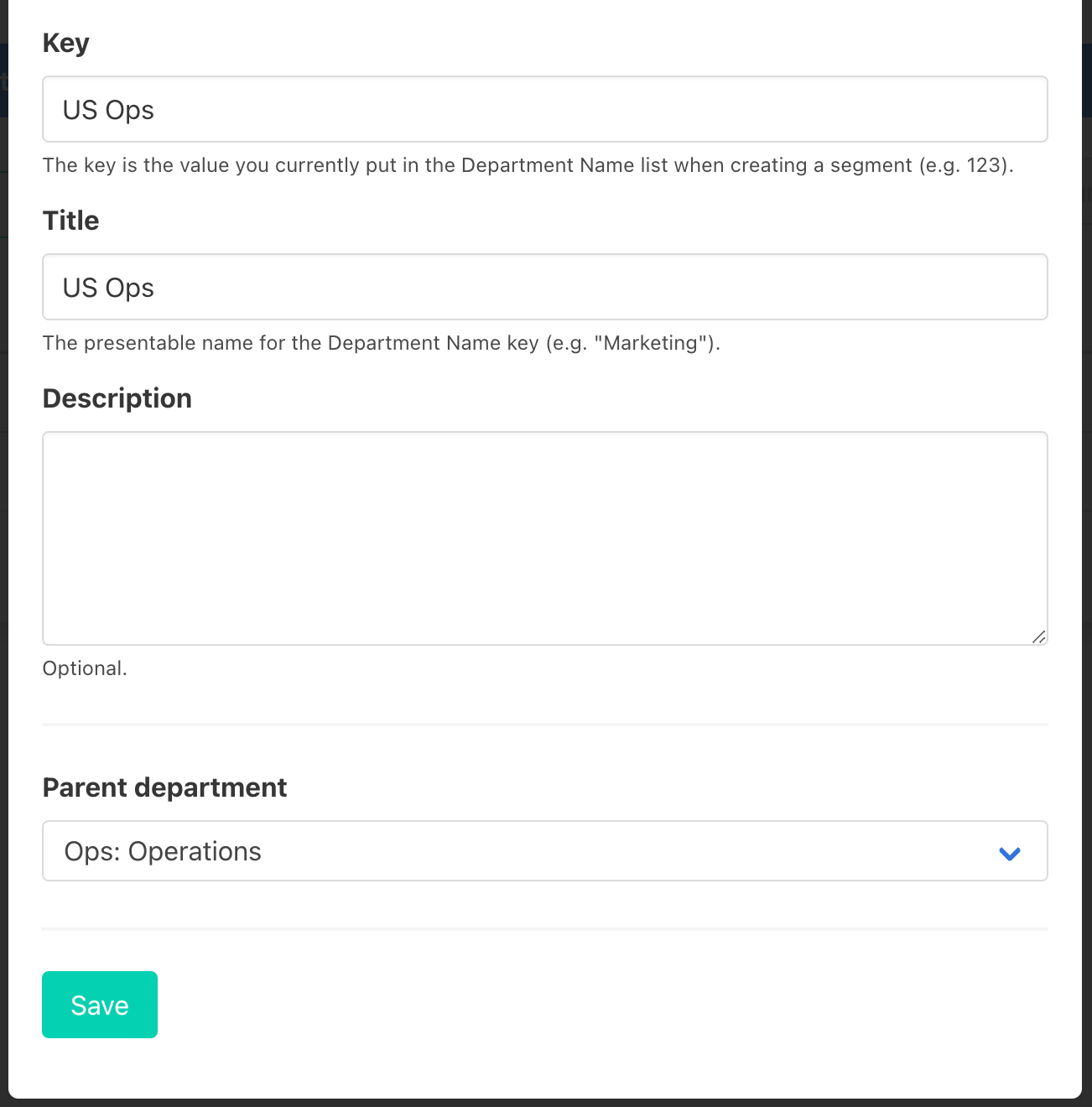
Click save and you will see that “US Ops” is now positioned under “Operations” in the hierarchy.

This step can be repeated as many times as you wish to create an arbitrary deep grouping hierarchy. For example as shown below the “NY Sales” is situated under the US operations grouping which is under the Operations grouping.

4. Edit / Delete a grouping
To edit or delete a grouping click on the edit or delete button as shown below.

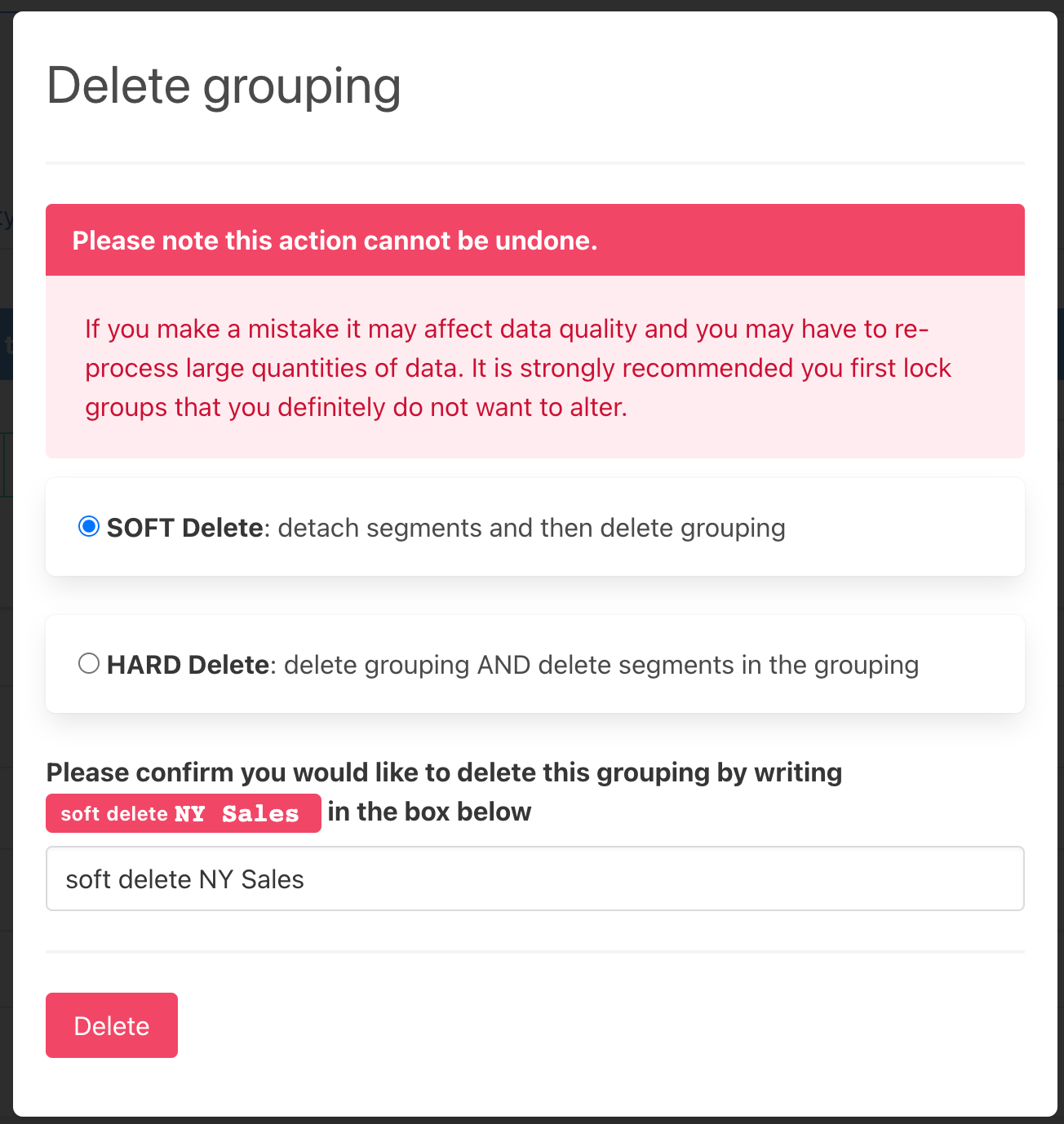
When deleting a grouping the below pop-out will appear. Make sure to specify what type of deletion you want to do;
Soft delete which will detach the segments and only delete the grouping, such that the segments will remain in the instance.
Hard delete which will delete both the grouping and the associated segments.
5. Uploading Data
To ensure the grouping hierarchy is captured when you upload data to the Thrust Calculator make sure that the grouping “key” is identical to what you created within the groupings setting.
Was this article helpful?
That’s Great!
Thank you for your feedback
Sorry! We couldn't be helpful
Thank you for your feedback
Feedback sent
We appreciate your effort and will try to fix the article