Overview
This is a supplementary guide to the user guide: Create Groupings
One of the use cases for this is when data is uploaded to the calculator with slightly different grouping names. For example “Sales team” and “sales” these would each represent a separate grouping within the Thrust Calculator. Hence with the merge feature you are able to combine all segments that fall under these two groupings into one, say "Sales Team".
Another example is that you want to combine different departments into one for the sake of how you structure your carbon budgets. Such as developers and engineers, it is possible to combine these two groupings into one.
The Thrust Calculator allows you to merge groupings together. The outcome is that all the segments that fall under one grouping are all moved across to another grouping, with the original grouping removed.
Note the difference between merging grouping types and merging groupings. To learn how to merge grouping types please see the user guide “Merging Grouping Types”.
Note also this process is irreversible and if you make a mistake it may affect the data quality and you may have to re-process large quantities of data.
1. Merging Groupings
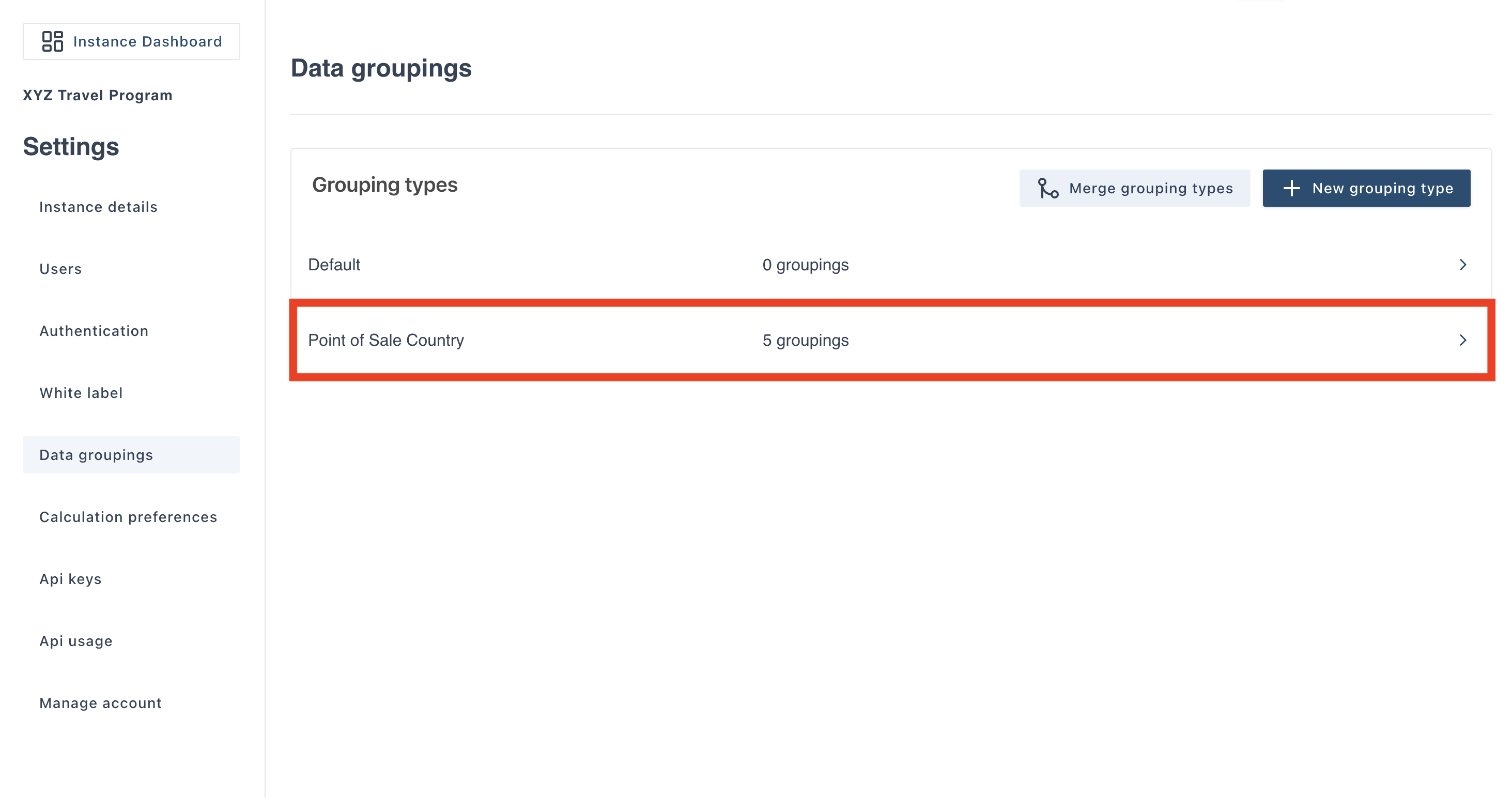
To merge a grouping navigate to the Data groupings settings.
Select which grouping type you want to merge groupings within. For this example we are going to merge groupings that fall under “Point of Sale Country”, click into this grouping type.
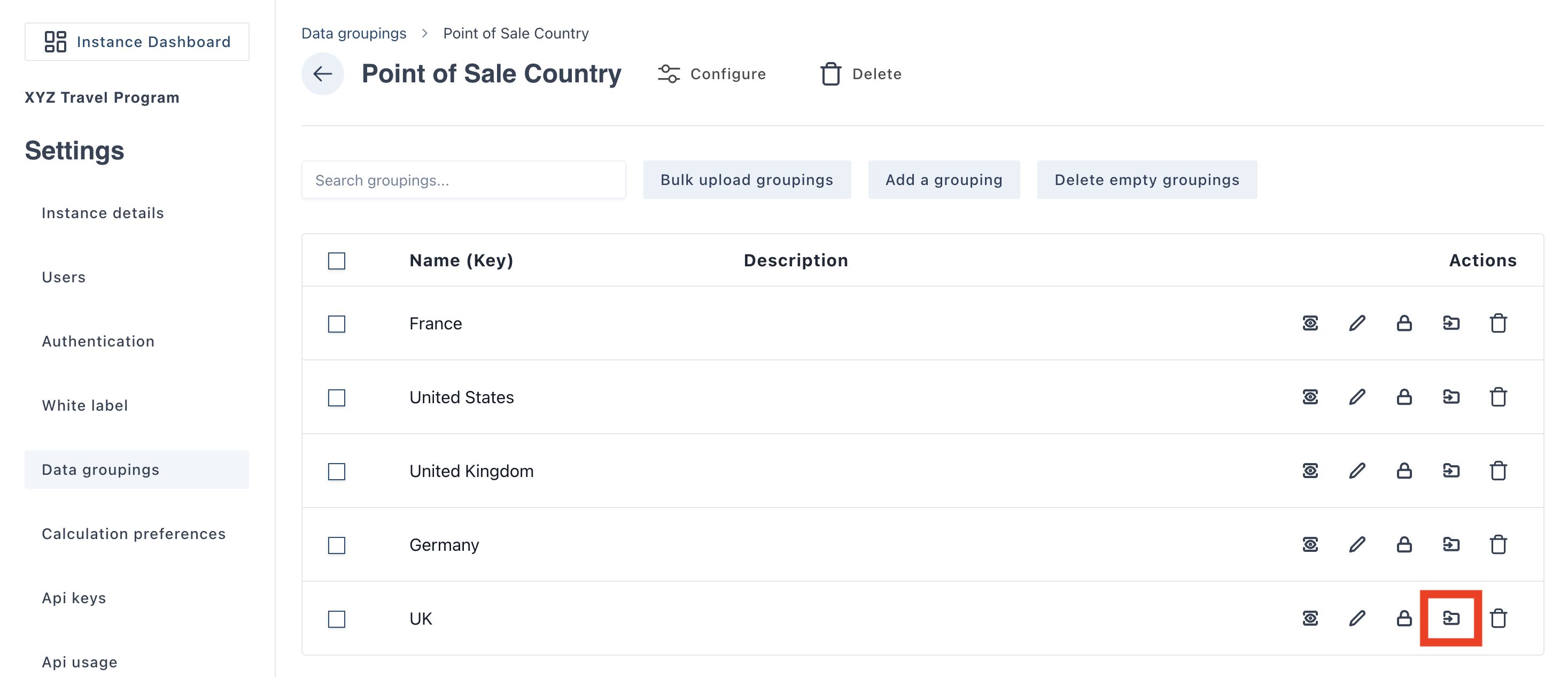
We are going to merge the grouping “UK” into “United Kingdom”. On the grouping you wish to merge click on the "merge grouping" as shown below.
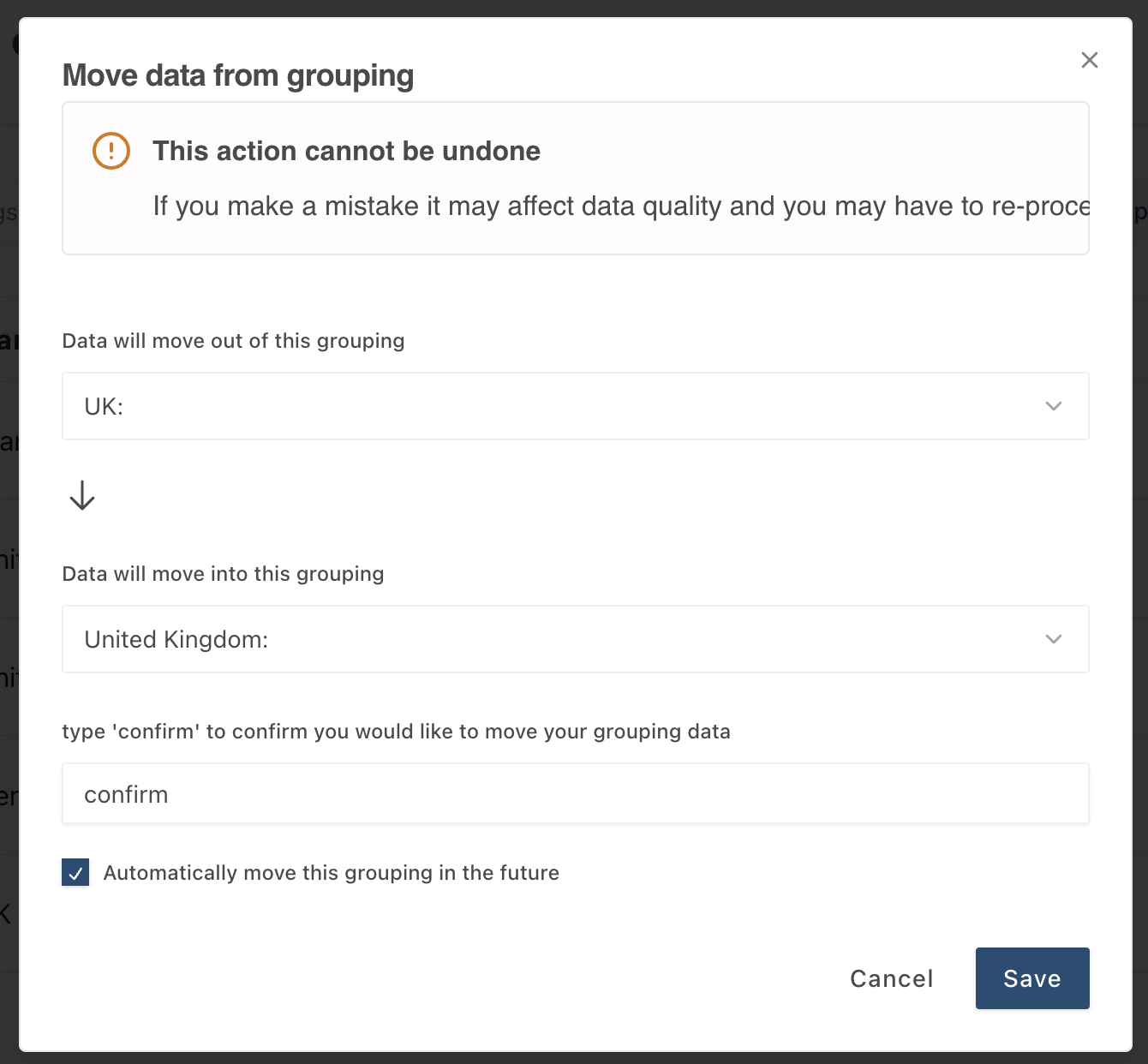
The below pop-out will appear. Select which grouping you want to merge into another grouping. Click save, now all your segments will have been moved across to the other grouping.
2. Locking Groupings
Once you have completed merging the groupings you want combined we strongly recommend that you lock groupings that you do not want altered in the future.
To lock a grouping simply click on the “lock” button as shown below.
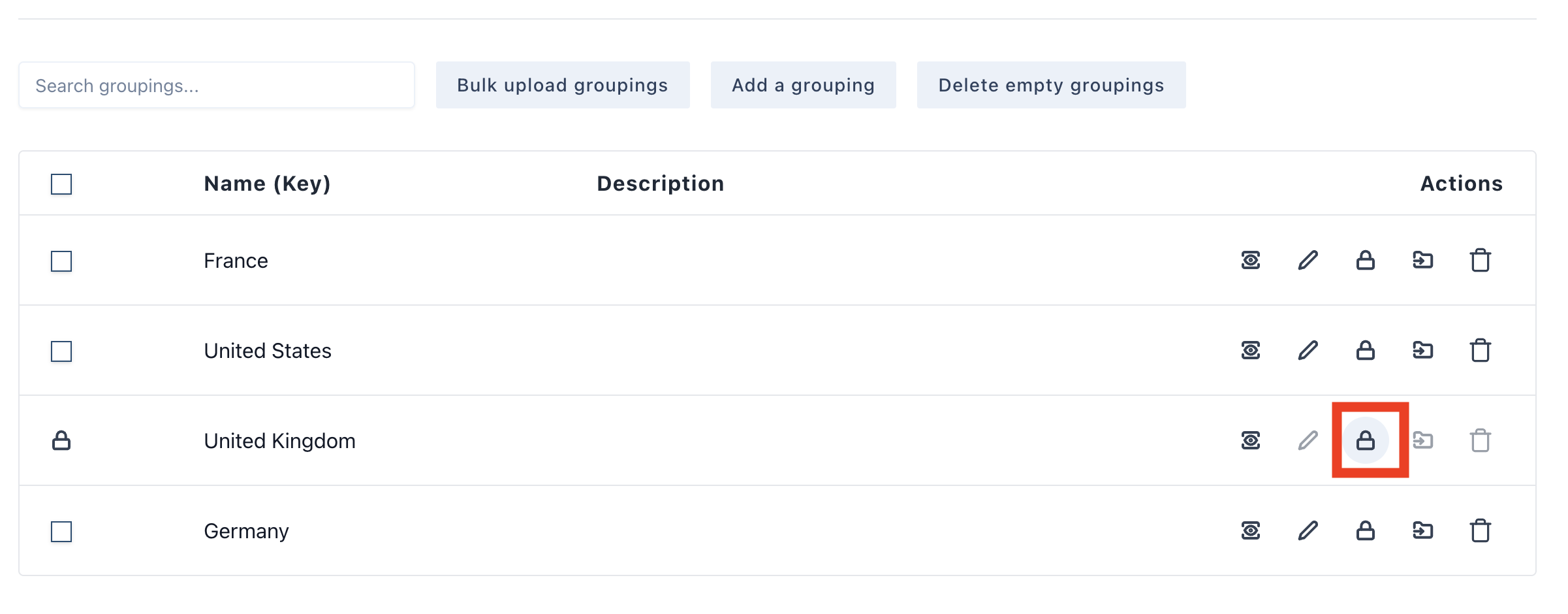
Once the grouping is locked it is not possible to delete, merge or edit the grouping.
If you want to unlock the grouping, simply click again on the lock button and you will now be able to merge, delete and edit the grouping.
Was this article helpful?
That’s Great!
Thank you for your feedback
Sorry! We couldn't be helpful
Thank you for your feedback
Feedback sent
We appreciate your effort and will try to fix the article