Overview
This is a supplementary guide to the user guide: “Create Groupings”.
The Thrust Calculator allows you to merge grouping types together. Such that all the groupings and segments that fall under the grouping type are all moved across to another grouping type.
Note the difference between merging grouping types and merging groupings. Grouping types contain groupings. For example a grouping type “Department Name” may have groupings within it of Sales, Engineering and Operations. For this user guide we are discussing how to merge grouping types together such as merging “Point of sale country code” with “Point of sale country”. To learn how to merge groupings please see the user guide “Merging Groupings”.
The use case for this process could be if you initially created additional grouping types which in hindsight are not needed or should in fact be combined with another grouping type based on the data uploaded and the attached groupings. For example, if you created 2 groupings types of “POS country” and “POS country code” but on uploading all the data you realised that segments only contain one or the other grouping type. In that scenario, you wish to merge the grouping types together to ensure that all POS values are captured.
Note this process is irreversible and if you make a mistake it may affect the data quality and you may have to re-process large quantities of data.
1. Merging Grouping Type
To merge a grouping type navigate to the Data groupings settings.
(A recap to get here: Settings / Organisations white label settings / Data groupings)
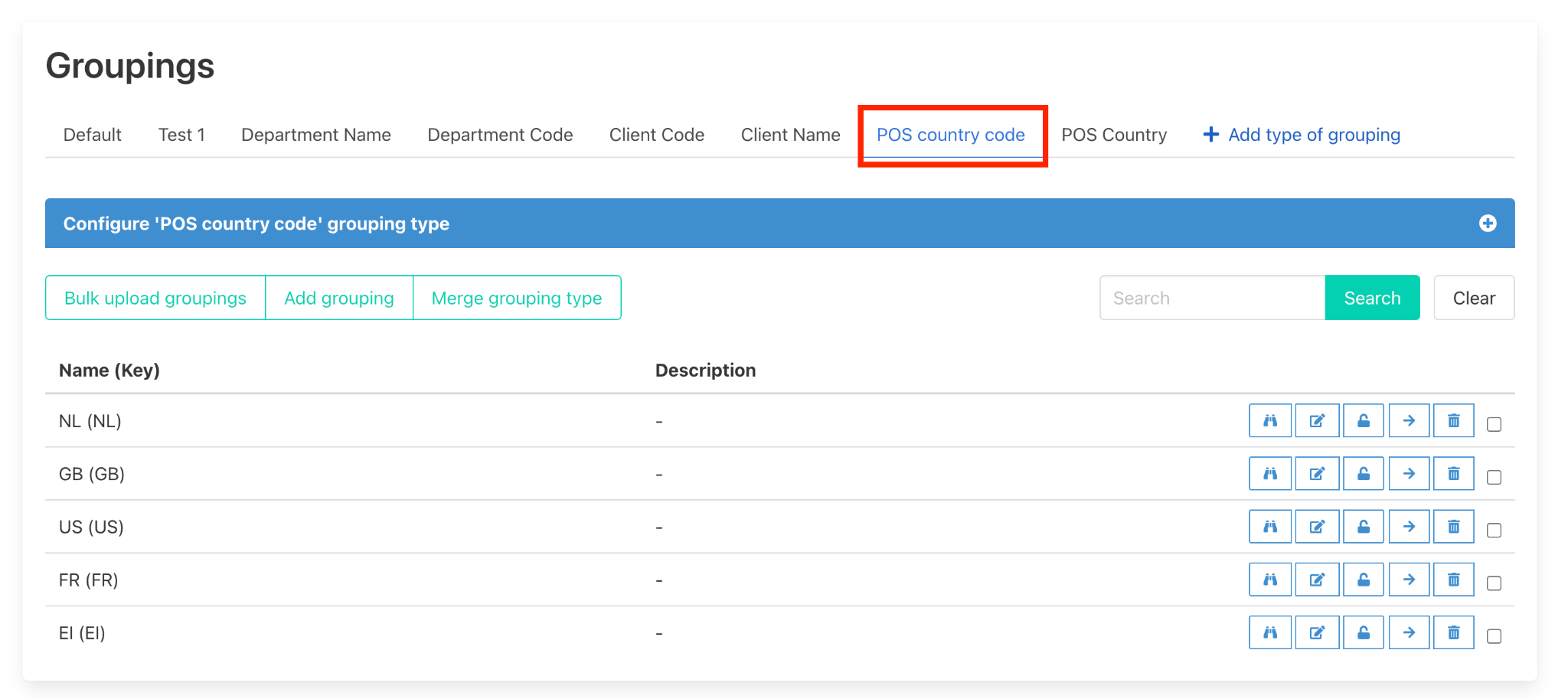
Select which grouping type you want to merge with another grouping type. For this example we are going to merge “POS country code” into “POS country”. So we click on the “POS country code” tab as shown below.
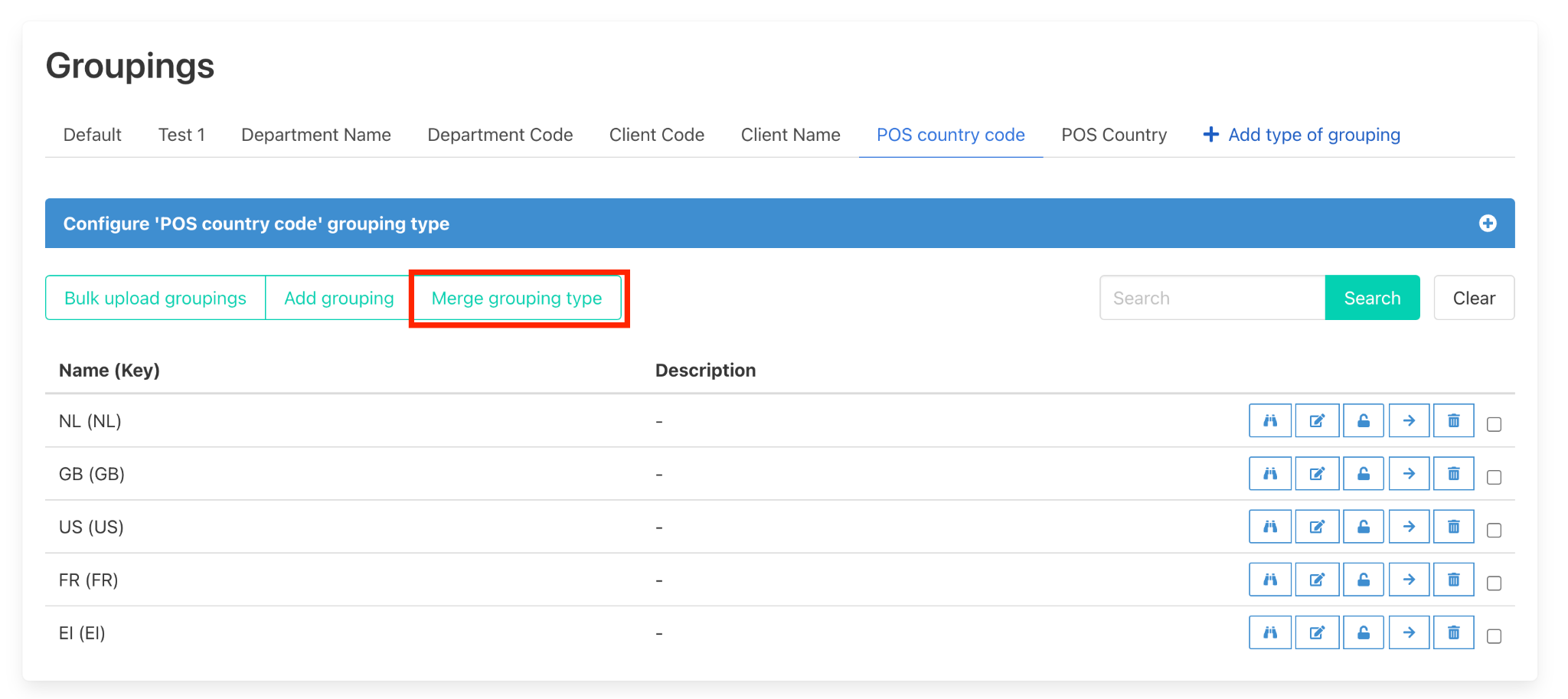
Next we click on the button “Merge grouping type”.
The below pop-out will appear.
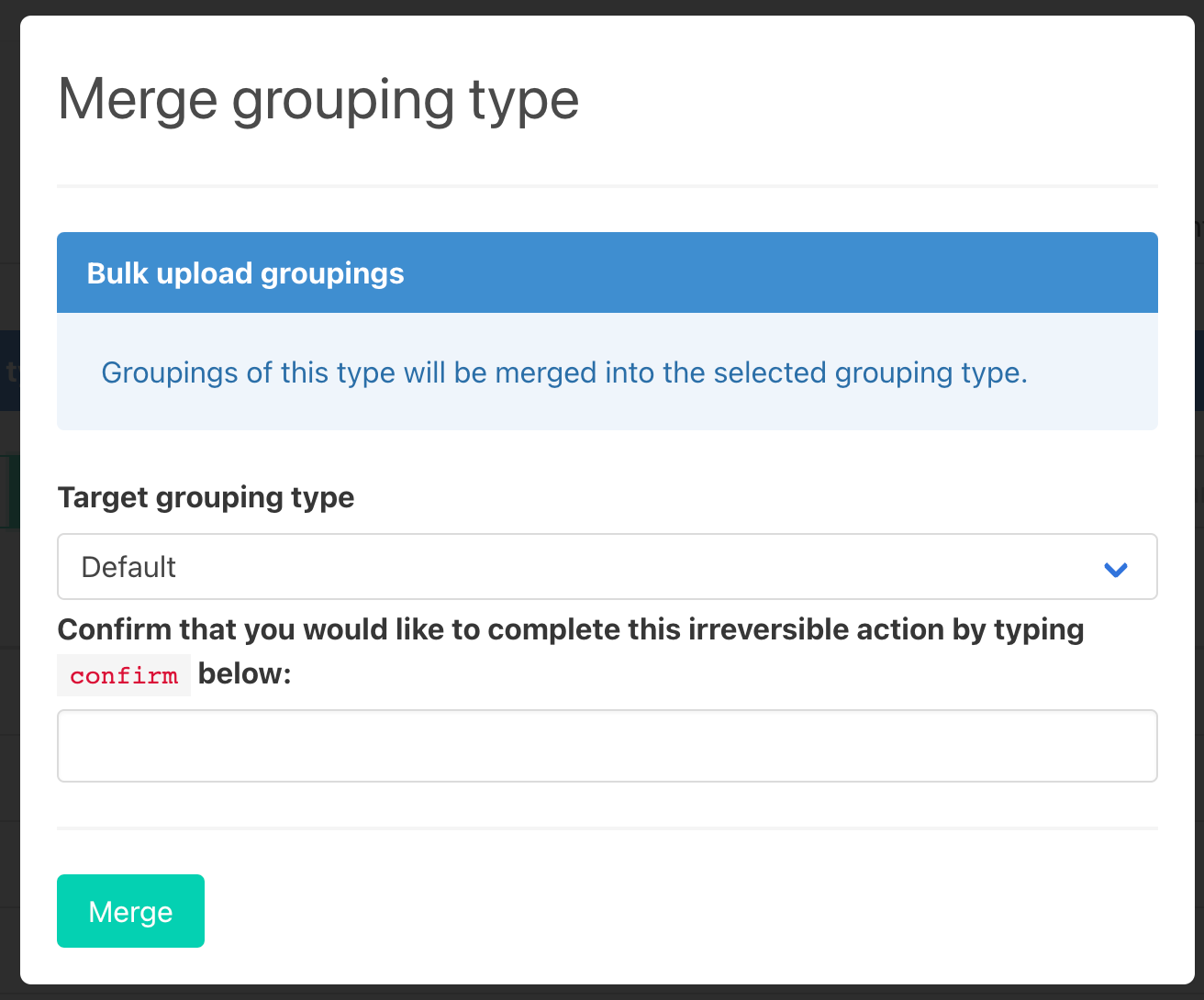
Next you will need to select from the drop down list which grouping type you want to merge into. For this example we are merging into “POS country”. Next type in confirm into the box and finally click “merge”. Note that this process is not reversible.
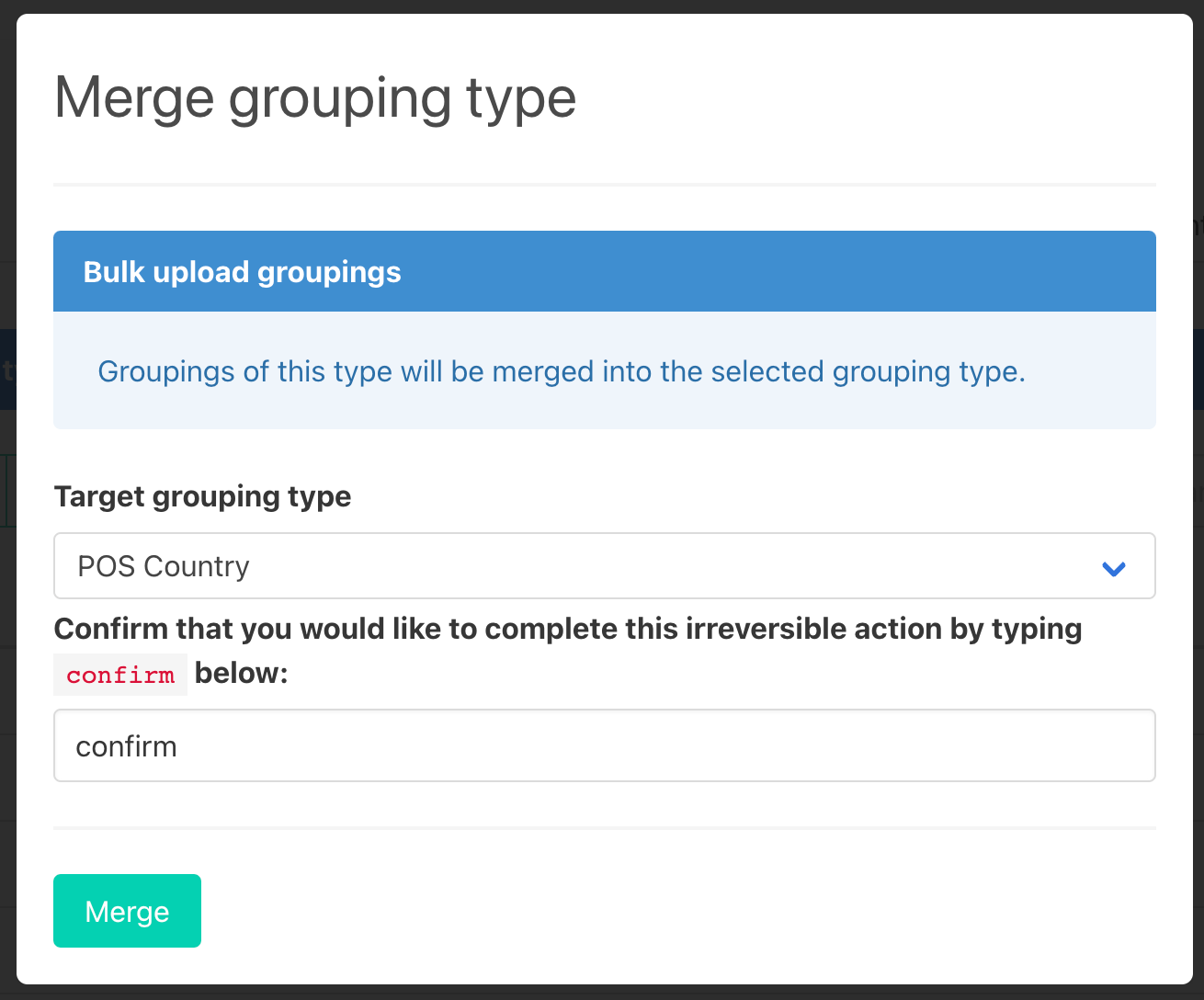
Once you have clicked “merge” the following message will appear at the top of the screen and the Thrust Calculator will begin to merge all the segments and groupings from “POS country code” into “POS country”. The time this takes will depend on the amount of data within each grouping type

Note: If you have a grouping with the same title and key (e.g. France) in both groupings types that you are merging together, these two groupings and all segments within both groupings will be merged into the same grouping.
2. Deleting grouping type
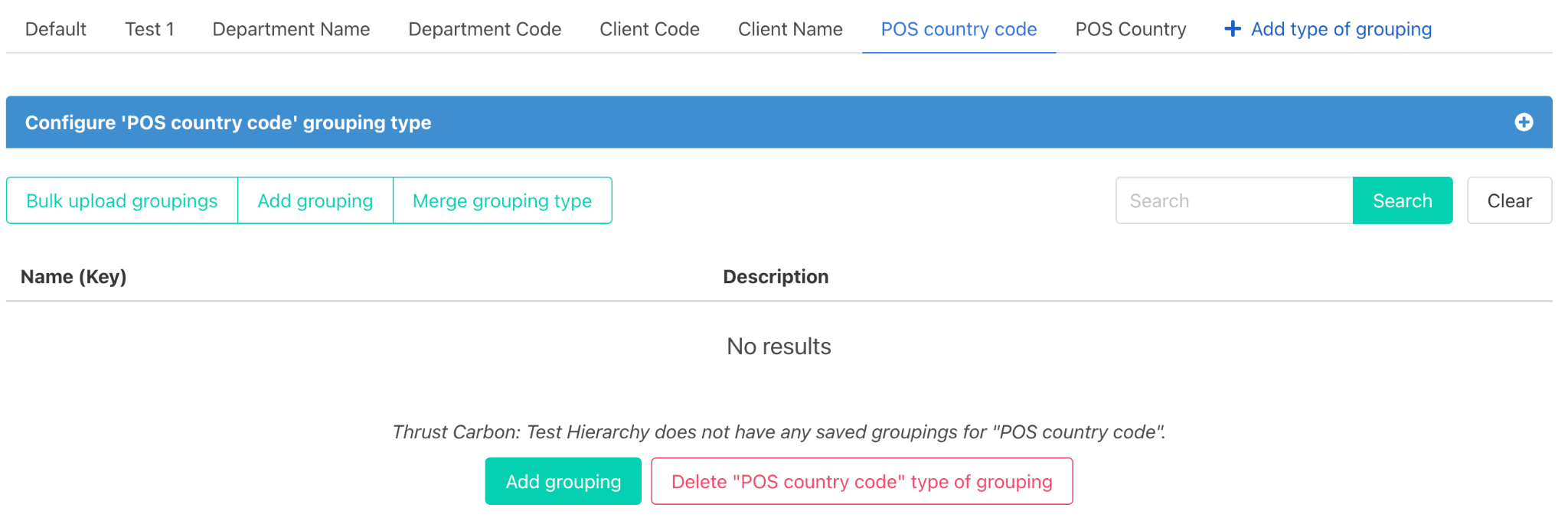
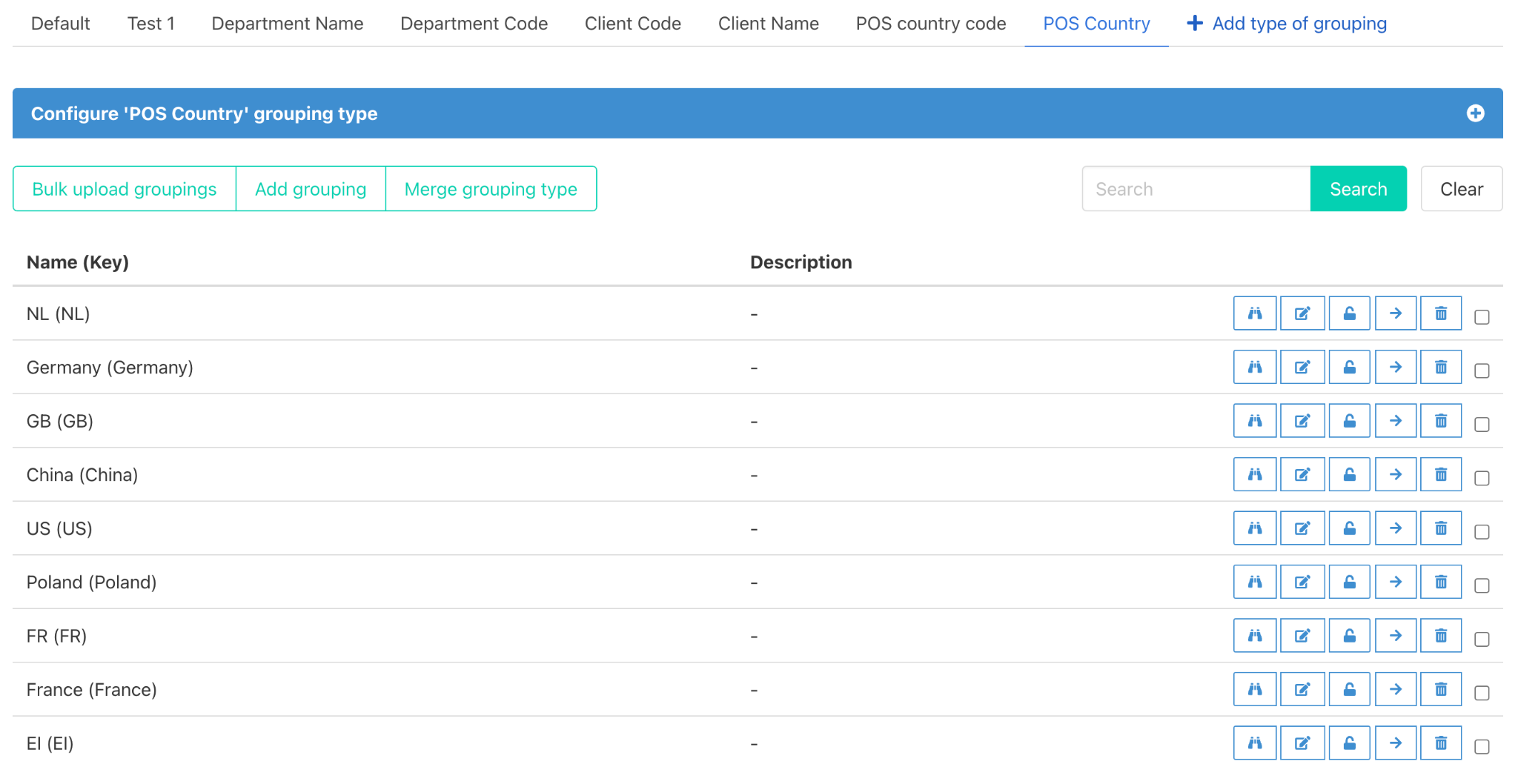
Before deleting the grouping type that you have merged into another grouping type it is crucial that you check that all the groupings have been moved across. To do this click on each of the tabs of the grouping types that were involved in the merge.
For this example we can see below that all the groupings that were within POS country code have now been moved into POS country. So we know that it is now ok to delete the empty grouping type.
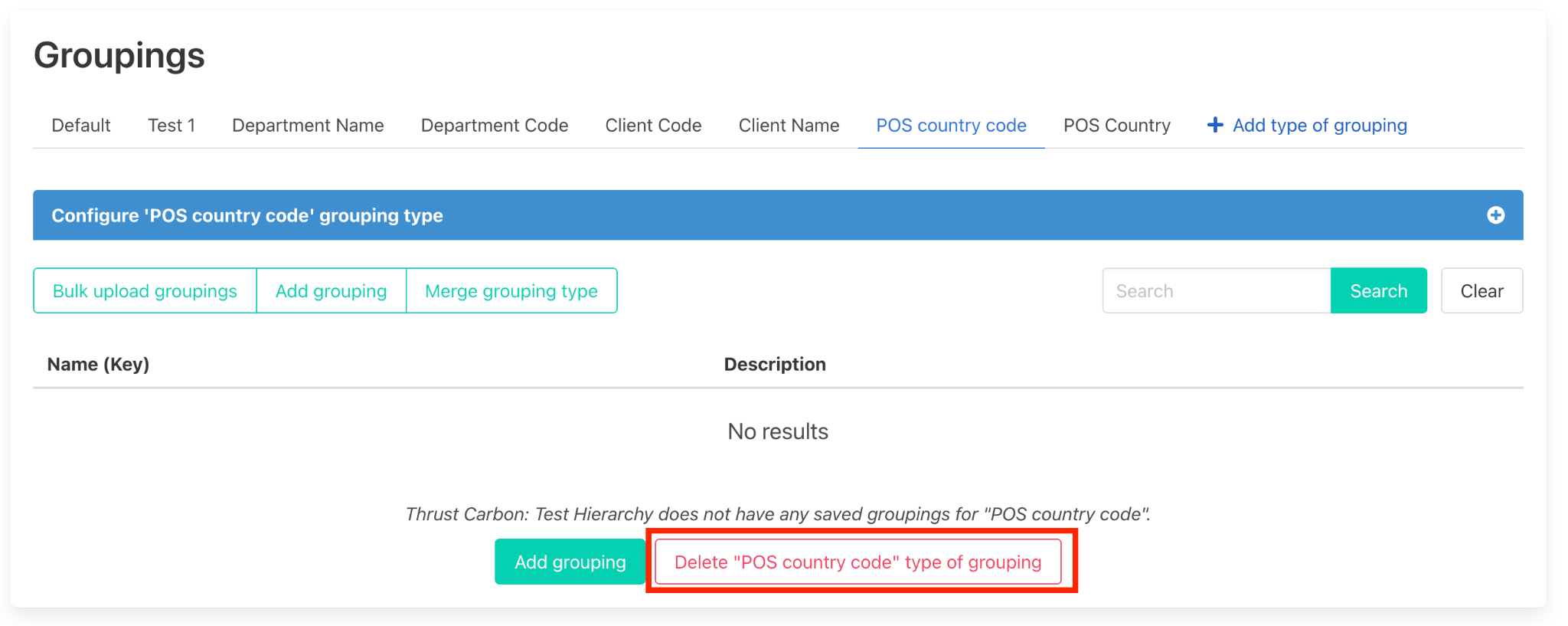
To delete the grouping type click on the delete button as shown below.
3. Merging groupings
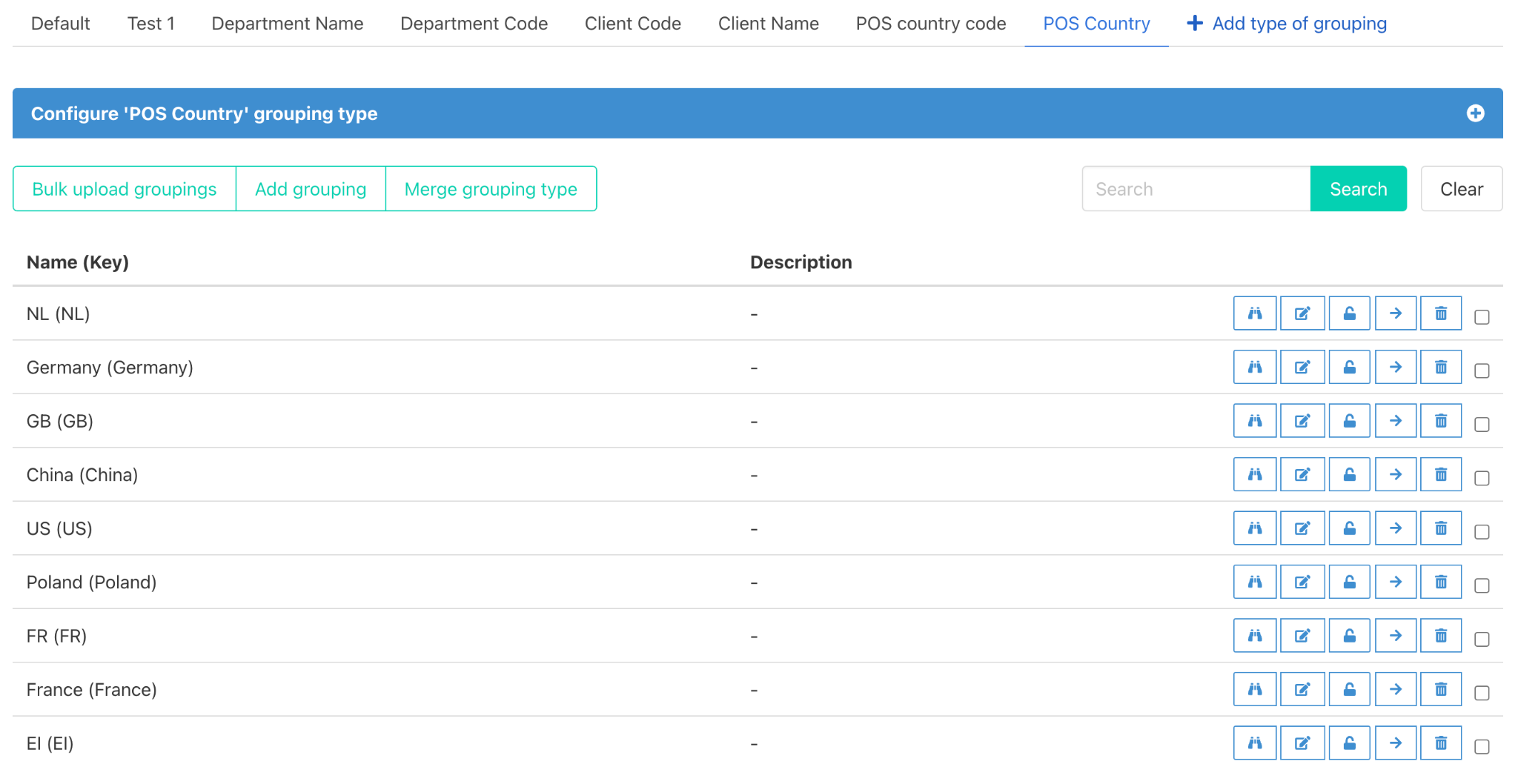
Once you have merged the grouping types you may also want to merge groupings within the grouping type. For example if we look below at the POS Country grouping type that we merged all groupings and segments from POS country code into, we can see that we have a grouping type for both FR and France.
To learn more about how to merge groupings see the user guide: “Merging Groupings”
Was this article helpful?
That’s Great!
Thank you for your feedback
Sorry! We couldn't be helpful
Thank you for your feedback
Feedback sent
We appreciate your effort and will try to fix the article