Overview
The Thrust Calculator allows you to set an internal carbon price per tonne of CO2-equivalent emissions.
The social cost of carbon refers to the monetary value of the harm caused by emitting one additional tonne of carbon dioxide into the atmosphere. Adding a carbon price to your calculator instances can provide a more tangible outcome than tonnes of carbon for your stakeholders, especially if they are not experts in the field. Carbon pricing can enable carbon reduction goals to be met through disincentivising pollution by charging departments the carbon cost of their emissions or setting them a monetary target to stick to. The cost of carbon can also be used to contribute towards an internal fund for carbon offsets, insets or Sustainable Aviation Fuel to compensate for the emissions of your travel programme.
1. Activate Carbon Pricing for your Instance
To activate the carbon pricing in your instance navigate to the settings by clicking on the settings button, as shown below:

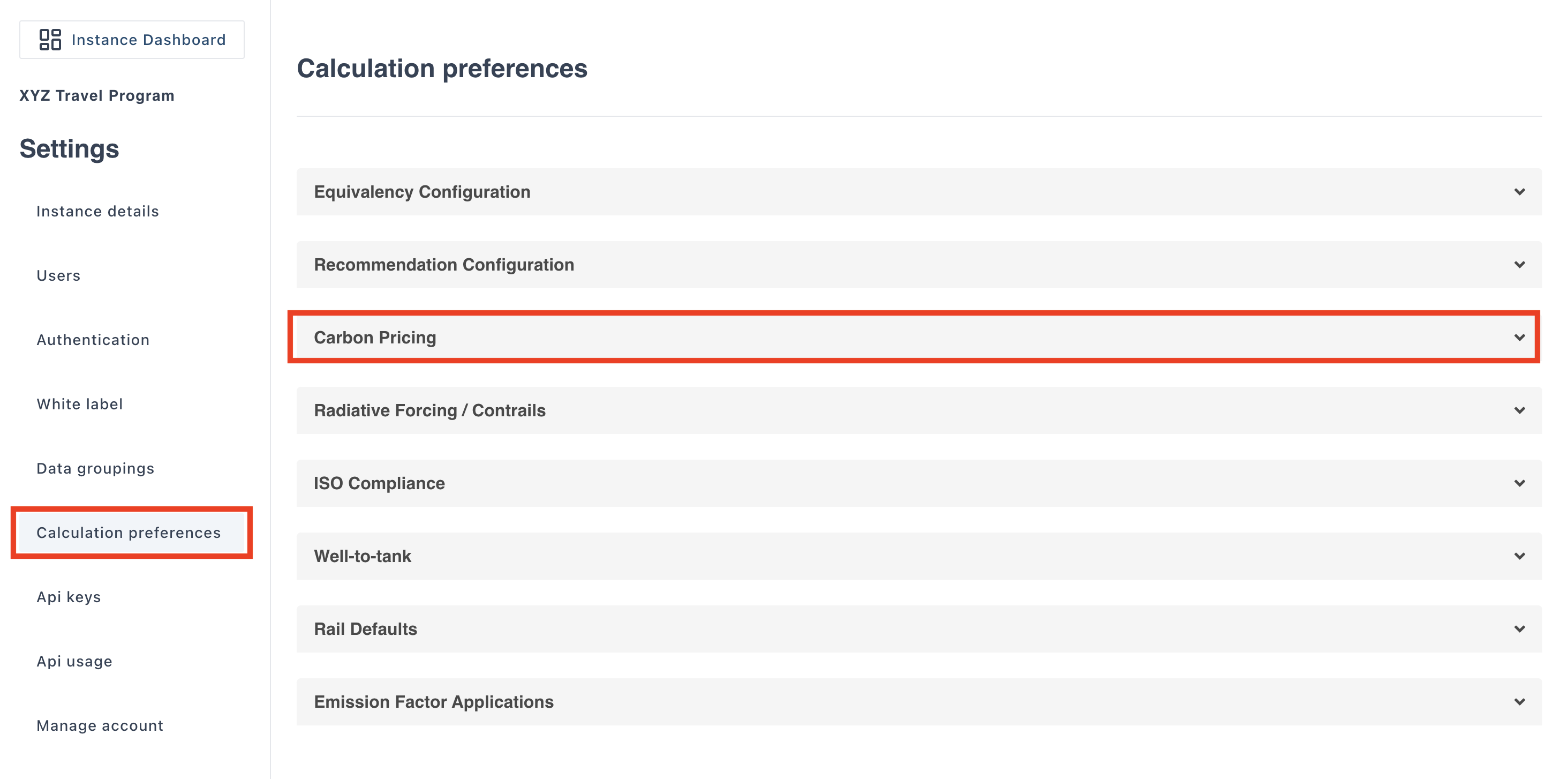
Click into the Calculation Preferences tab, then click on the ‘Carbon Pricing’ bar to expand it.
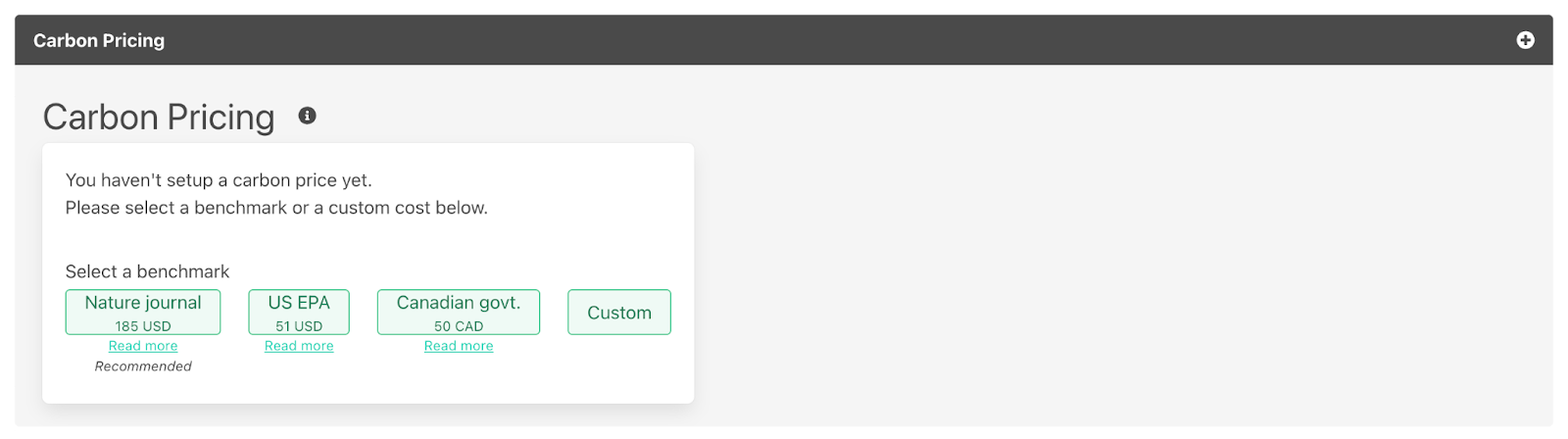
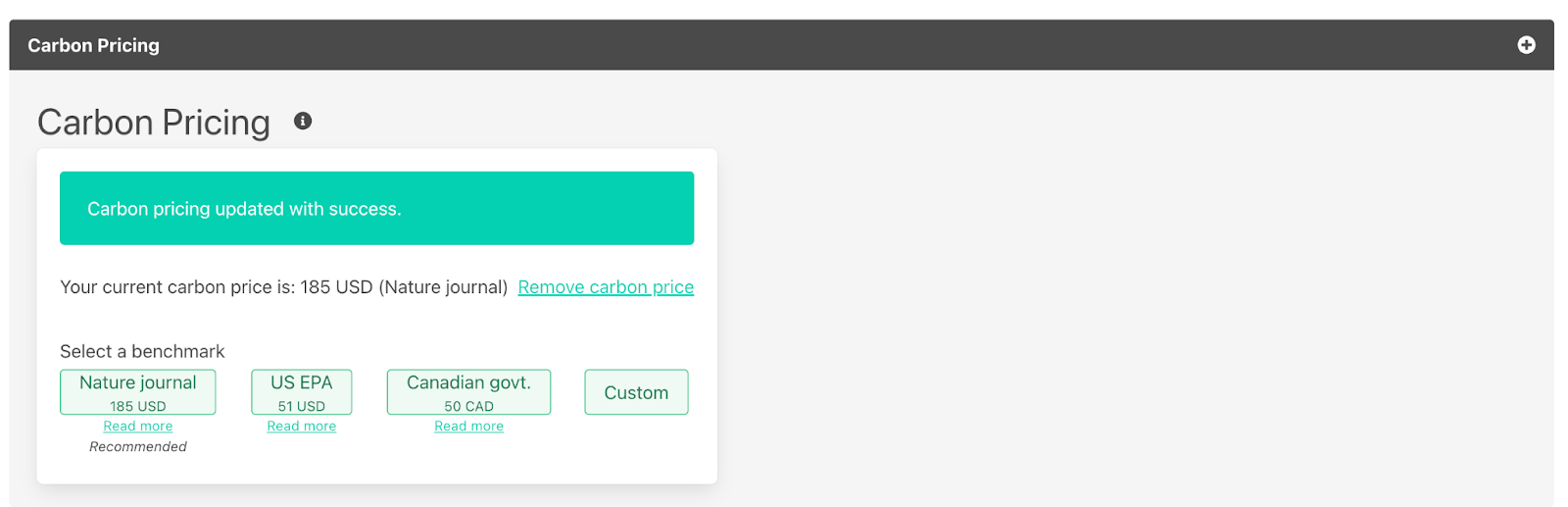
Select a carbon pricing benchmark by clicking on the green button of your preferred benchmark. You can choose between the social cost of carbon outlined by Nature of $185 USD, the US EPA of $51 USD or Canadian Government of $50 CAD per tonne of CO2e. If you would like to learn more about each of these benchmarks please click the read more link below each button. Thrust Carbon recommends using the benchmark of the journal Nature.
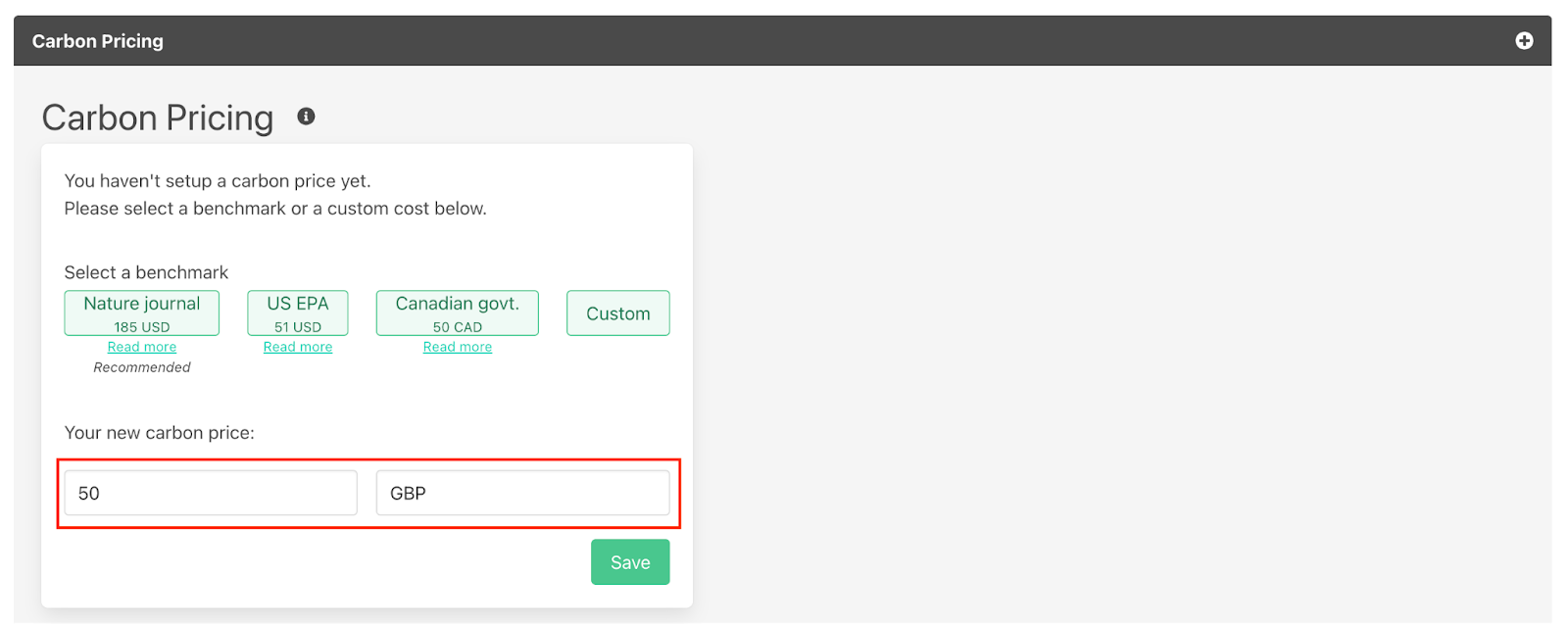
You can also select a custom carbon price by clicking on the green custom button and inputting your custom carbon price per tonne and desired currency into the drop down boxes. In the example below a custom carbon budget of £50 per tonne CO2e is set.
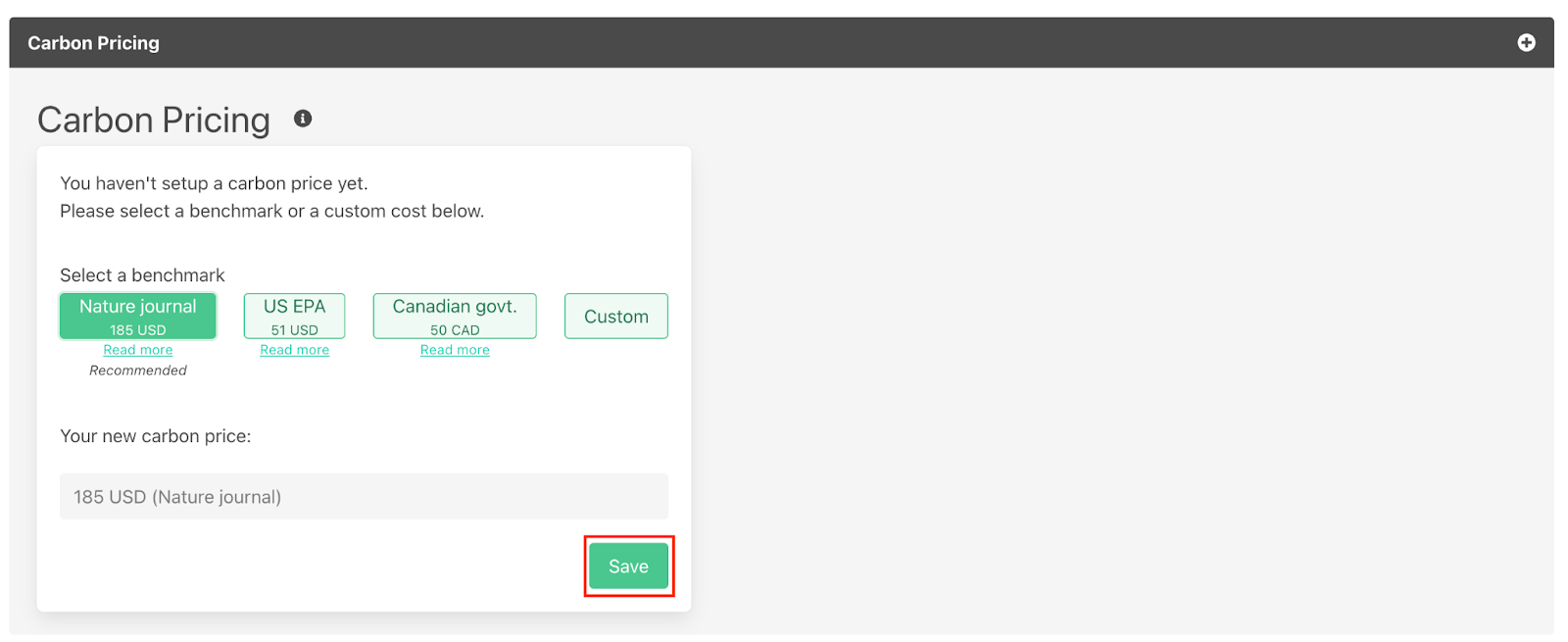
When you have selected your carbon pricing benchmark click the green save button in the bottom right hand corner as outlined below.
When you have set your carbon pricing you will get a ‘carbon pricing updated with success message’ and the carbon pricing settings will display your selected carbon price in the format ‘your current carbon price is: [amount] [currency] ([benchmarking source])’ as shown below.
2. View your Carbon Pricing
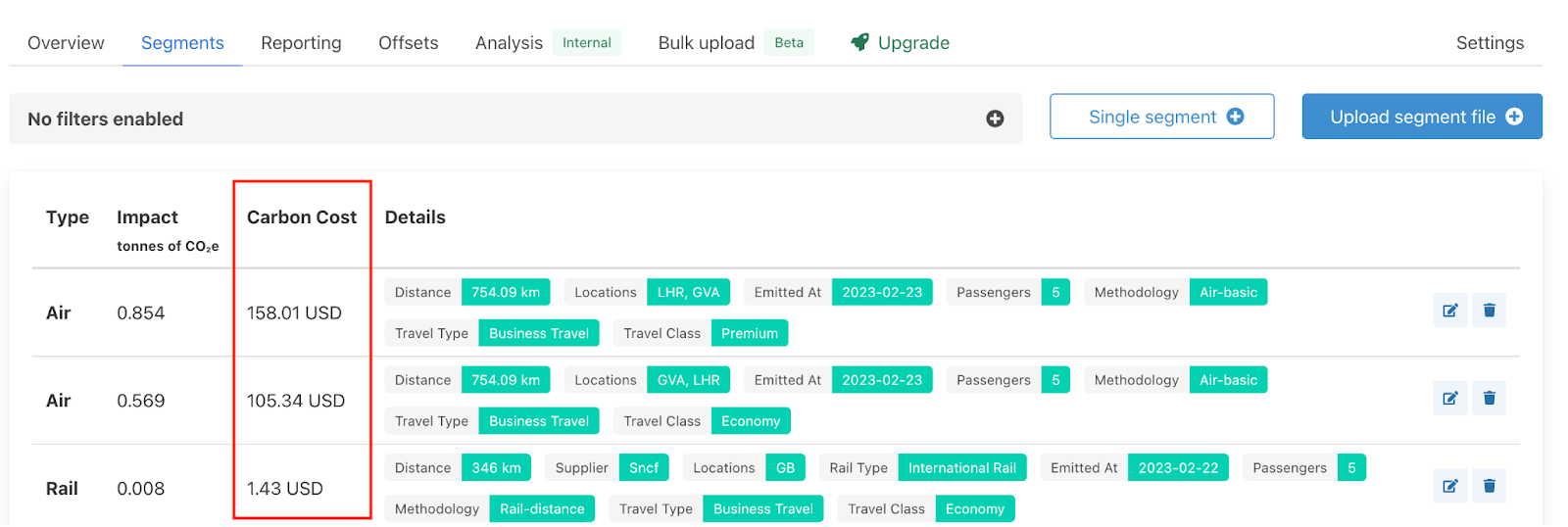
The carbon cost of each segment will now be displayed in a column next to their carbon emissions as outlined below. The currency is also displayed as this is linked to the currency of the carbon pricing benchmark selected, not the currency of the instance.
You can also view the carbon cost of segments by exporting them. To do this enter the ‘reporting’ section of your instance.

Then scroll down and click ‘generate export your segments’.

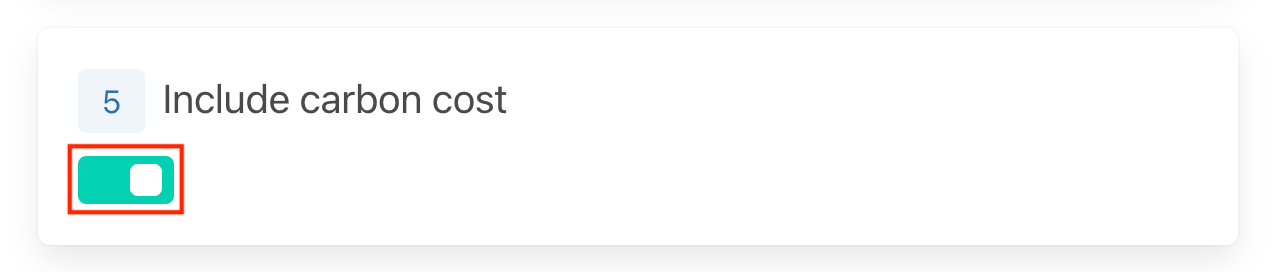
Check the ‘include carbon cost’ slider to include carbon cost in your CSV export. For more guidance on how to export segment data please see the ‘exporting emissions data’ user guide.
View the carbon cost of each segment in the exported CSV file in a separate column titled ‘carbon_cost’.

3. Remove Carbon Pricing
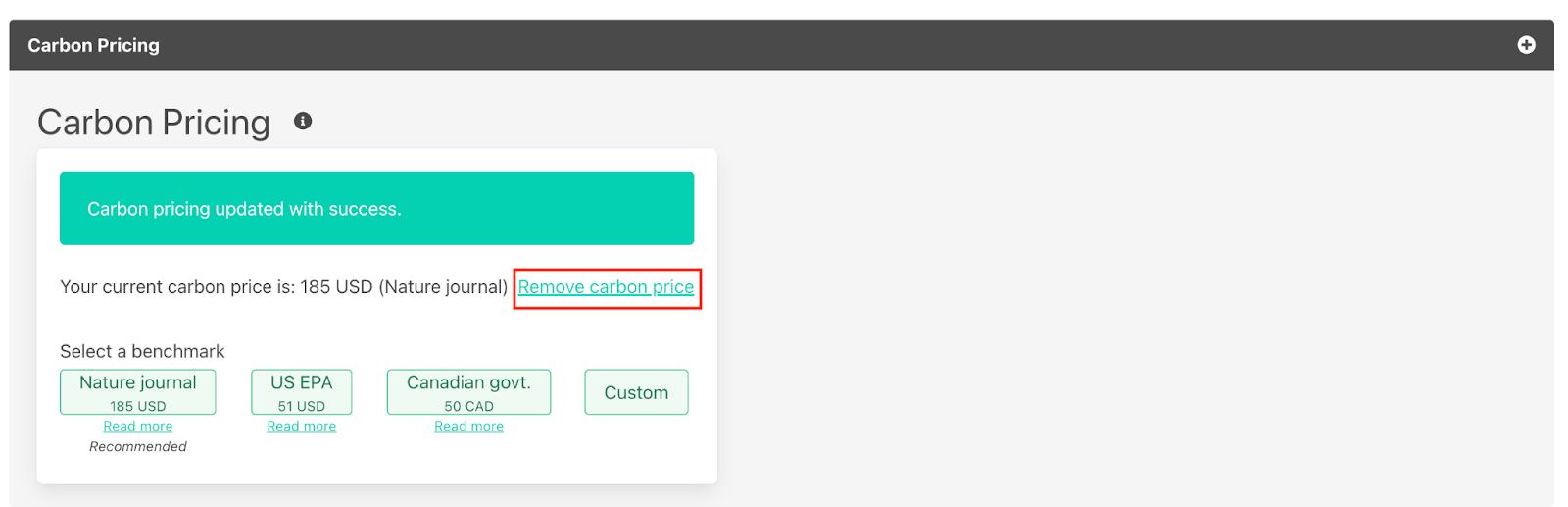
If you decide you wish to remove carbon pricing from your instance, enter your carbon pricing settings (as outlined in step 1) and click the ‘remove carbon price’ link highlighted below.
Was this article helpful?
That’s Great!
Thank you for your feedback
Sorry! We couldn't be helpful
Thank you for your feedback
Feedback sent
We appreciate your effort and will try to fix the article