Overview
The Thrust Calculator allows you to change the radiative forcing multiplier (also referred to as contrail effects) that is applied to the air segments uploaded to your organisation's instances.
In the context of aviation, radiative forcing is the impact of releasing a greenhouse warming gas at altitude. This is a complex area of science that is still not well understood, with some things causing global cooling (e.g. contrail cloud formation), and others multiplying global warming (e.g. water vapour and black soot at altitude).
While there is uncertainty about the impact of radiative forcing from individual flights, its existence and impact across an entire travel program is widely agreed by scientists. We therefore recommend all customers apply a radiative forcing multiplier.
Warning: You should not change your radiative forcing multiplier unless you are calculating your emissions for the first time or conducting a full rebaseline. Doing so may make your emissions reporting incompatible with your baseline year. You are strongly advised to seek advice before changing this setting.
1. Changing the Radiative Forcing Multiplier
To change the radiative forcing multiplier that is used in your organisation you need to the settings. Click on the settings button next to the instance you want to edit, as shown below.

You can also access the settings from within the instance as shown below.

Once you are in the Settings, you need to click on the "Calculation Preferences” tab as shown below. This will reveal a list of different configurations that can be chosen. Click on “Radiative Forcing / Contrails”.
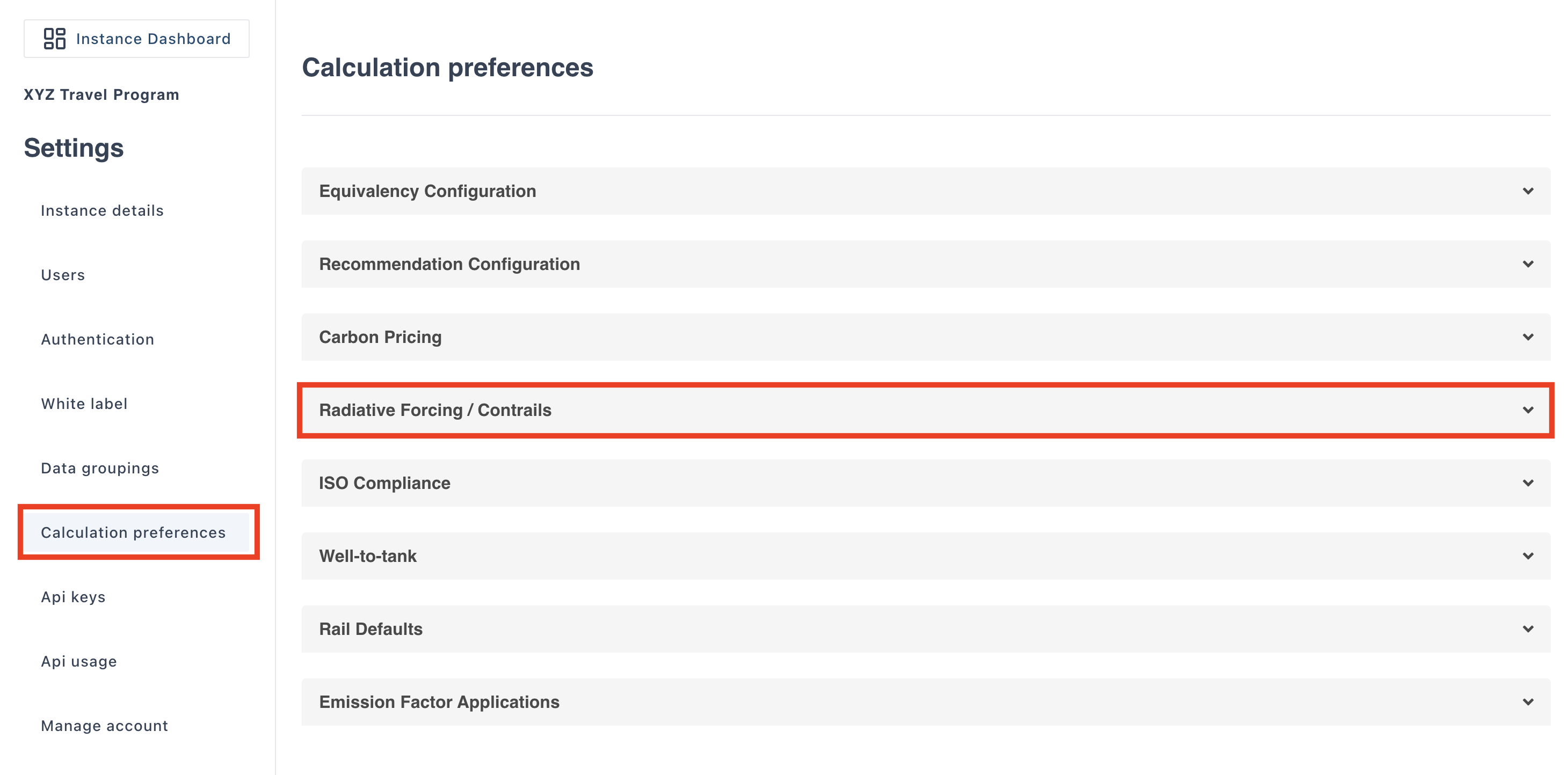
Currently all existing instances within the Thrust Calculator have a default radiative forcing multiplier of 1.89 as stated by the UK Government 2012, while going forward all new organisations will have an updated default value of 1.7, the value as stated by the UK Government from 2023.
Simply select the radiative forcing factor you wish to be applied to your air segments from the list shown. Once you have selected the value you wish, press the save button.
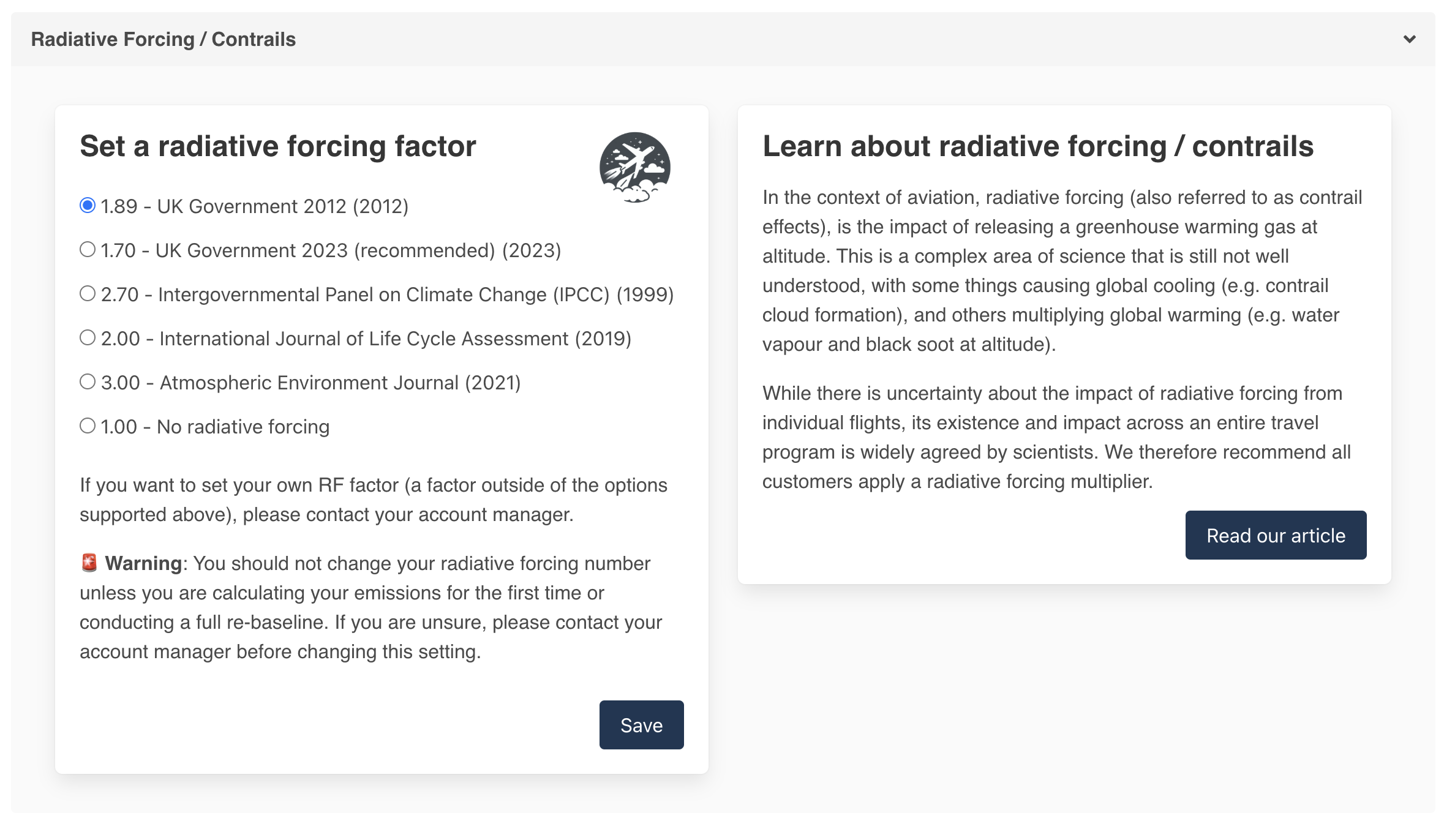
If you want to set your own RF factor (a factor that is outside of the options currently supported), please contact your account manager.
Was this article helpful?
That’s Great!
Thank you for your feedback
Sorry! We couldn't be helpful
Thank you for your feedback
Feedback sent
We appreciate your effort and will try to fix the article