Overview
Creating a hierarchy of organisations underneath a root organisation may be necessary in various scenarios, particularly for Thrust Carbon's Reseller partners and for Meetings & Events agencies with complex global event portfolios. The "partner organisation" is how the Thrust Calculator meets this need.
Note: Not all accounts are partner accounts. If your account is not set-up as a partner account and you think it should be, please speak to your account manager.
Use case
Before we start
If you want to set up a new Thrust Calculator instance for a new customer, you don't need to create an Organisation separately for them. The instance creation workflow will create a new organisation in the background automatically.
In the Thrust Calculator there is the ability to create a partner organisation. Partner accounts can create new sub-partner organisations underneath them, as well as creating non-partner organisations. This means you can create an arbitrary deep organisation tree under each partner account.
1. Add a partner account
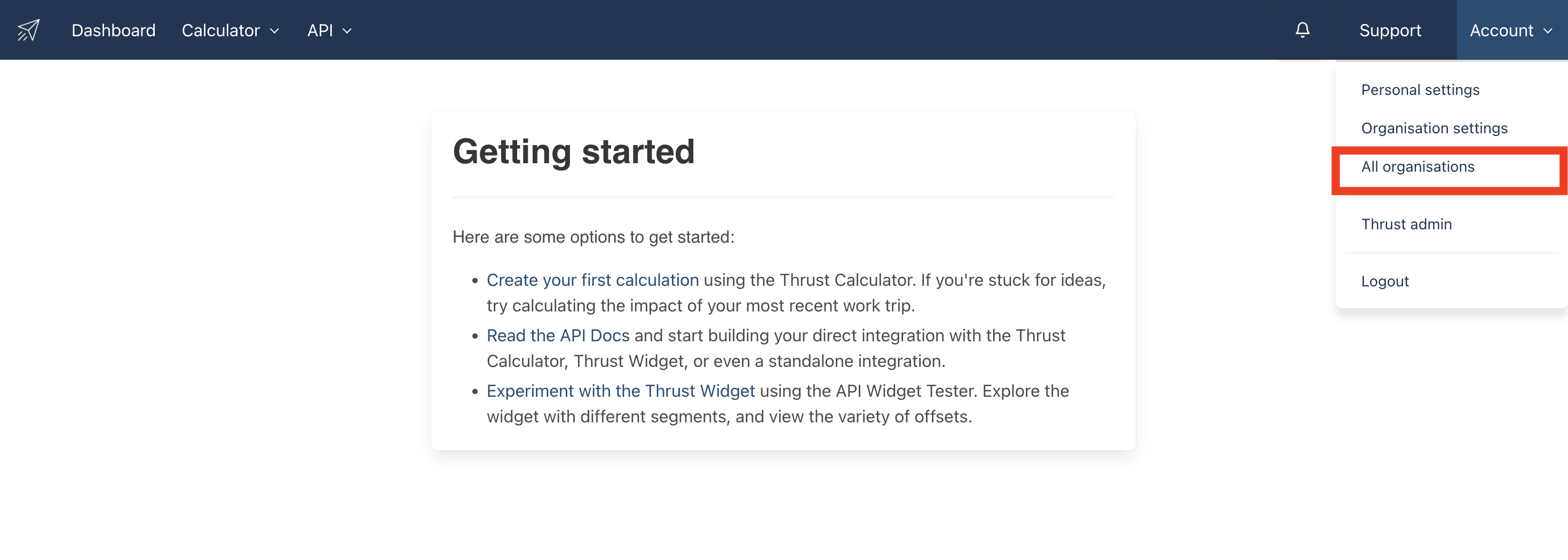
To add a partner account click on the “Account” button which will reveal a drop down. Click on “All organisations” as shown below.
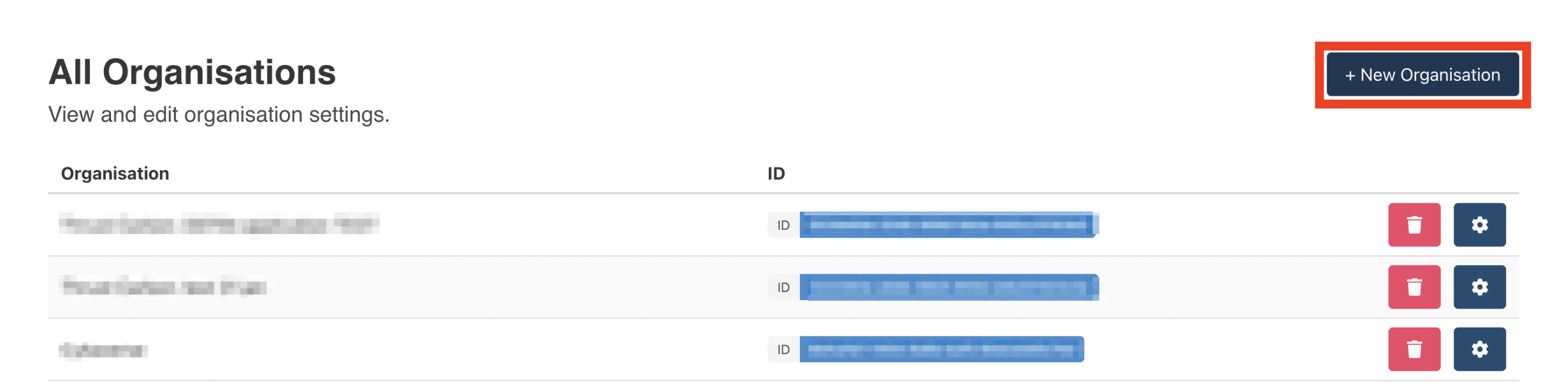
Once in the All Organisations page click on the "New Organisation" button as shown below.
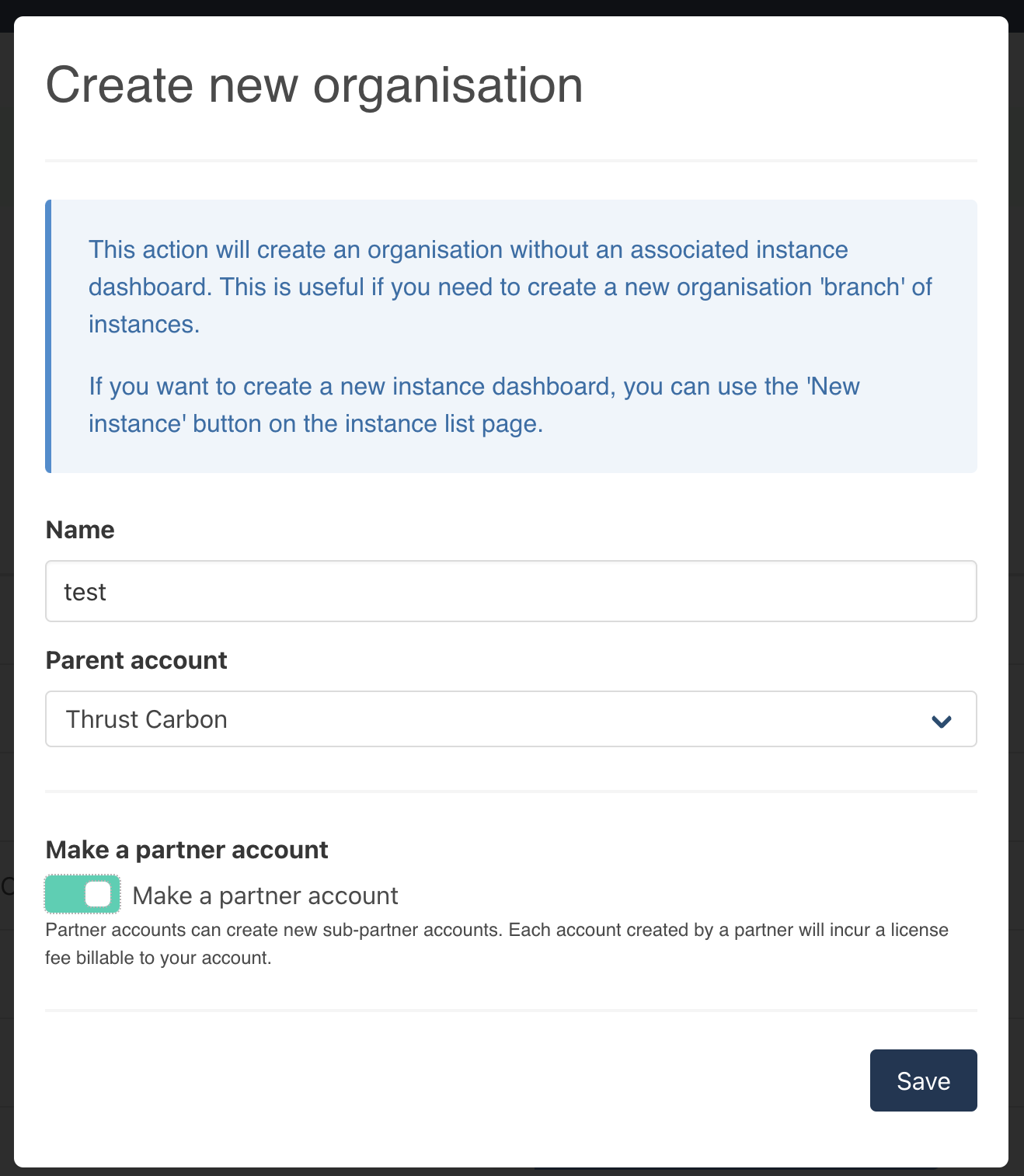
The below pop-out will be displayed. Input the name for your partner account. From the drop down list specify the parent organisation of the new partner organisation. Make sure you toggle the “Make a partner account” to make your new account a partner account.
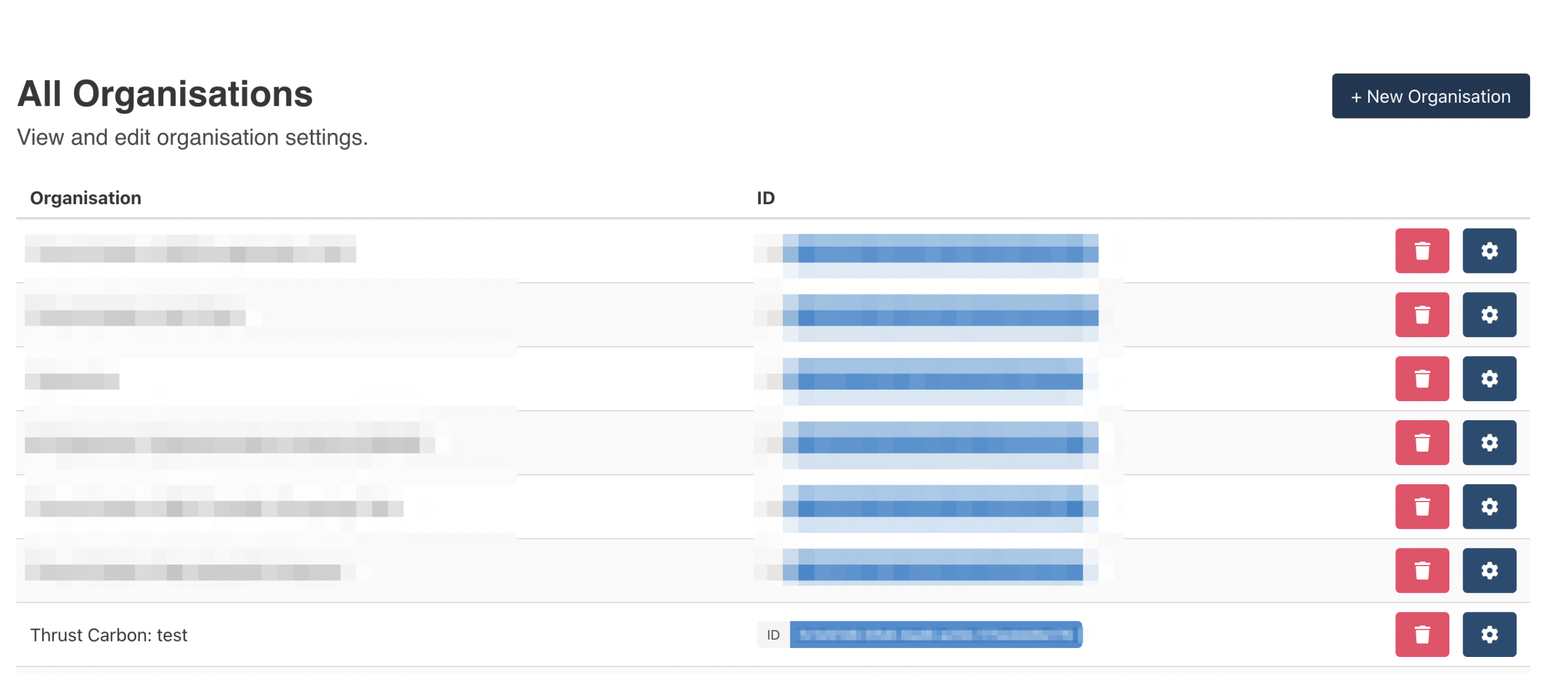
Once you have finished inputting all the information into the pop-out click the save button and you will be redirected to the list of all your organisations as shown below.
2. Edit a partner account
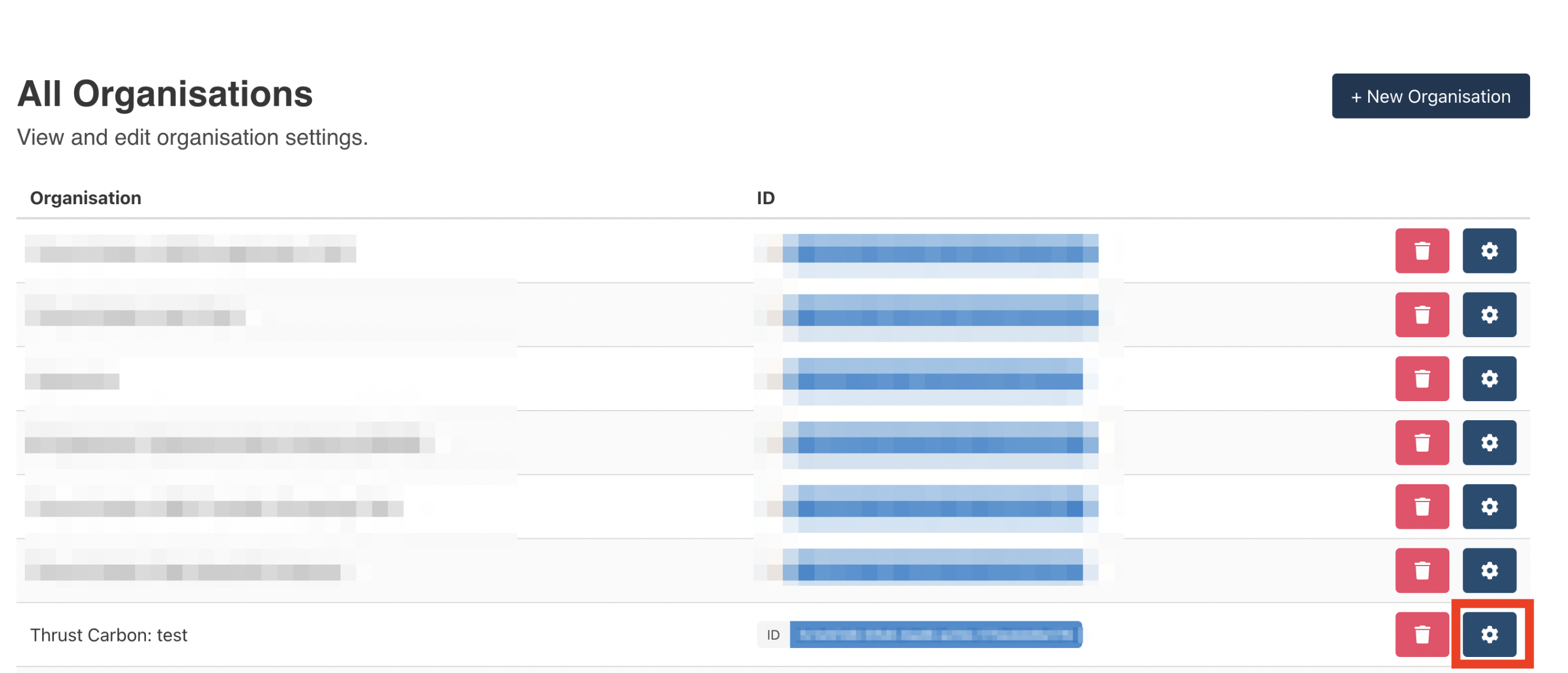
To edit the details of your new account, click on the “settings” button to the right of the account as shown below. You will then be navigated to the settings page where you can make the relevant changes to your account.
3. Delete a partner account
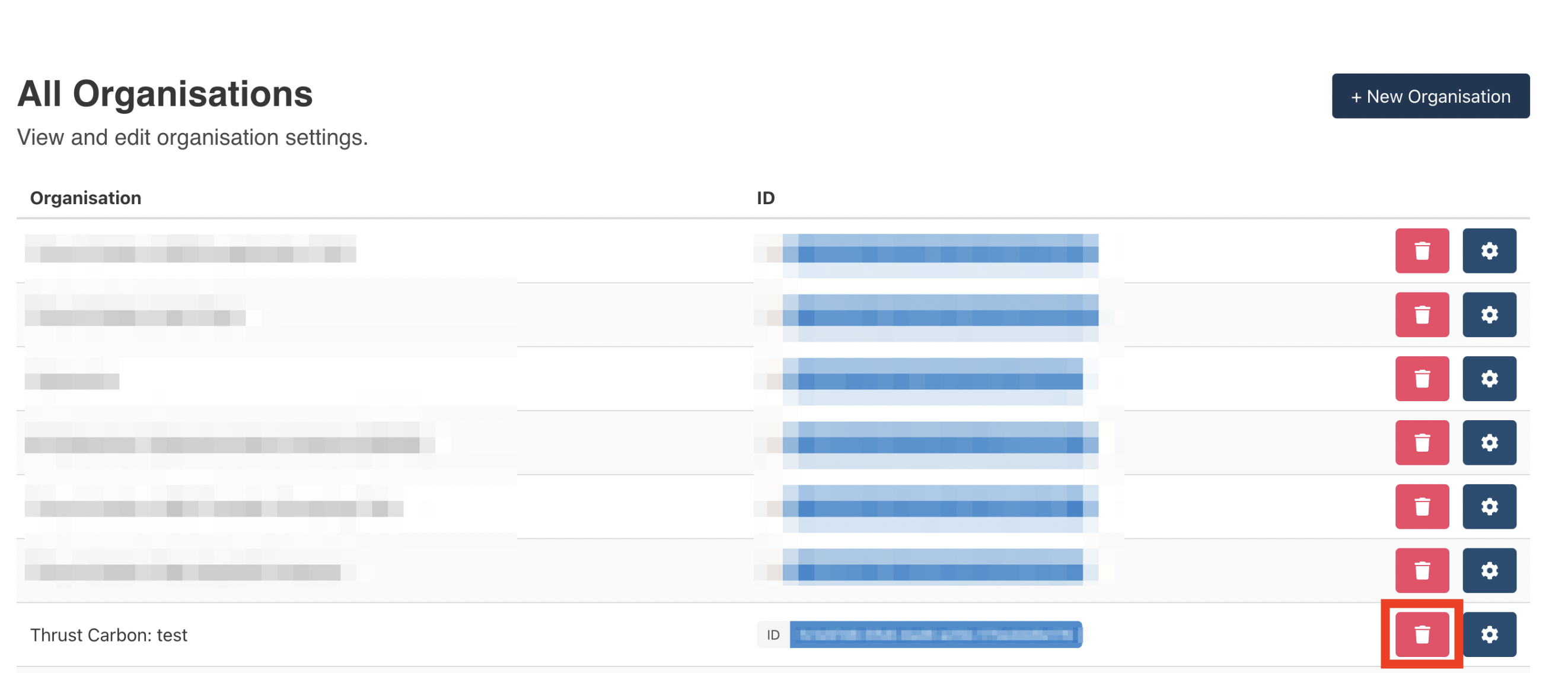
To delete your account click on the trash icon to the right of the account as shown below.
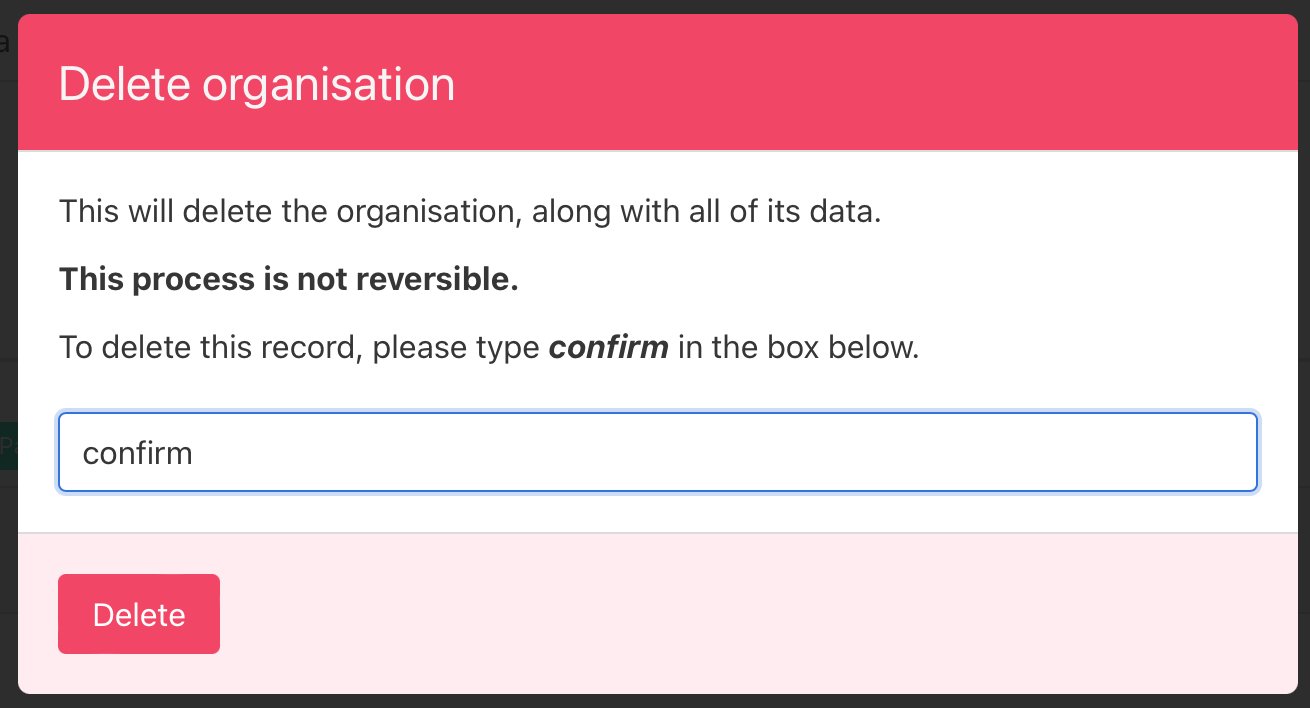
A pop-out will appear and to confirm the deletion of your account you need to type in “confirm” into the pop-out. Once you click delete your account will be deleted. Note this process is irreversible and cannot be undone.
Was this article helpful?
That’s Great!
Thank you for your feedback
Sorry! We couldn't be helpful
Thank you for your feedback
Feedback sent
We appreciate your effort and will try to fix the article