Overview
Spotlight is Thrust Carbon’s powerful tool that transforms complex travel data into actionable insights. With this feature, users can explore and analyse their travel emissions data in flexible, customised ways. Spotlight enables users to slice and dice data in the ways that matter most to them, empowering smarter decision-making and deeper sustainability analysis. Users can also create custom graphs directly within the Calculator for even greater control and clarity.
1 How to access Spotlight
Note: Spotlight is an additional paid feature. For details on access, please reach out to your account manager.
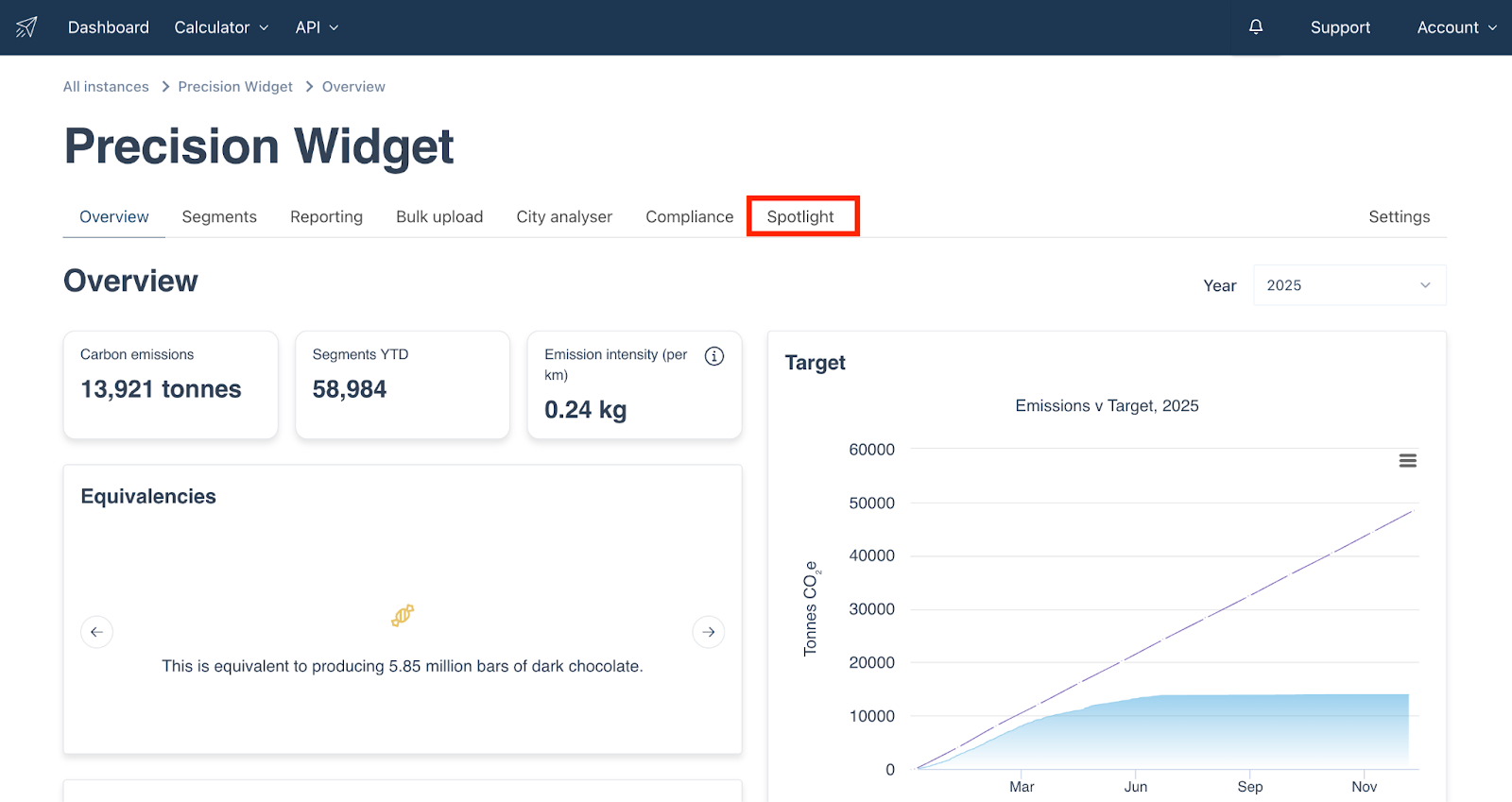
Once you have been granted access to Spotlight , you will be able to access this via the “Spotlight” tab in your instance, as shown below.
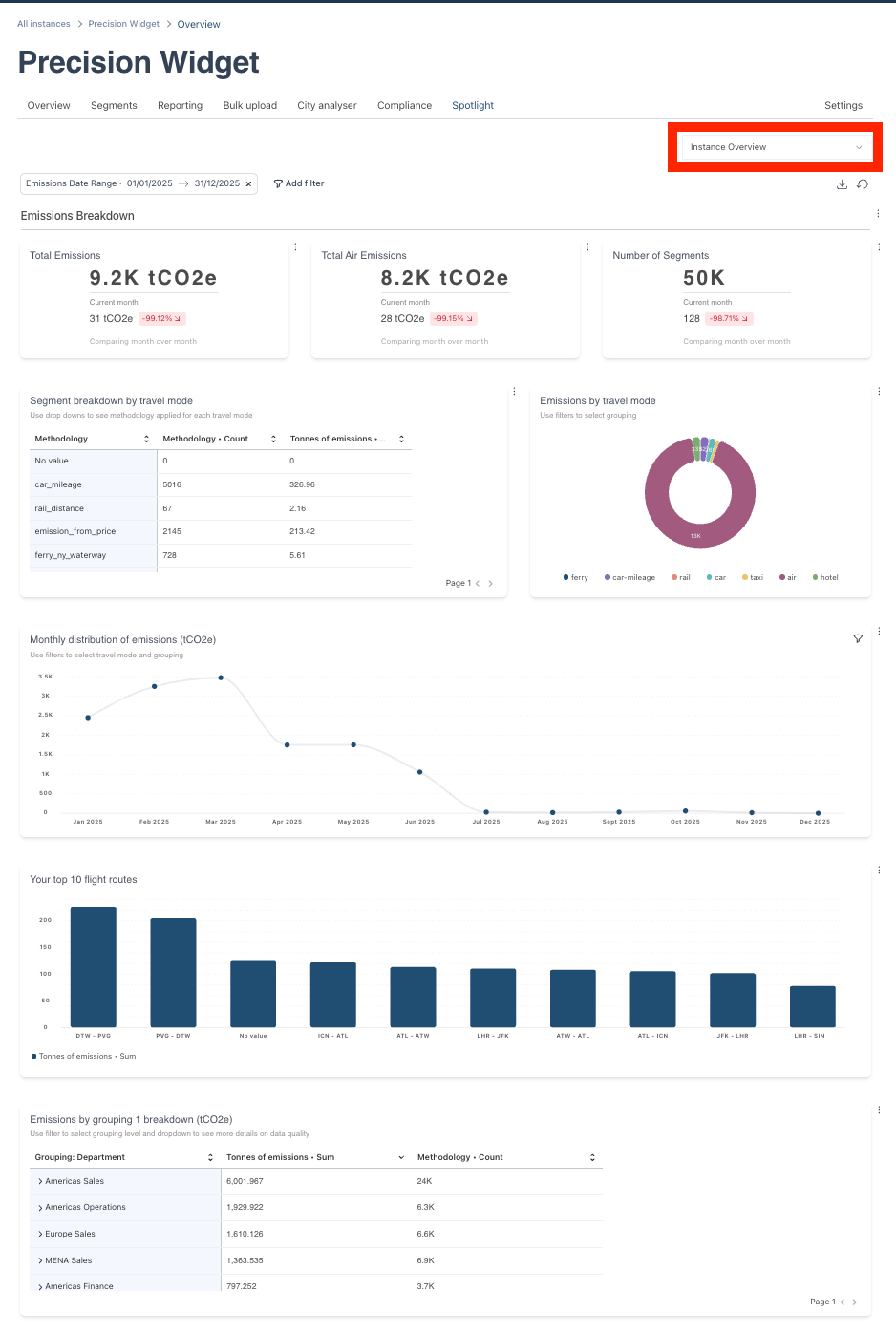
Once you have clicked into the Spotlight tool you will see the Instance Overview dashboard. Depending on your subscription you may have access to additional dashboards as Thrust Carbon releases new insights.
2. Applying filters to the dashboards
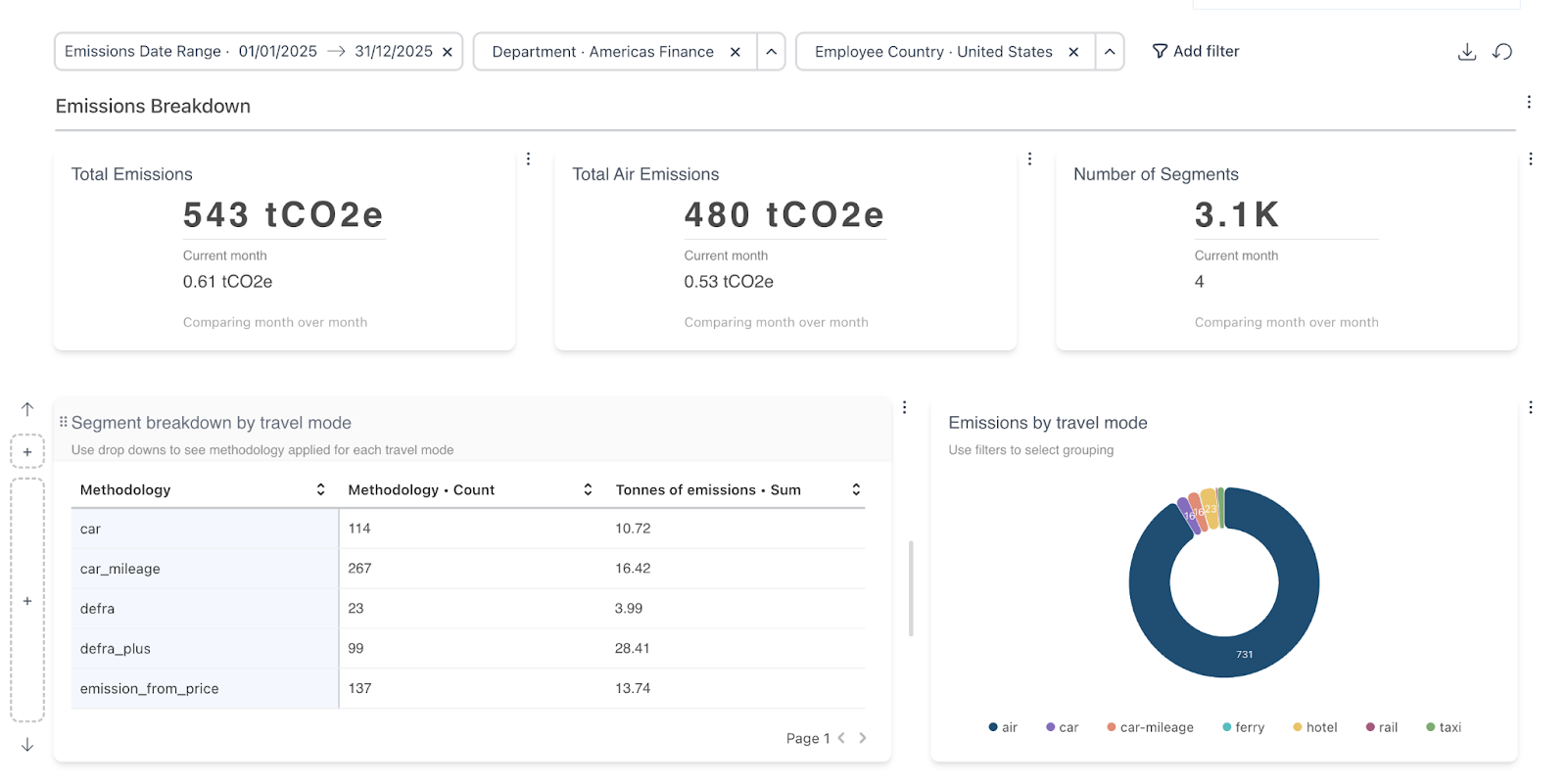
A pre-populated date filter is available at the top of the screen, allowing you to view insights for specific date ranges. You can also add additional filters to tailor your dashboard, such as viewing emissions data exclusively from the US finance team.
To add a new filter click the “Add filter” button.

Then click on “+ New dashboard filter”
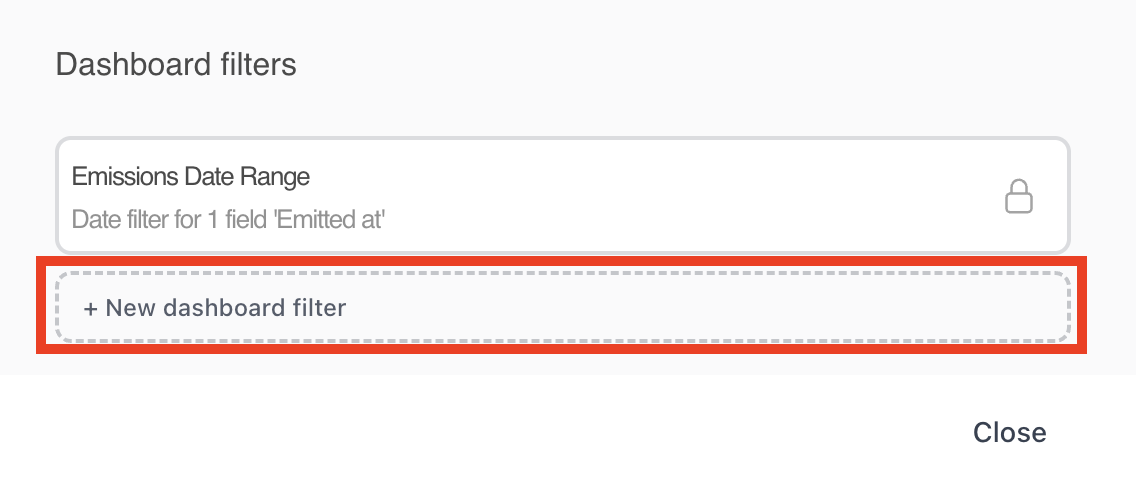
For this example we are going to add a new filter for “Department”, a grouping type that is attached to the uploaded segments in this instance.
Populate the popout in a similar fashion to the one shown below.
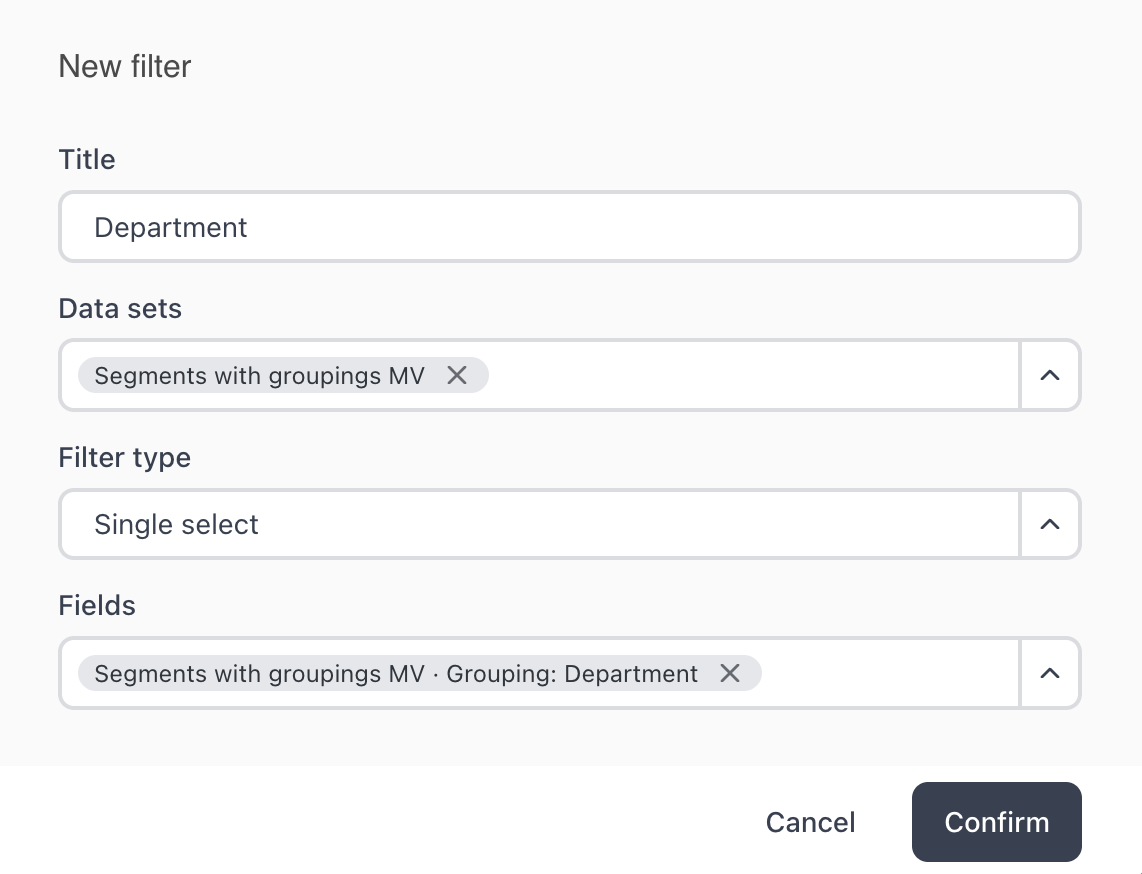
Once you click confirm the new filter will be displayed at the top of the screen next to the date filter.

You can add as many filters as you wish. These filters will be saved on your dashboard for when you return at another time.
As shown in the example below, the data has been filtered to only show segments that are from the “Americas Finance” department, and also the employee country “United States”.
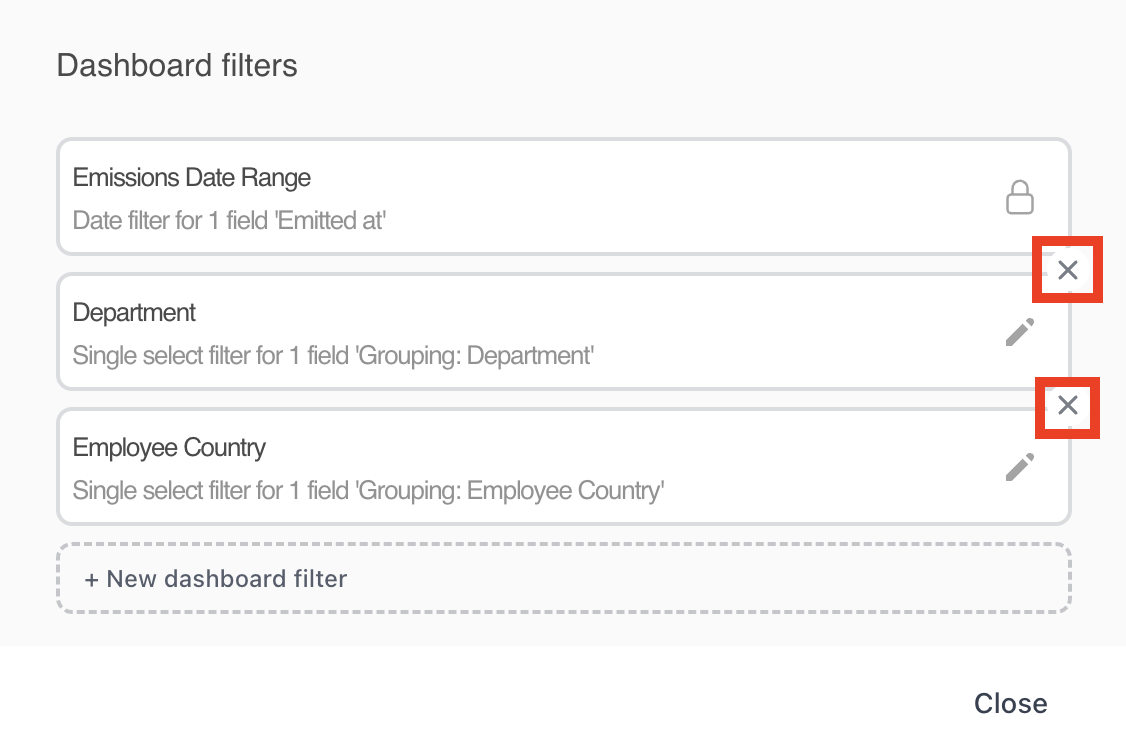
If you want to delete a filter, click on the “Add filter” button, and then select which filter you want to remove and click the “X” as shown below.
3. Editing charts
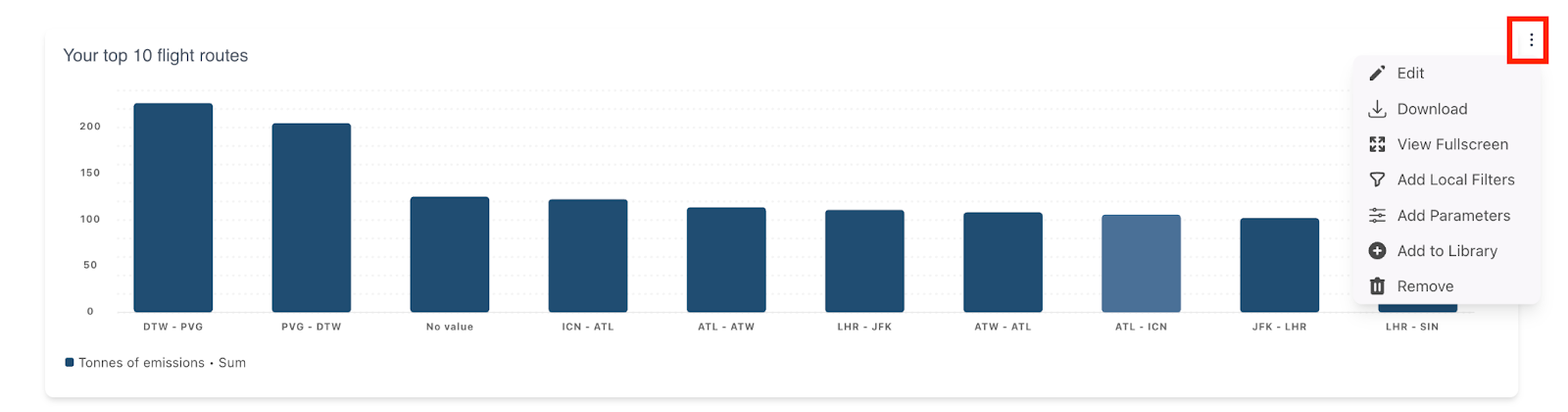
It is possible to edit any chart on the dashboard, for example if you wish to see additional filtering and formatting options. Click on the 3 dots to the right hand side of the chart you wish to edit. You can also download the chart too.
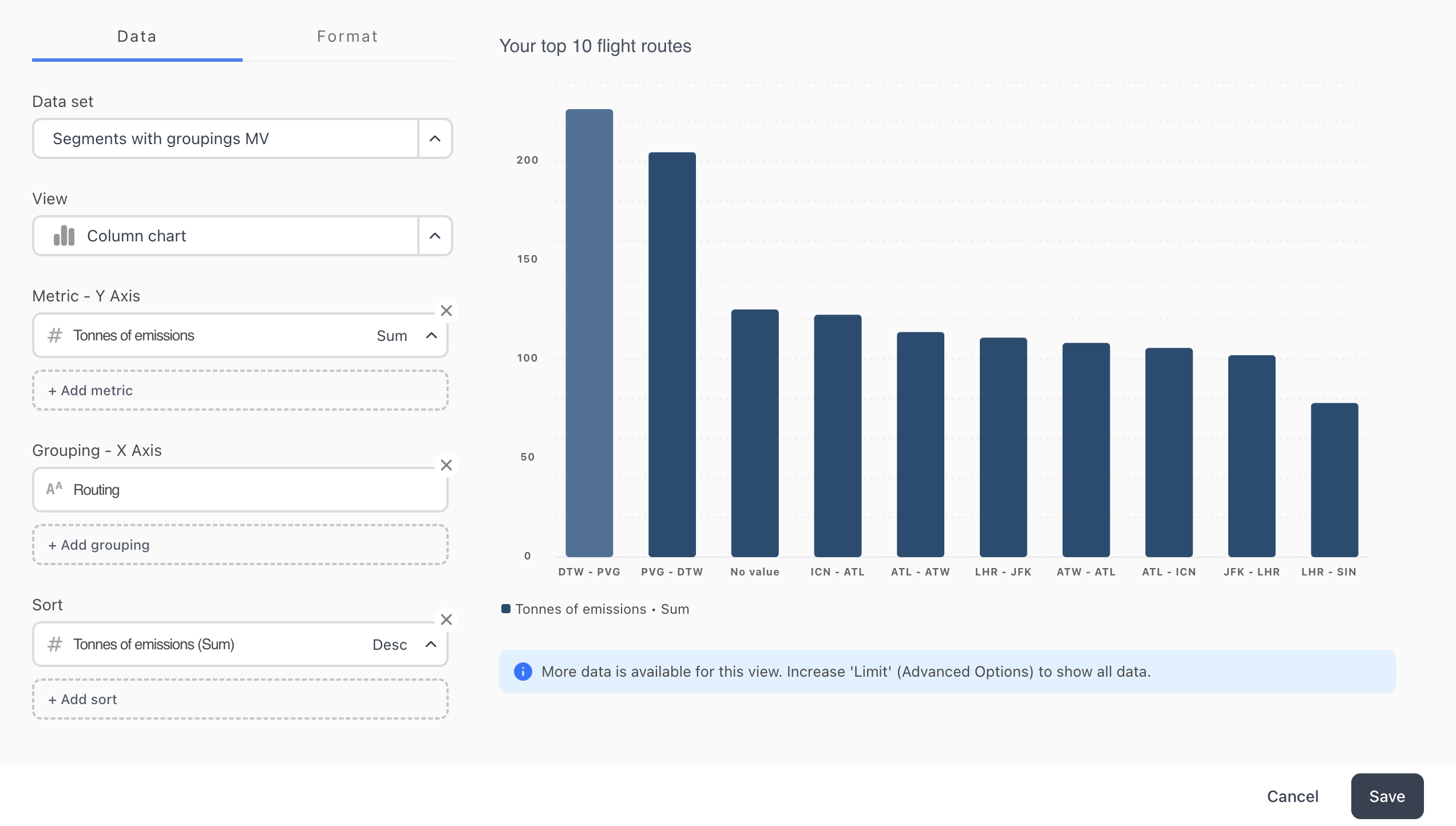
On clicking the “edit” option a popout will appear like the one below. Here you can change which data is shown, the format of the data and the chart type, to name a few.
4. Creating new charts in the dashboard
In addition to editing the default charts provided, you can also create new charts.
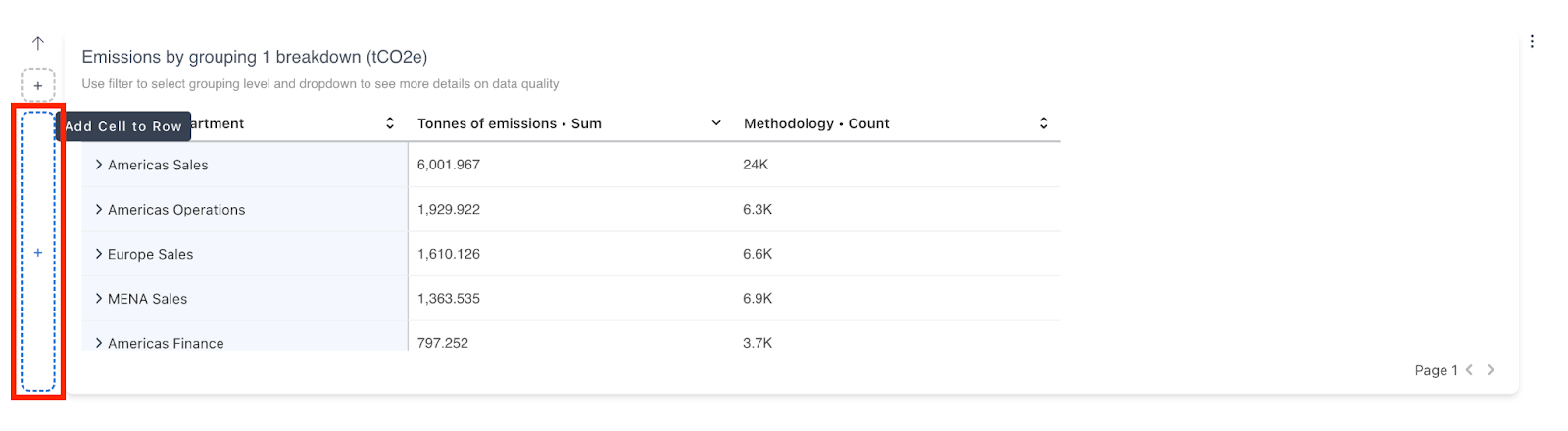
To add a new chart, hover your mouse over the left hand side of a chart. Then click on the “add cell to row” that appears, as shown below.
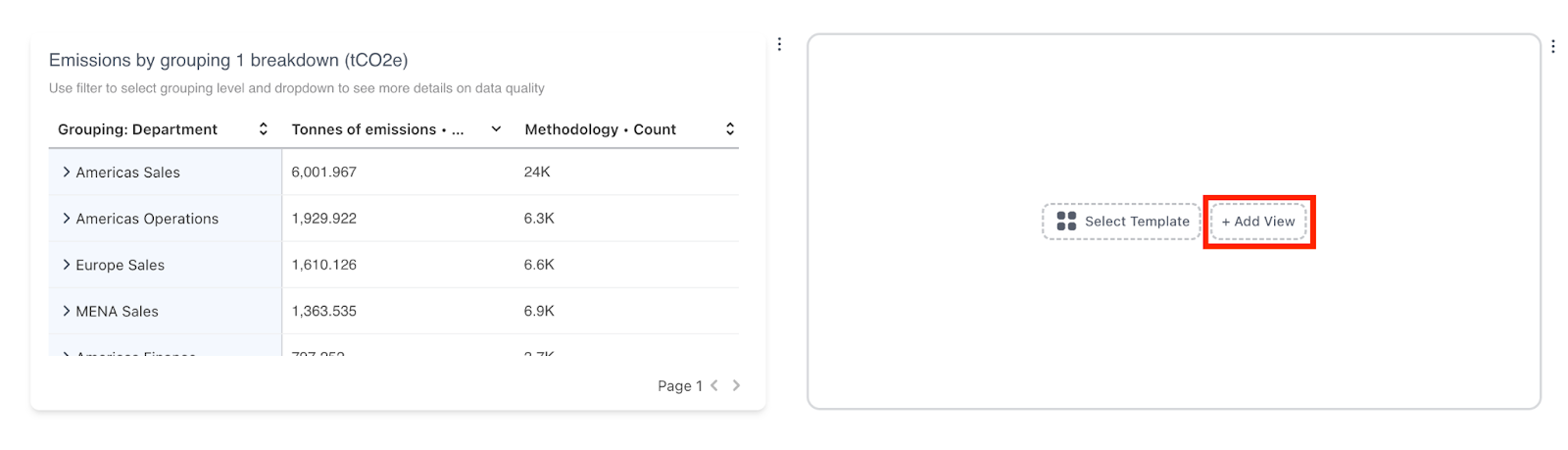
A new place holder for a chart will appear. You can choose to select a chart from a template or add a new view. For this example we are going to add a view.
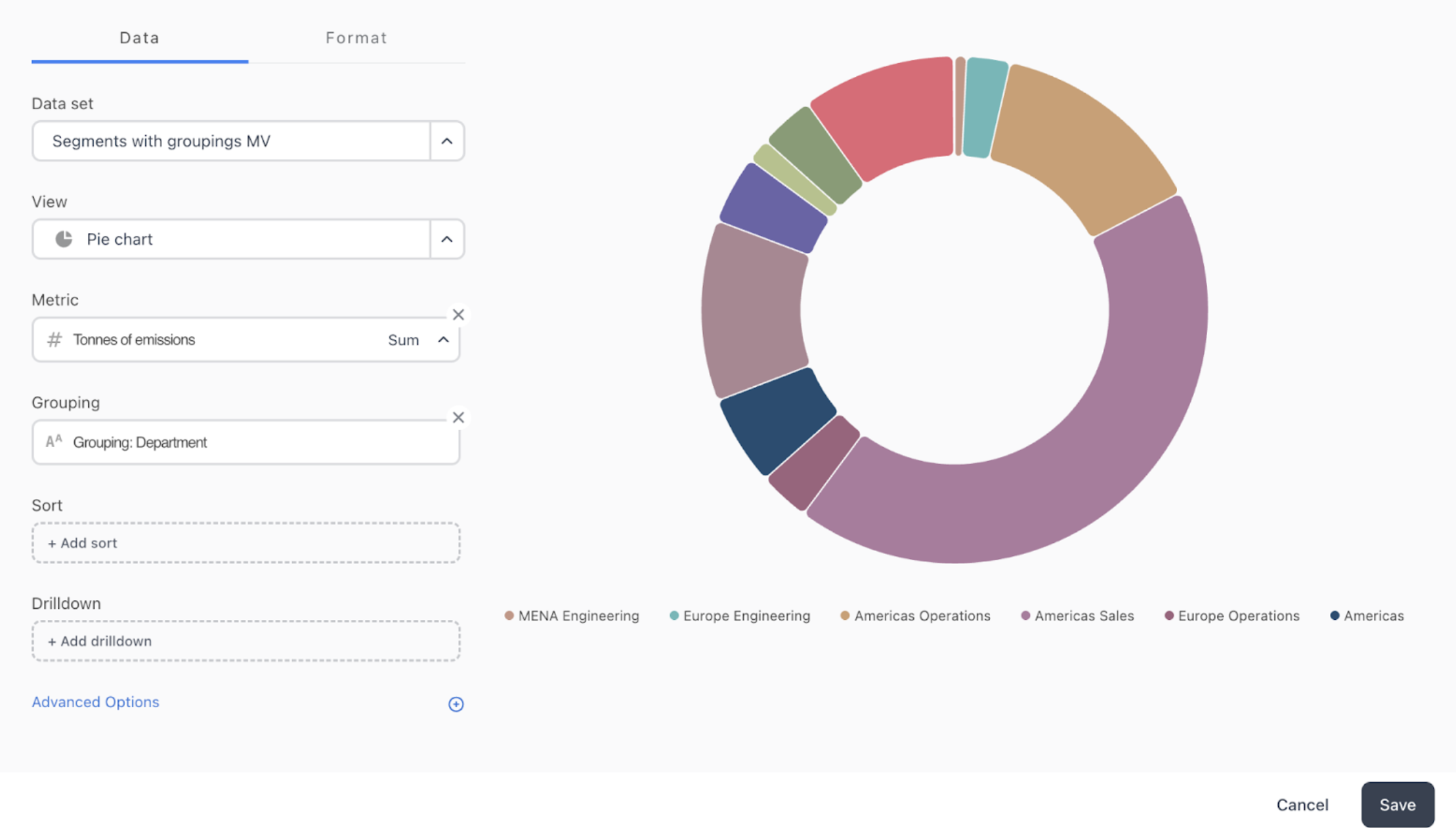
A similar popout as shown on the “edit” chart will appear. Here you can choose what chart type to display, which data sets to show and much more. Remember to click save once you are happy with your chart creation.
Spotlight is a newly added feature in Calculator. If you have any feedback or suggestions, we’d love to hear from you — please don’t hesitate to get in touch via research@thrustcarbon.com
Was this article helpful?
That’s Great!
Thank you for your feedback
Sorry! We couldn't be helpful
Thank you for your feedback
Feedback sent
We appreciate your effort and will try to fix the article