Why we display equivalencies
You will have noticed at Thrust Carbon, we love to display equivalencies. They provide a reference point to link what we already know and understand to measures of CO₂e, which can be more difficult to comprehend.
Examples of our equivalencies are:
- Equivalent to X days of video conferencing
- Equivalent to the carbon captured by X tree seedlings in their first 10 years
- Equivalent to the carbon captured by X blue whales
When we display equivalencies
These equivalencies show conditionally - which means depending on the amount of CO₂e, you will see different equivalencies. This is to keep the equivalency list fresh, but also because some equivalencies don't make sense for CO₂e measure that are too small or too high. Take constructing a house for example, this equivalency won't show for CO₂e measures less than 32 tonnes (the average measure for a 3 bedroom house).
Equivalencies will display in your Thrust Calculator online interface, through the API responses, and in your Thrust Engage platforms.
Configuring your Equivalencies
You can manage which equivalencies we display for your organisation. This will impact the equivalencies that are displayed everywhere for your organisation (see "When we display equivalencies").
The steps are:
- Go to the settings of your instance.
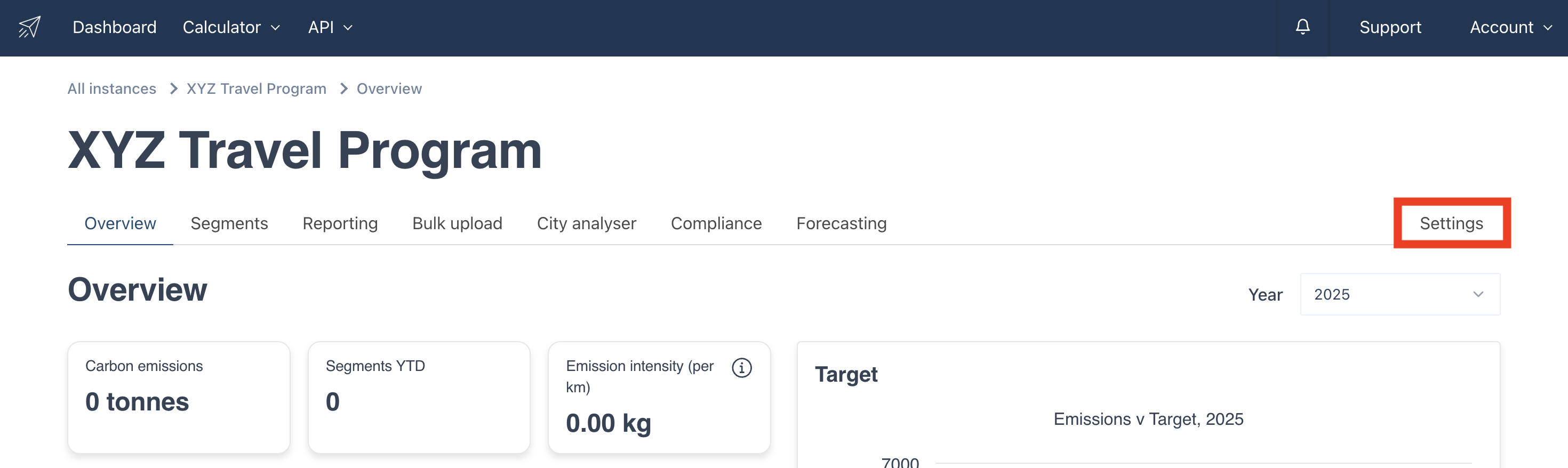
- Go to the "Calculator Preferences" tab.
- Open the "Equivalency Configuration" accordion.
You will now see a list of equivalencies. For each one, you can select whether they should be "Disabled", or "Always on".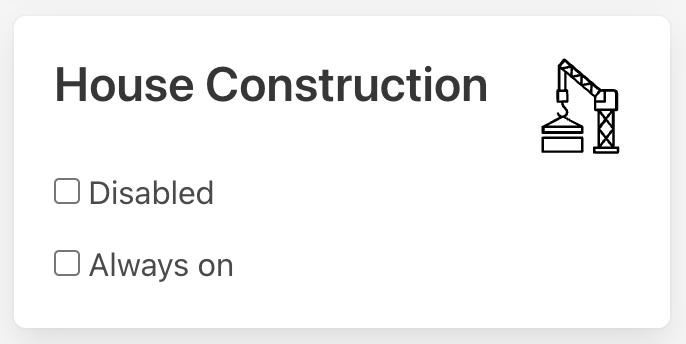
Disabled, will mean that the equivalency will not show. If you don't want to see any equivalencies, you can check each of the disabled checkboxes.
Always on will override the condition previously mentioned. Regardless of the amount of CO₂e that is being compared, the equivalency will always show. This is useful if you are building an API integration, and want to use a particular equivalency in your interface. You can select "Always on", and that equivalency will always be returned with your response.
Tip: Remember to hit save when you're done configuring!
Was this article helpful?
That’s Great!
Thank you for your feedback
Sorry! We couldn't be helpful
Thank you for your feedback
Feedback sent
We appreciate your effort and will try to fix the article