Overview
Before bulk uploading your data to the Thrust Calculator it may be necessary to prepare and clean the spreadsheet you wish to upload. The nature of using travel data from different sources results in a range of differently formatted data files. So spreadsheets need to be formatted to a standard way that the Thrust Calculator will accept and process. The process of “cleaning” a spreadsheet to the format and standard required by the Thrust Calculator is described below.
See the accompanying excel spreadsheet for a template spreadsheet for each travel segment type. In each of the tabs, each covering a different “segment” type, we have provided an example of the relevant format to use. In addition there are some fields which require the values to be from an allowed list e.g. refunds, exchanges and class of travel.
General Formatting
Columns Affected | Changes to make |
|---|---|
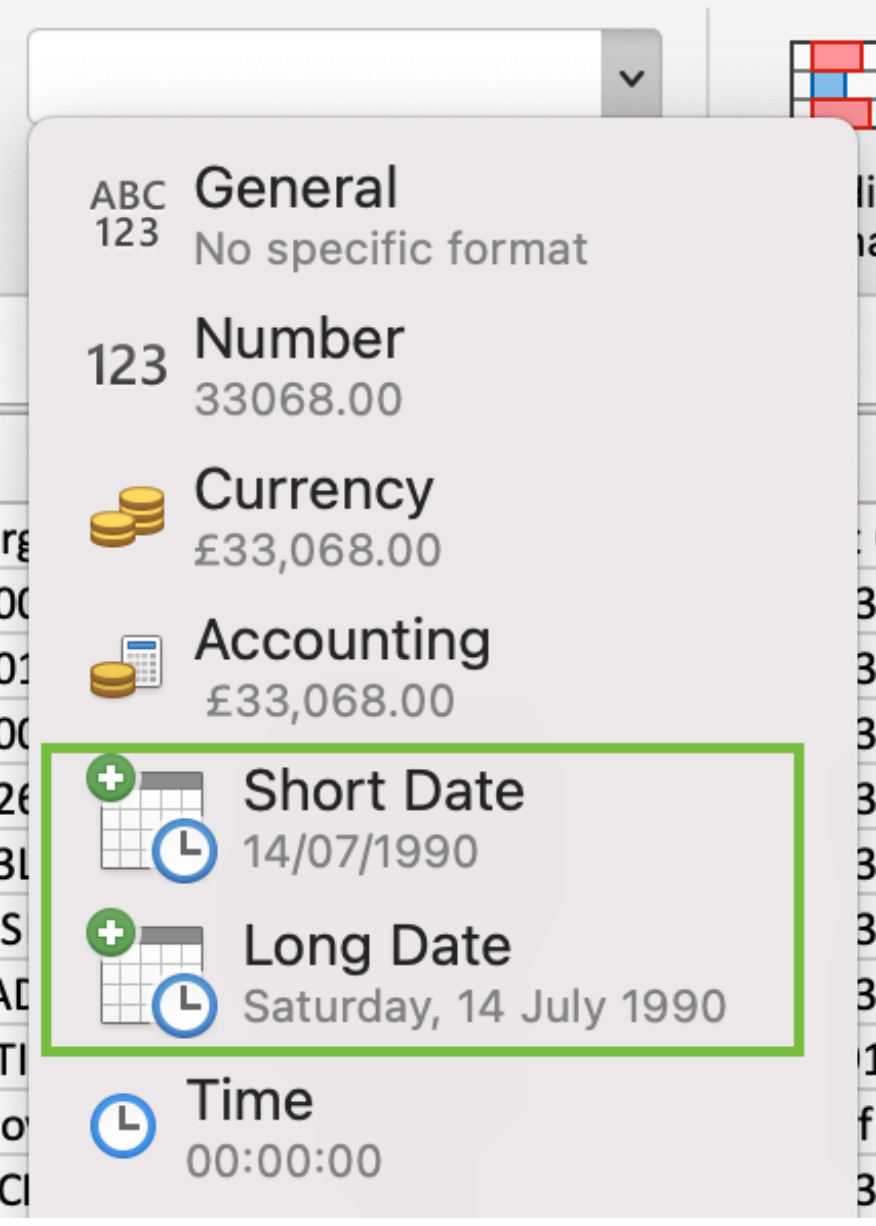
Dates e.g. invoice date, travel date | Excel: Must be a date column
CSV: Format YYYY-MM-DD |
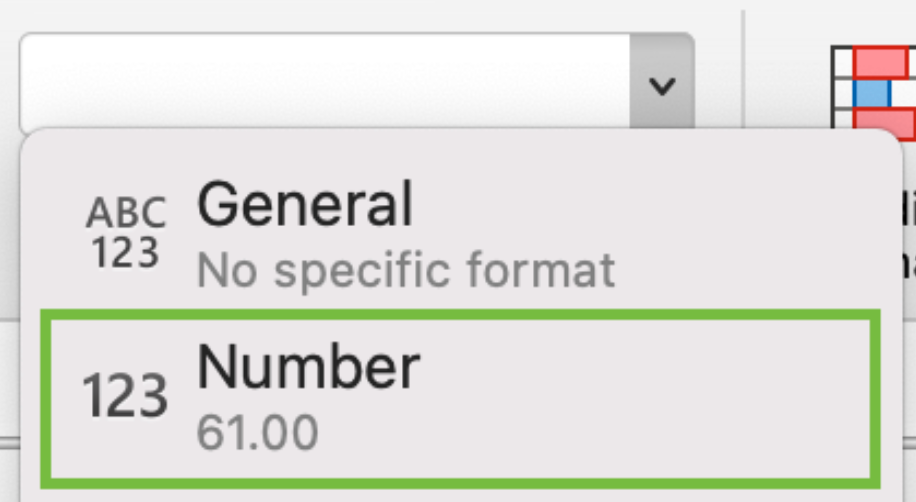
Numerical e.g. price, number of nights | Format to numbers (not text)
|
Basic Routing
Often data within the spreadsheet is not at the coupon (or individual flight) level but at the full itinerary level such as: DUB/LHR/JFK/LGW/DUB
One thing to look out for is how the itinerary is formatted. If the itinerary includes a break in the journey, often marked with a "*" or "_", such as DUB/LHR_LGW/DUB, then it is necessary to separate out DUB/LHR and LGW/DUB into 2 separate rows in order for the Thrust Calculator to process this correctly.
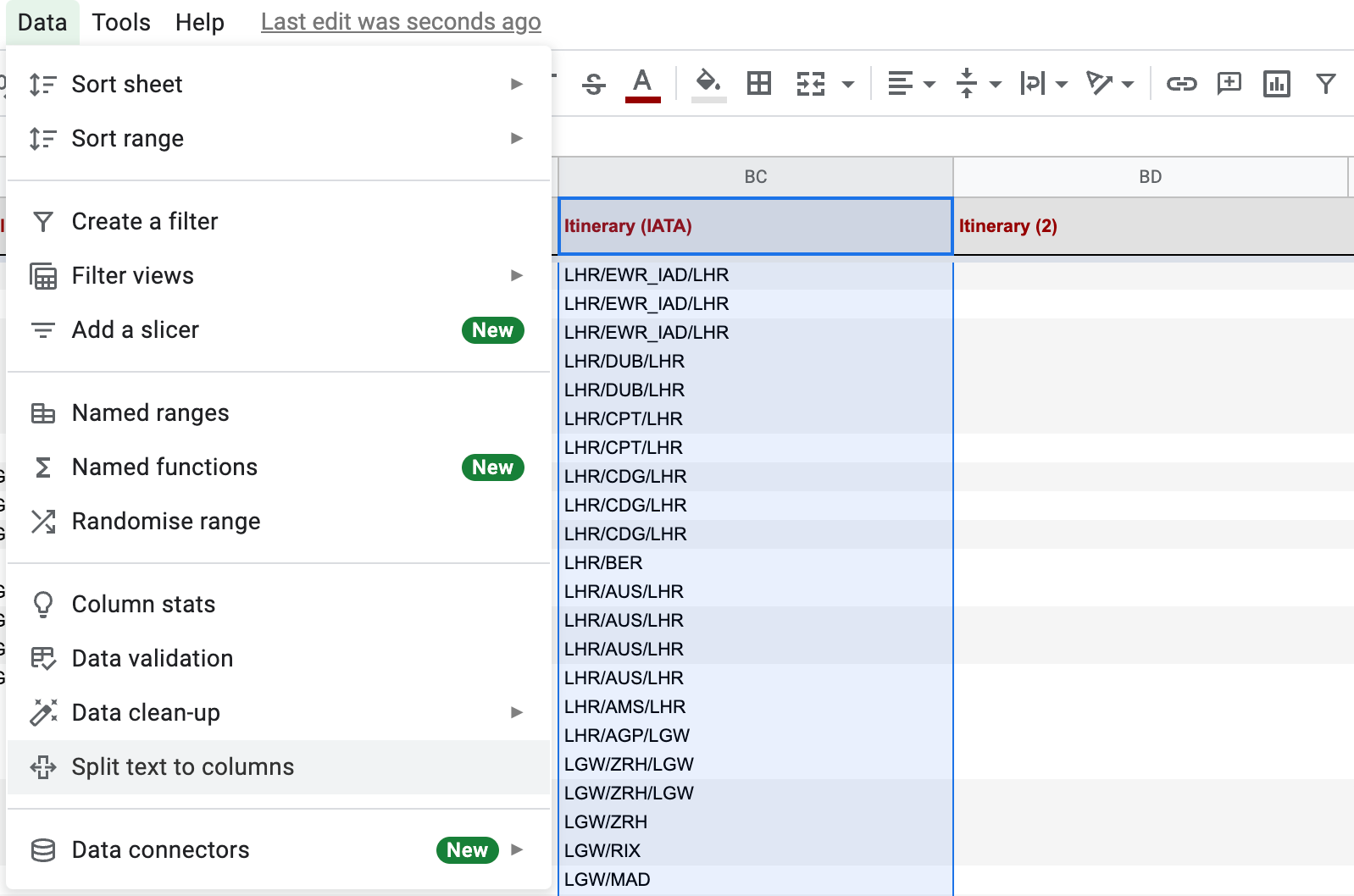
One way to separate out the itinerary in google sheets is to add additional columns to the right hand side of the itinerary column, depending on the maximum number of "*" or "_" found in a row. Next highlight the itinerary column -> data -> split text to columns -> custom -> input the symbol that represents the break in travel.
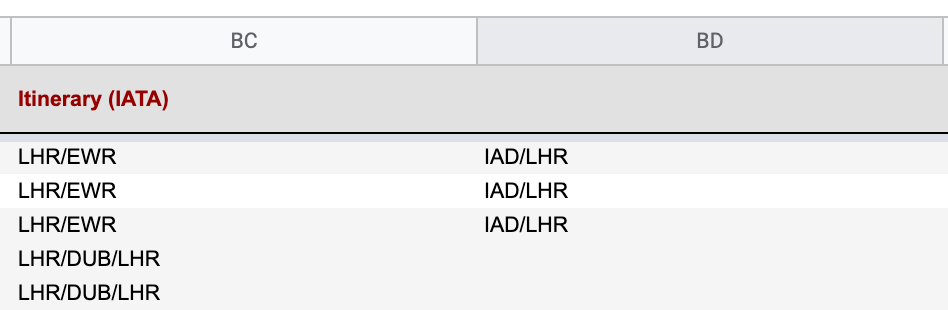
This separates out the final part of the itinerary into another column. All these rows which have an itinerary in column "BD" as shown below now need to be copied and pasted to the bottom of the spreadsheet, moving the itinerary in BD to column BC. Now both parts of the itinerary will be accounted for in the upload.
Note: The process to separate out itineraries such as DUB/LHR_LGW/DUB is very similar in Excel as in Google sheets. Select the column you want to separate out, click on the Data tab then on the “Text to Columns” button as shown below
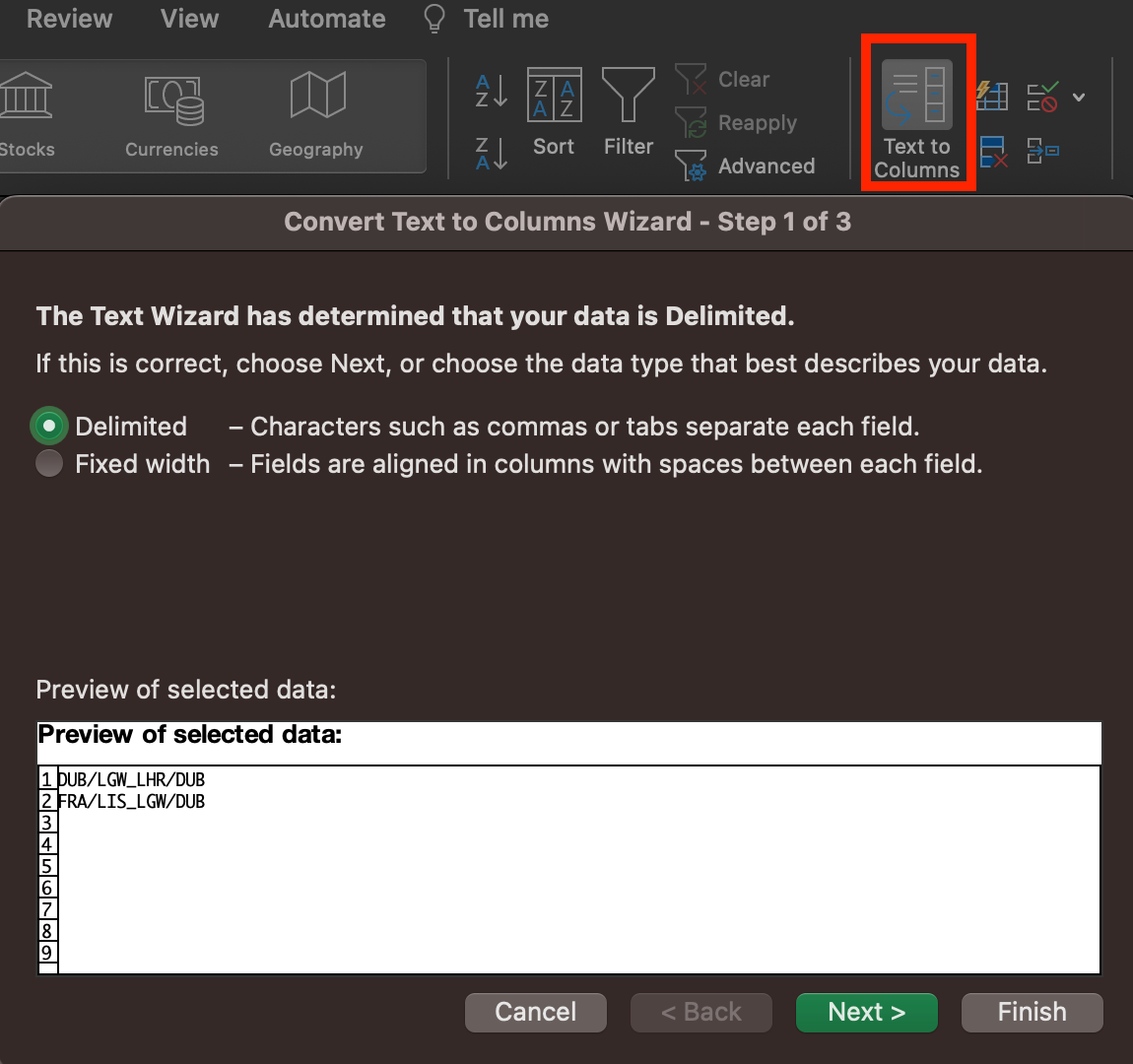
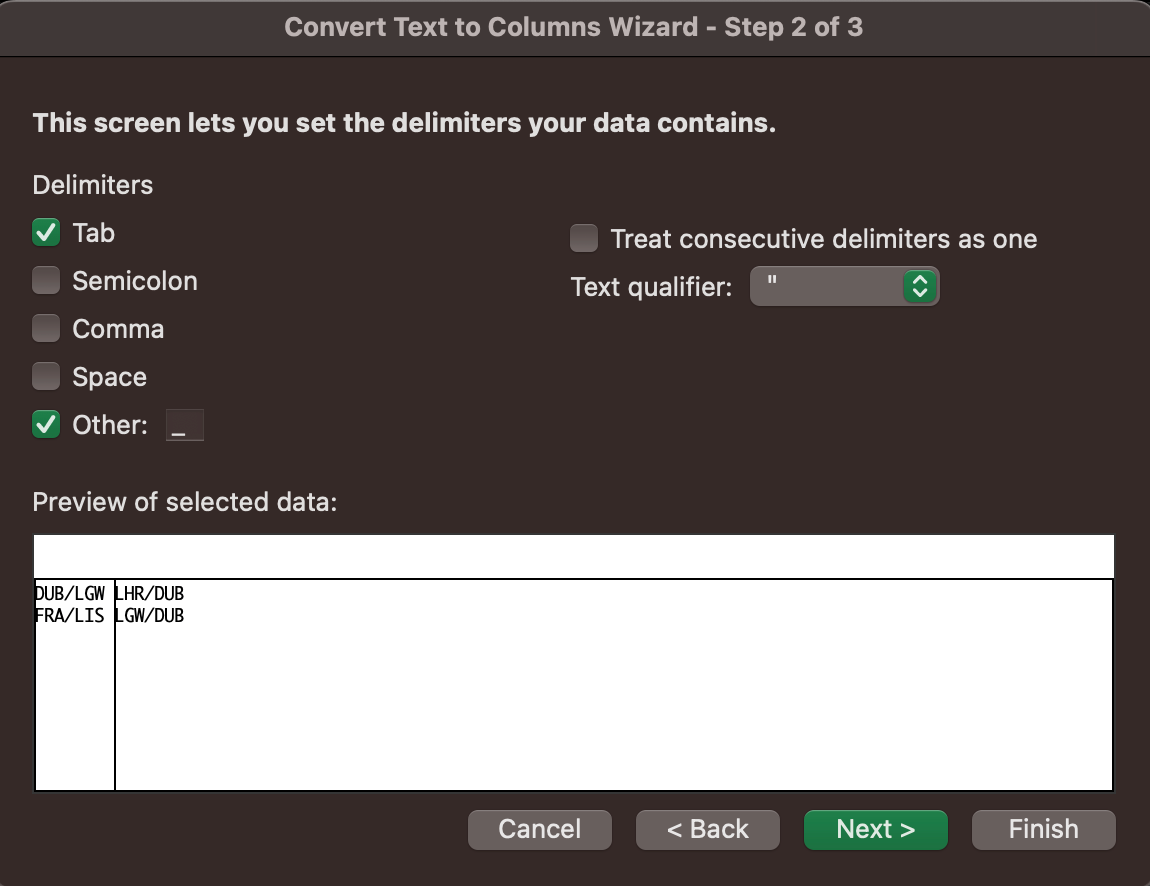
Next specify the delimiter, in this example we have chosen “Other” and specified “_”. Once you’ve pressed through all the pop-outs click finish and your itinerary will be separated out. Make sure to include the additional column of itineraries as additional rows at the bottom of your spreadsheet.
Currency
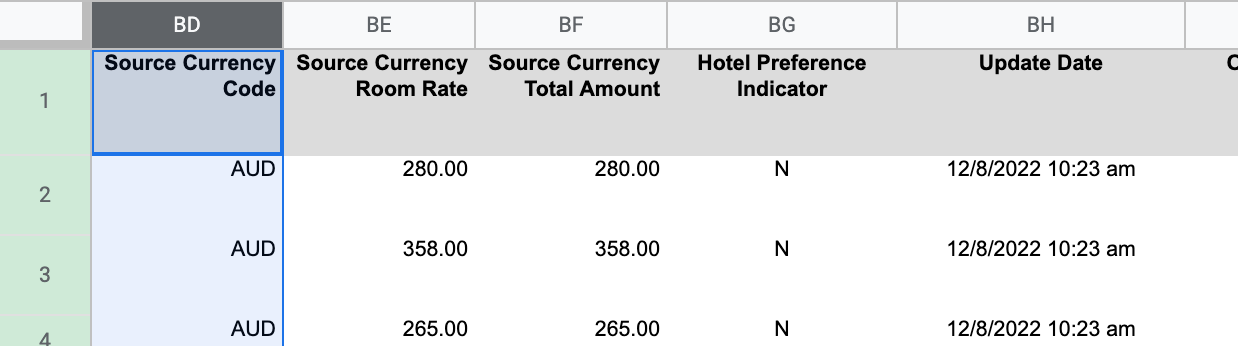
The default currency of an instance will automatically apply to all costs.
Car type
For car type, we accept a choice of the four-letter ACRISS code or the following list of car types:
MINI
SUPERMINI
LOWER_MEDIUM
UPPER_MEDIUM
EXECUTIVE
LUXURY
SPORTS
DUAL_PURPOSE_4X4
MPV
SMALL_CAR
MEDIUM_CAR
LARGE_CAR
AVERAGE_CAR
SMALL_MOTORBIKE
MEDIUM_MOTORBIKE
LARGE_MOTORBIKE
AVERAGE_MOTORBIKE
Note: if an unknown car type is used the Thrust Calculator will default to average car.
Refunds and Exchanges
Refunds and Exchanges are an important part of the data upload process. Travel segments that have been refunded or exchanged have not occurred, hence no carbon emissions are associated with these. As such the Thrust Calculator removes these refunded segments. In addition the Thrust Calculator matches the refunded or exchanged segments with original bookings made within the uploaded spreadsheet or spreadsheets that have been previously uploaded. These original bookings that match with a row marked as a refund or exchange are then also removed from the upload so no carbon emissions are associated with those segments.
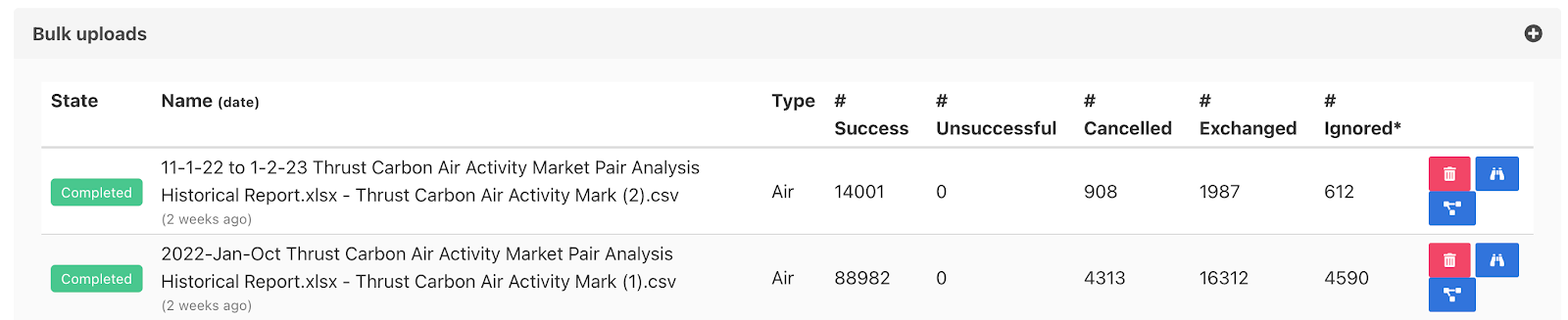
The Thrust Calculator tracks the number of cancelled and exchanged segments, as shown below.
Making Valid Refund and Exchange Columns
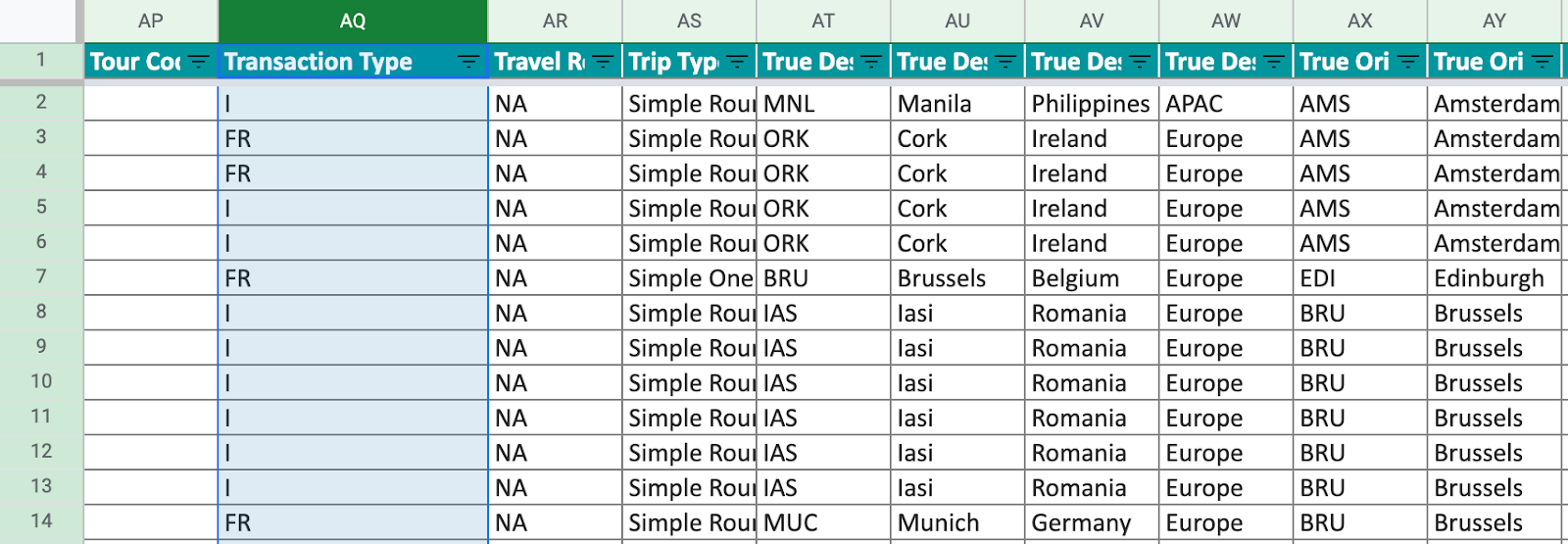
For the Thrust Calculator to be able to process the refunds and exchanges it is necessary to have 2 separate columns within the spreadsheet, one for refunds and one for exchanges. In some cases your refund/exchange data will be formatted in one column, as shown below.
As shown below the "Transaction Type" column has been separated into a Refund and Exchange column. Make sure that only refunded segments are included in the refund column and likewise with exchanges in the exchange column.
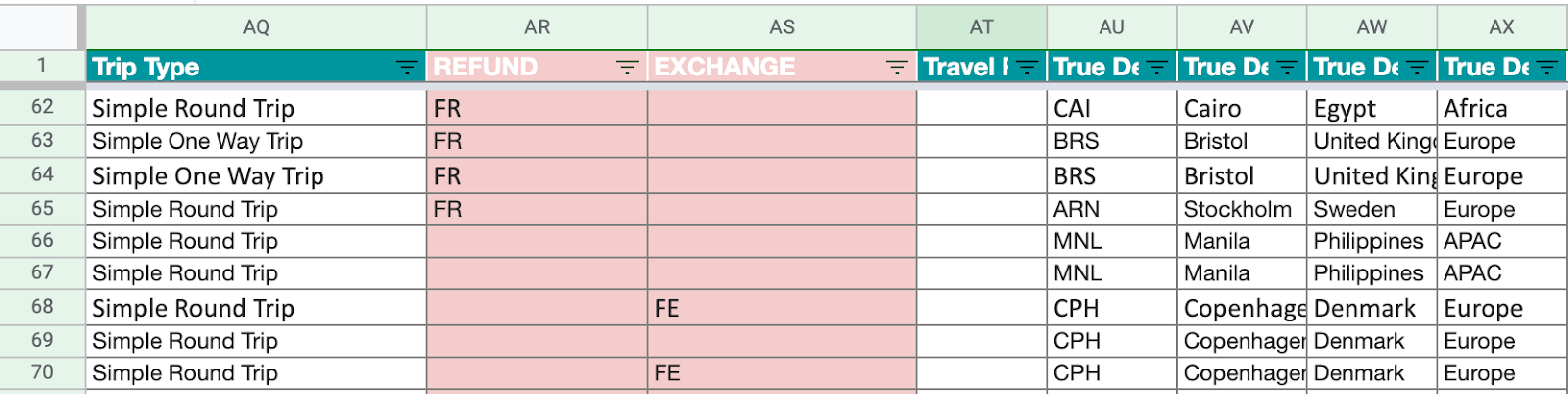
Recognised refund / exchange values
Once two separate columns have been created for the refunds and exchanges you will need to ensure that the values within these columns are accepted by the Thrust Calculator:
The values the Thrust Calculator recognises as an exchange are:
Y, FE, TRUE, 1
The values the Thrust Calculator recognises as a refund are:
YES, Y, CANCELLED, TRUE, 1, PARTIAL, P, FR, PR, V
Choosing a Unique Segment Identifier
The Thrust Calculator uses the Unique Segment Identifier to "match" rows which are tagged as refunds or exchanges with the original booking row. This means that both the refunded row and the associated original booking row are removed from the calculation. If a Unique Segment Identifier is not included in the upload then these original bookings that are in reality cancelled will have a carbon emission attributed to them.
How to create a Unique Segment Identifier?
The unique segment can contain multiple columns from the spreadsheet. However it is often possible to use one column as the unique segment, such as “ticket number”. Common examples of using multiple columns to achieve a unique segment are:
PNR + Ticket number
PNR + employee ID
Ticket number + mileage (absolute value)
Note: Try not to make your unique identifier too unique. Things often change between records (e.g. names become initials, etc).
It is recommended to do a spot check of the refunded rows and the chosen Unique Segment Identifier within your spreadsheet to ensure that it genuinely matches an original segment with its alterations.
Class of Travel
Make sure the “class” of travel corresponds with the below table. Note that if the calculator does not recognise the class it will error and the row will not be processed. If a “class” field is empty the Thrust Calculator will default the class of travel to economy.
For instances where the spreadsheet has both a ‘class’ and ‘fare’ column with a letter, we would suggest using the ‘class’ column, since some airlines use unusual fare codes which the Thrust Calculator will not recognise.
Economy | Premium Economy | Business | First |
|
|
|
|
Air & Rail
Air and rail segments are frequently found in the same spreadsheet. Hence we recommend to double check the rows in both rail and air sheets to see if the correct “travel mode” has been assigned to the row.
Was this article helpful?
That’s Great!
Thank you for your feedback
Sorry! We couldn't be helpful
Thank you for your feedback
Feedback sent
We appreciate your effort and will try to fix the article